Schedule Post is like a mailbox with a timer ?. You write a post now. It goes live later, by itself. You can write it yourself, or let AI write it.
Little words, big meanings
| Word | What it means |
|---|---|
| Draft | a post saved but not yet timed |
| Scheduled post | a draft waiting for its time |
| AI credit | one credit pays for one AI post |
| Instructor | the person the post is published as |
Before You Start
RequiredAssign an Instructor to the community first. Do this before you use Schedule Post. Steps 1 and 2 show how.
Schedule a Post in 8 Steps
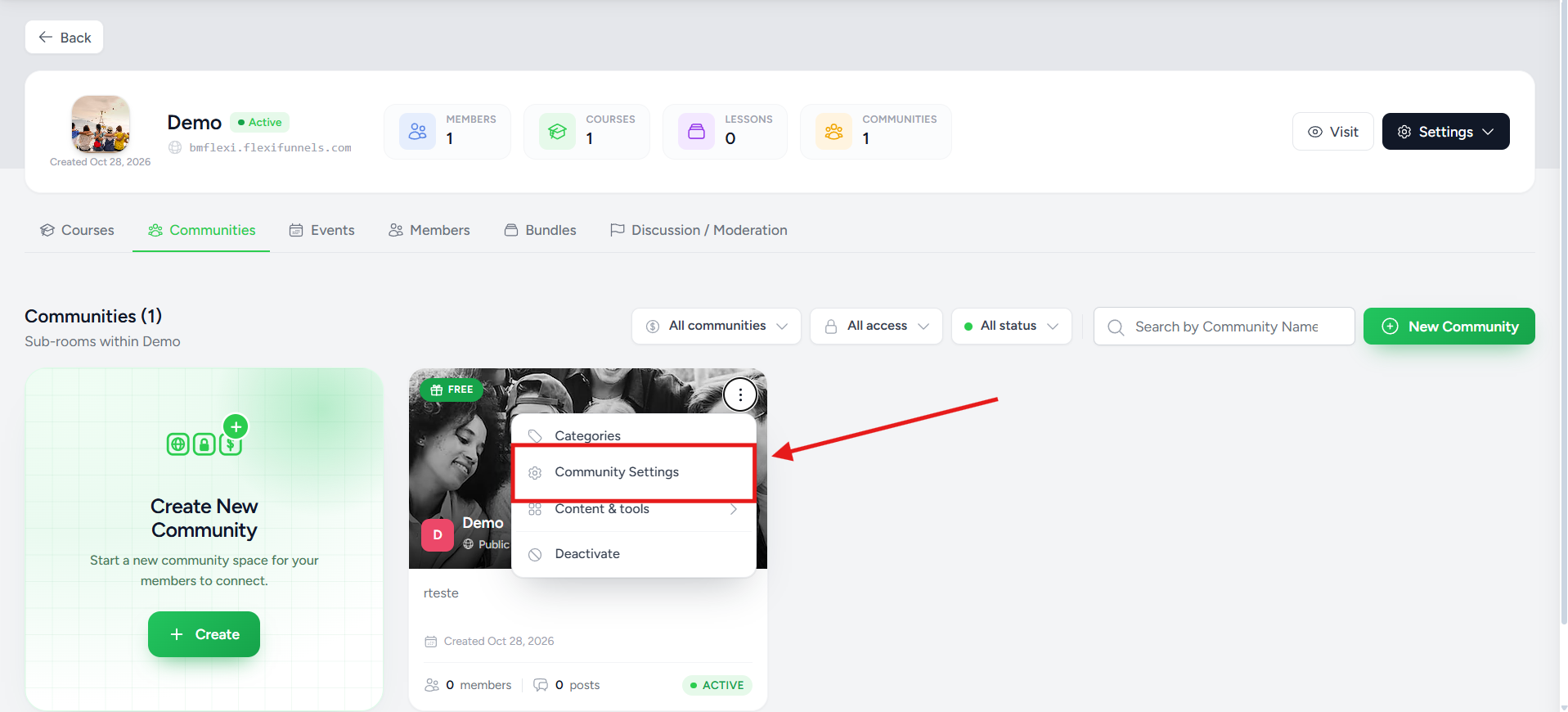
1Open Community Settings
- Go to My Membership → Communities
- Find your community
- Click its three-dot menu
- Click Community Settings
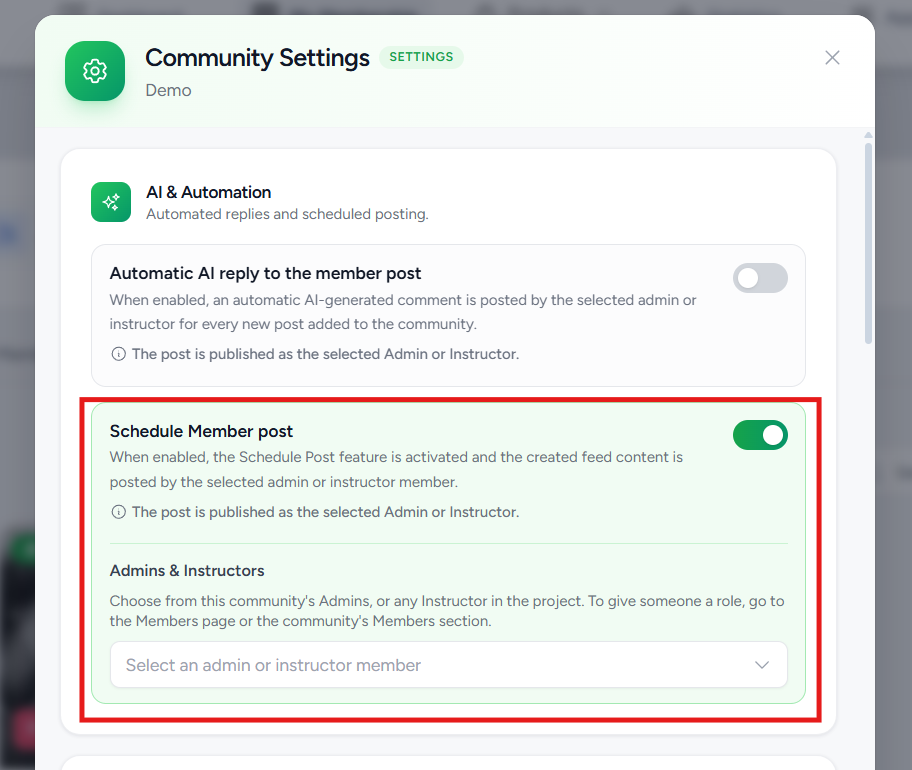
2Turn on Schedule Member post and pick the instructor
- Open AI & Automation
- Switch on Schedule Member post
- Under Admins & Instructors, pick the instructor who will publish the content
- Can't find them? Use the search box
- Save the settings
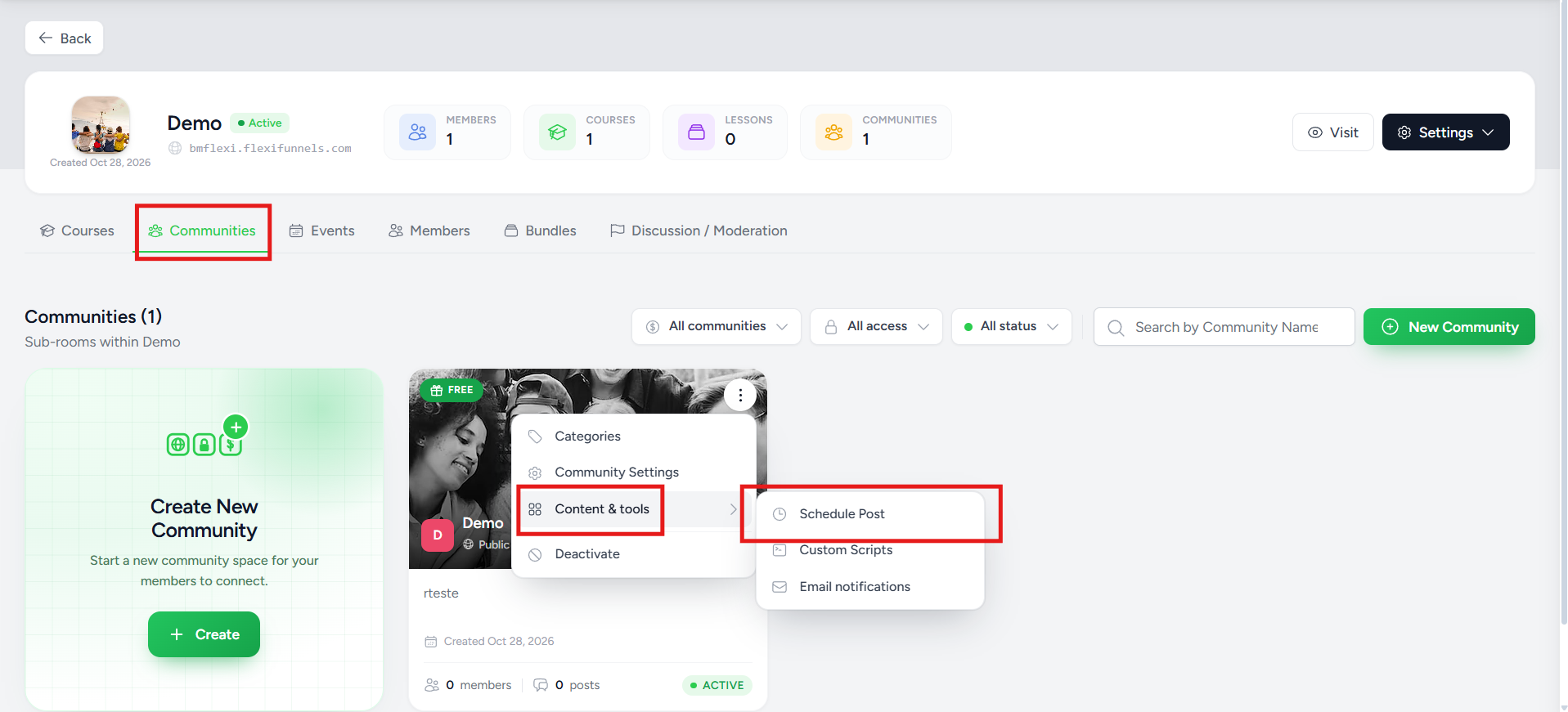
3Open Schedule Post
- Go to My Membership → Communities
- Click your community's three-dot menu
- Click Content & tools
- Click Schedule Post
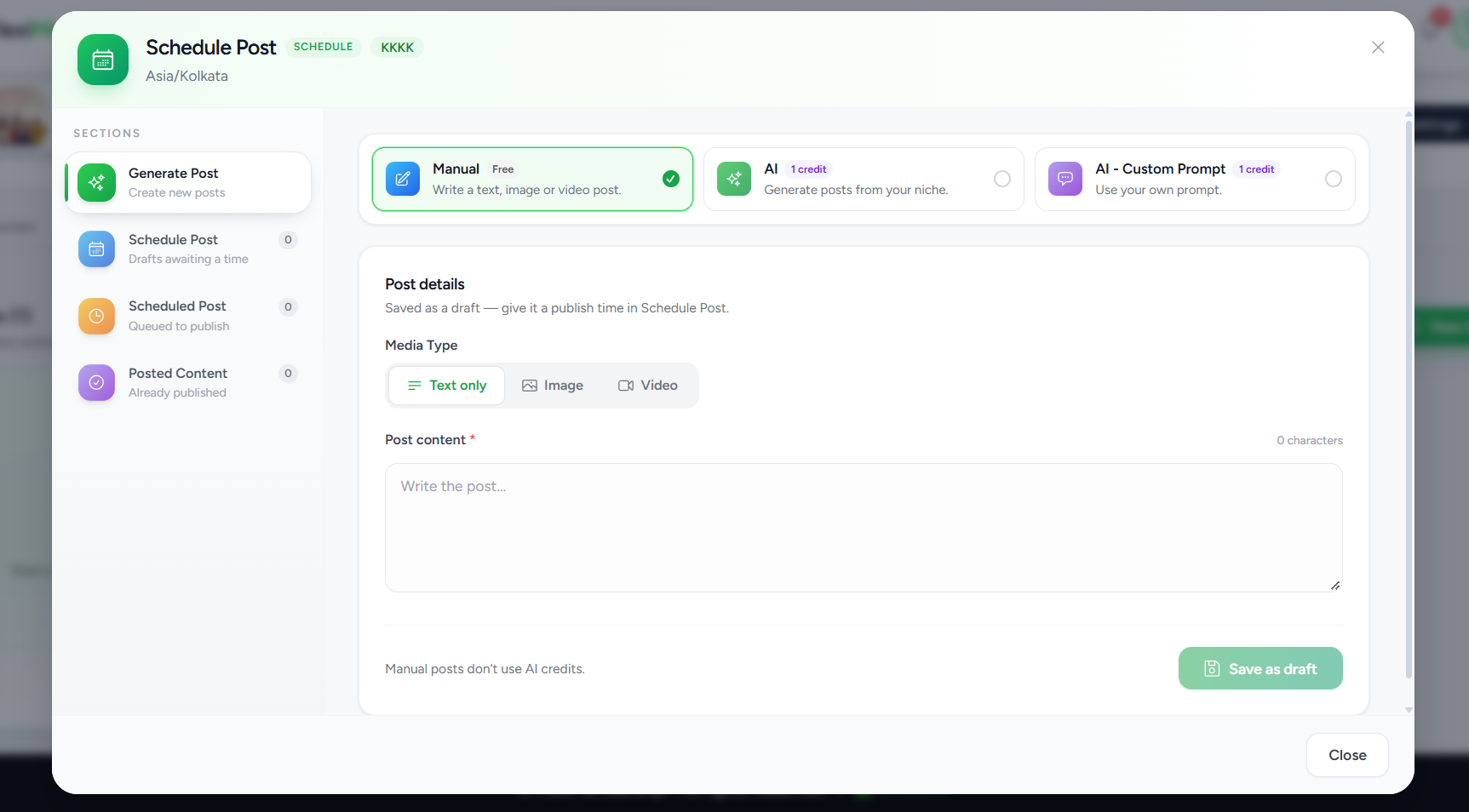
You will see: the Schedule Post window with 4 sections on the left: Generate Post, Schedule Post, Scheduled Post and Posted Content. The community's time zone (like Asia/Kolkata) shows at the top. All publish times use it.
4Choose how to make the post
- Open Generate Post
- Pick one of the 3 options below
| Option | What it does | Cost |
|---|---|---|
| Manual | You write a text, image or video post yourself | Free |
| AI | AI writes posts about your community niche | 1 Community AI credit per post |
| AI - Custom Prompt | AI follows your own instructions | 1 Community AI credit per post |
Option A: Manual
- Click Manual
- Pick Text only, Image or Video
- Write in the Post content box
- Click Save as draft
 Option B: AI
- Click AI
- Type the Community Niche the posts should be about
- Pick the Language
- Pick the Number of Posts
- Click Generate
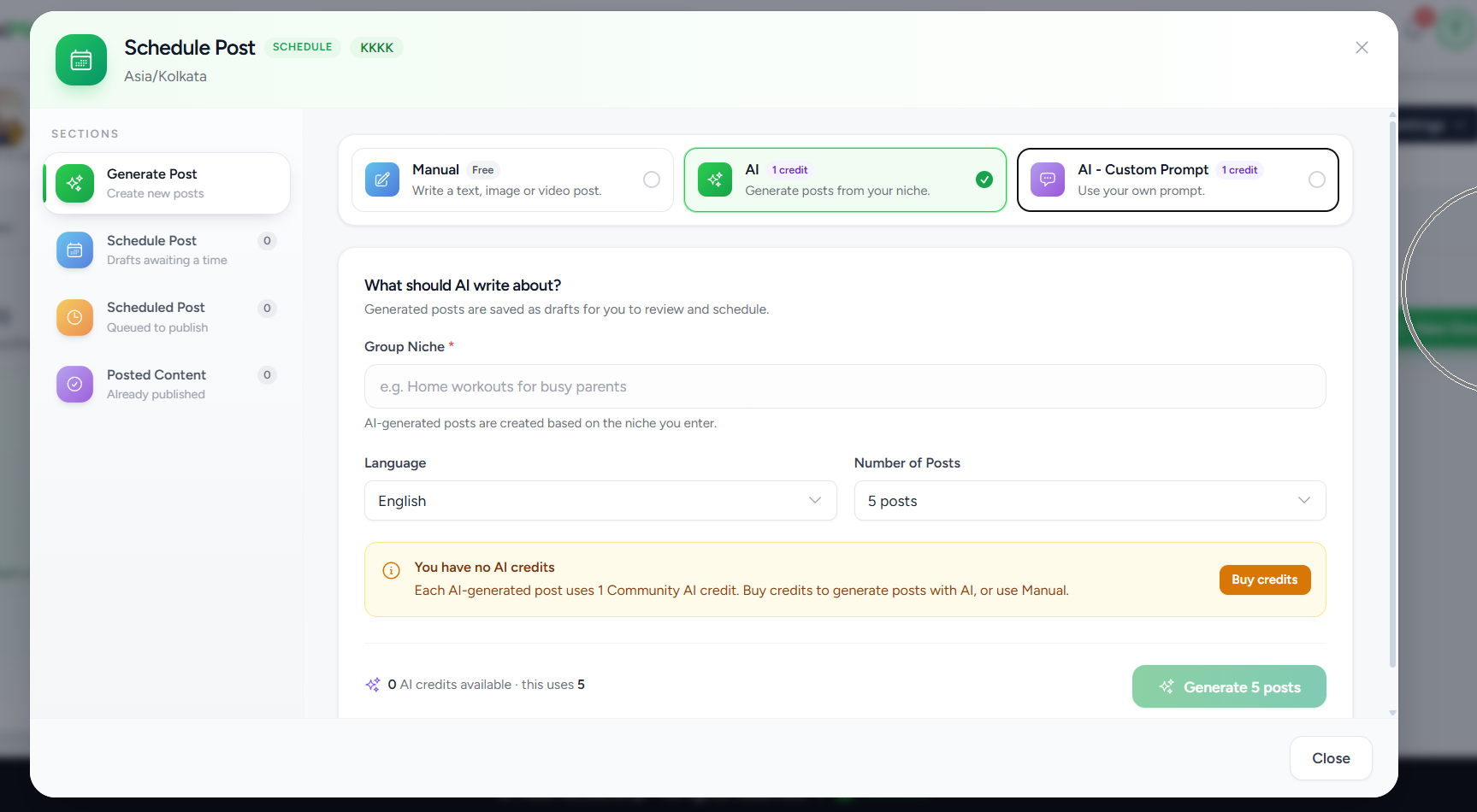
AI creditsNot enough credits? The screen shows Buy credits. It also suggests using Manual.
Option C: AI - Custom Prompt
- Click AI - Custom Prompt
- Type your instructions in the Custom Prompt box
- Pick the language and number of posts
- Click Generate
- Example: ask for one tip per post, a friendly tone and a closing question
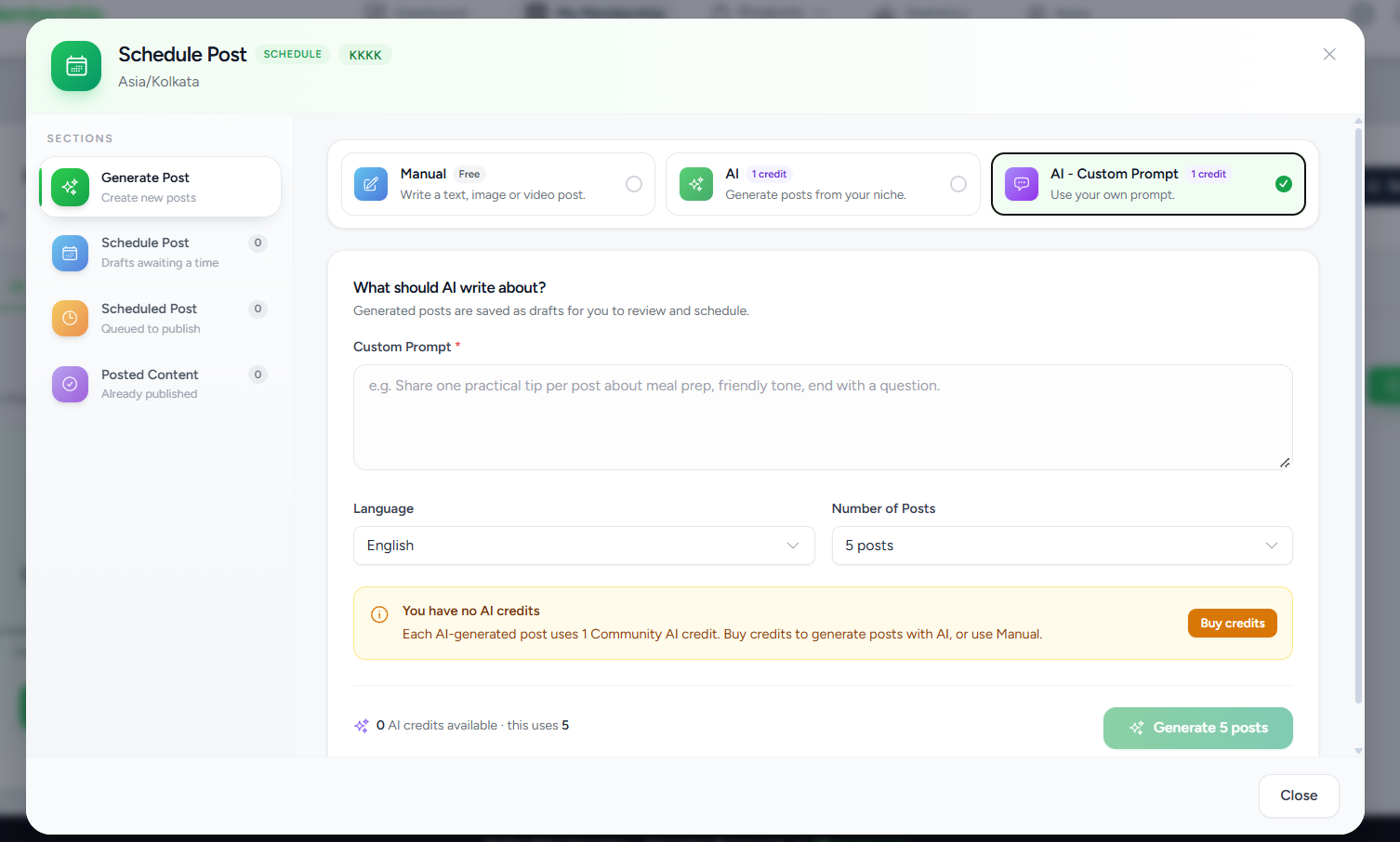
You will see: your new posts saved as drafts. Nothing is published yet.
5Give each draft a date and time
- Open Schedule Post in the left menu. It shows how many drafts are waiting
- Find the draft. It shows its title and type, like Text
- Click Set date & time
- Pick the date and time
- Click Schedule
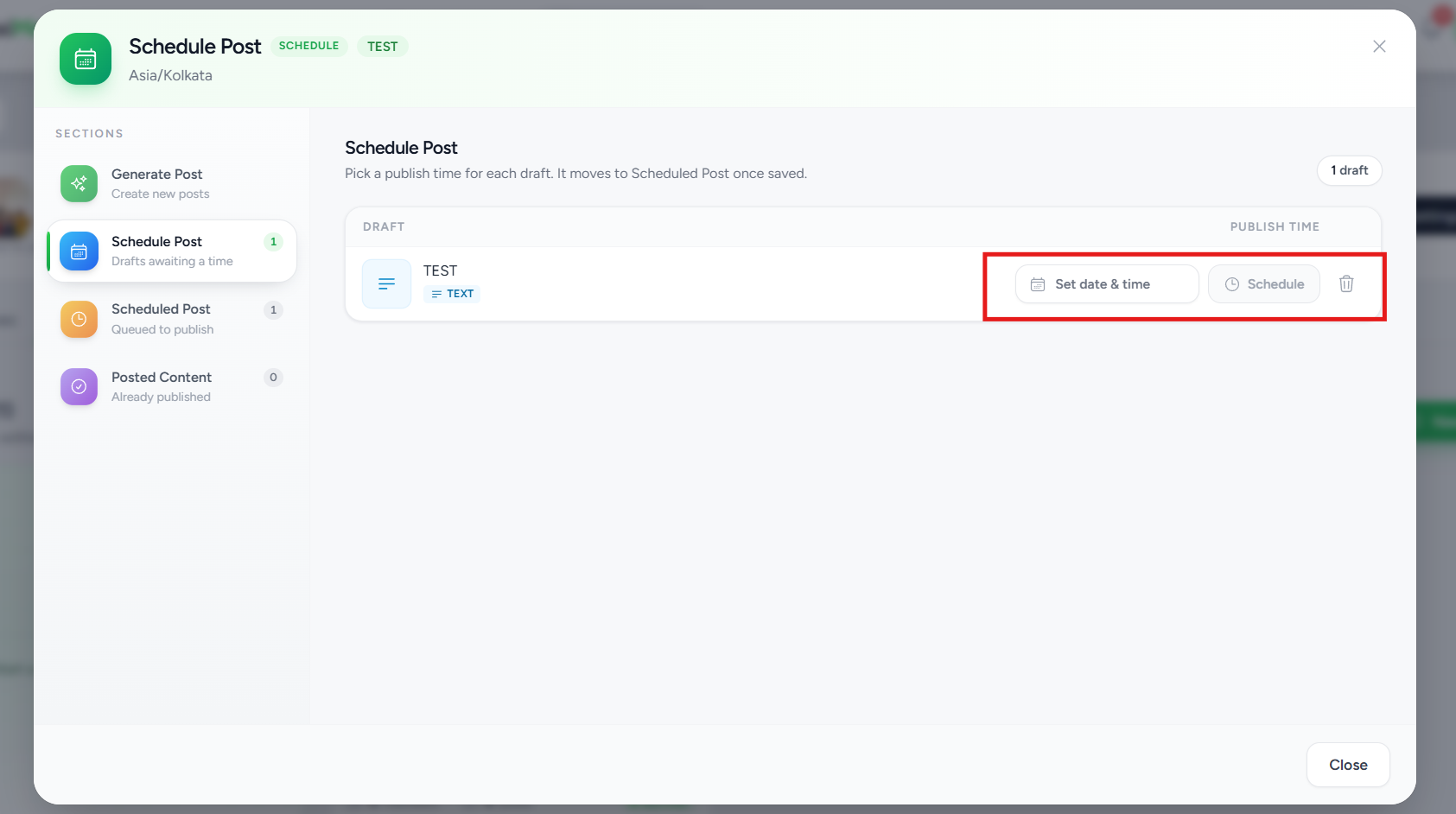
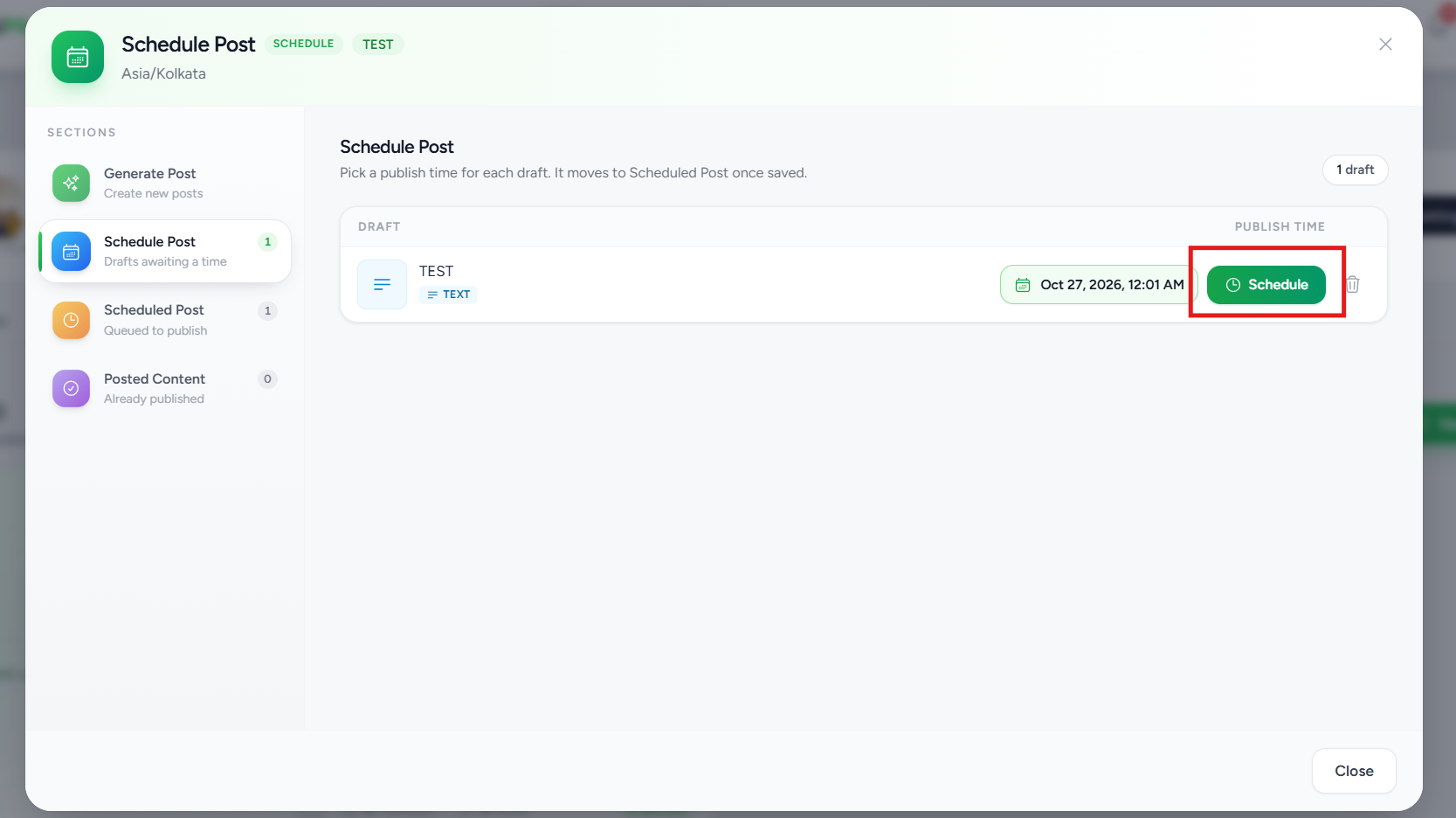
You will see: the post moves to Scheduled Post and waits in line to publish.
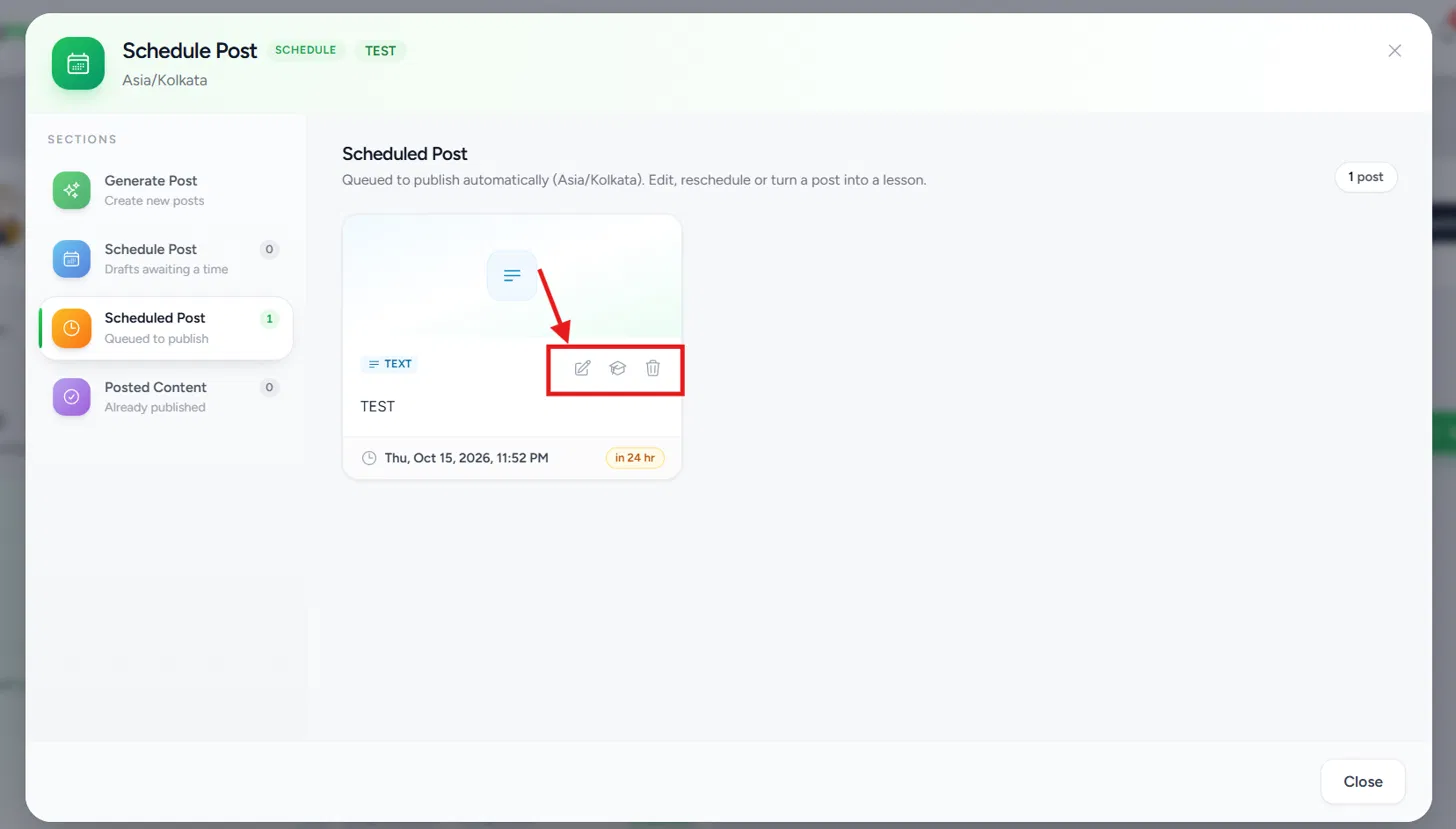
6Manage your scheduled posts
- Open Scheduled Post
- Each card shows the type, a preview and the date and time
- It also shows the time left, like in 24 hr
| Icon | What it does |
|---|---|
| Edit (pencil) | Edit the post or change its time |
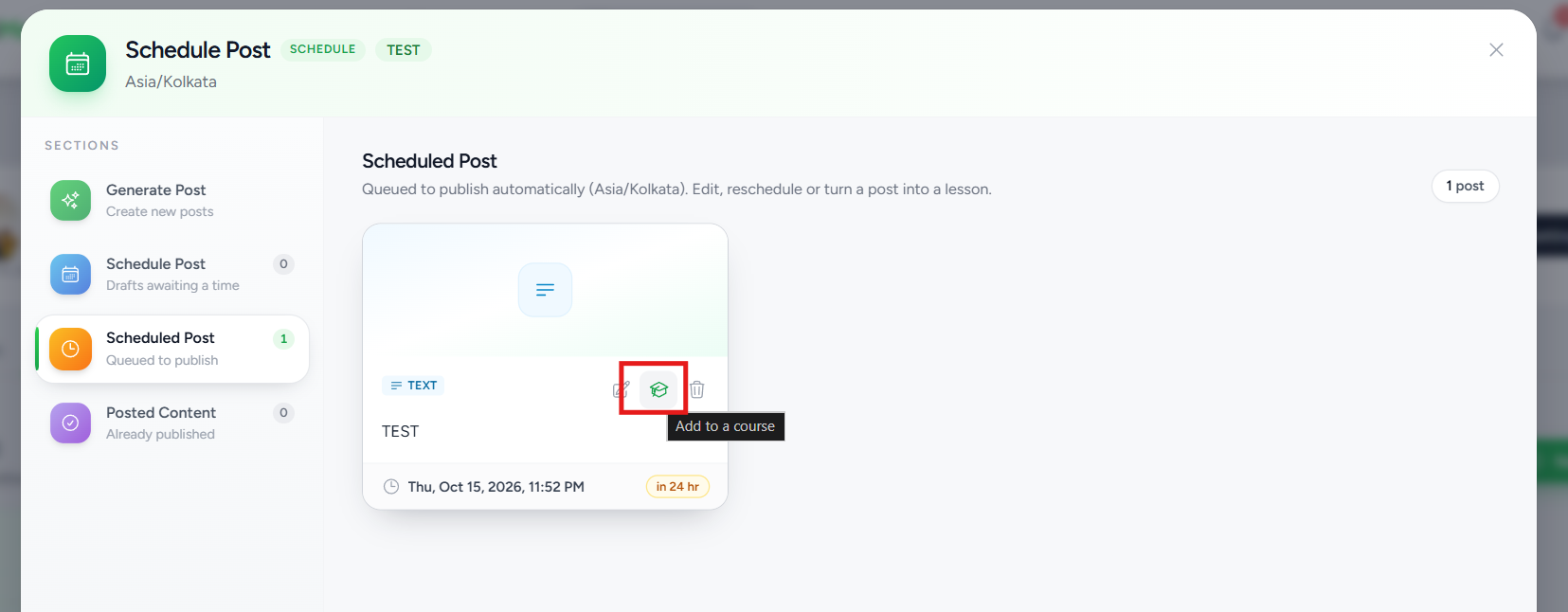
| Add to a course (graduation cap) | Turn the post into a lesson. See Step 7 |
| Delete (trash) | Remove the scheduled post |
7Add a post to a course (optional)
- On the post card, click the graduation cap. It says Add to a course
- In the window, turn on Add this post to a course
- Type a Lesson Title. Blank? The first line of the post is used
- Pick the Course
- Pick the Module
- Under Select Bundles, tick the bundles that should see this lesson
- Click Save. To close with no changes, click Cancel
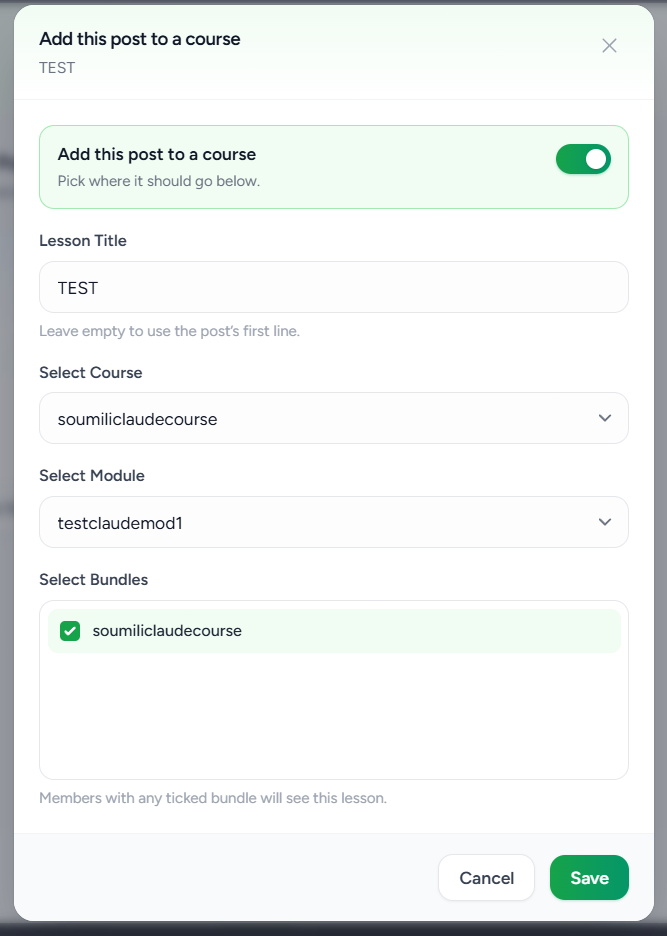
Good to knowMembers with any ticked bundle will see the lesson.
8Check your published posts
- Open Posted Content
- It shows scheduled posts that already went live in the community
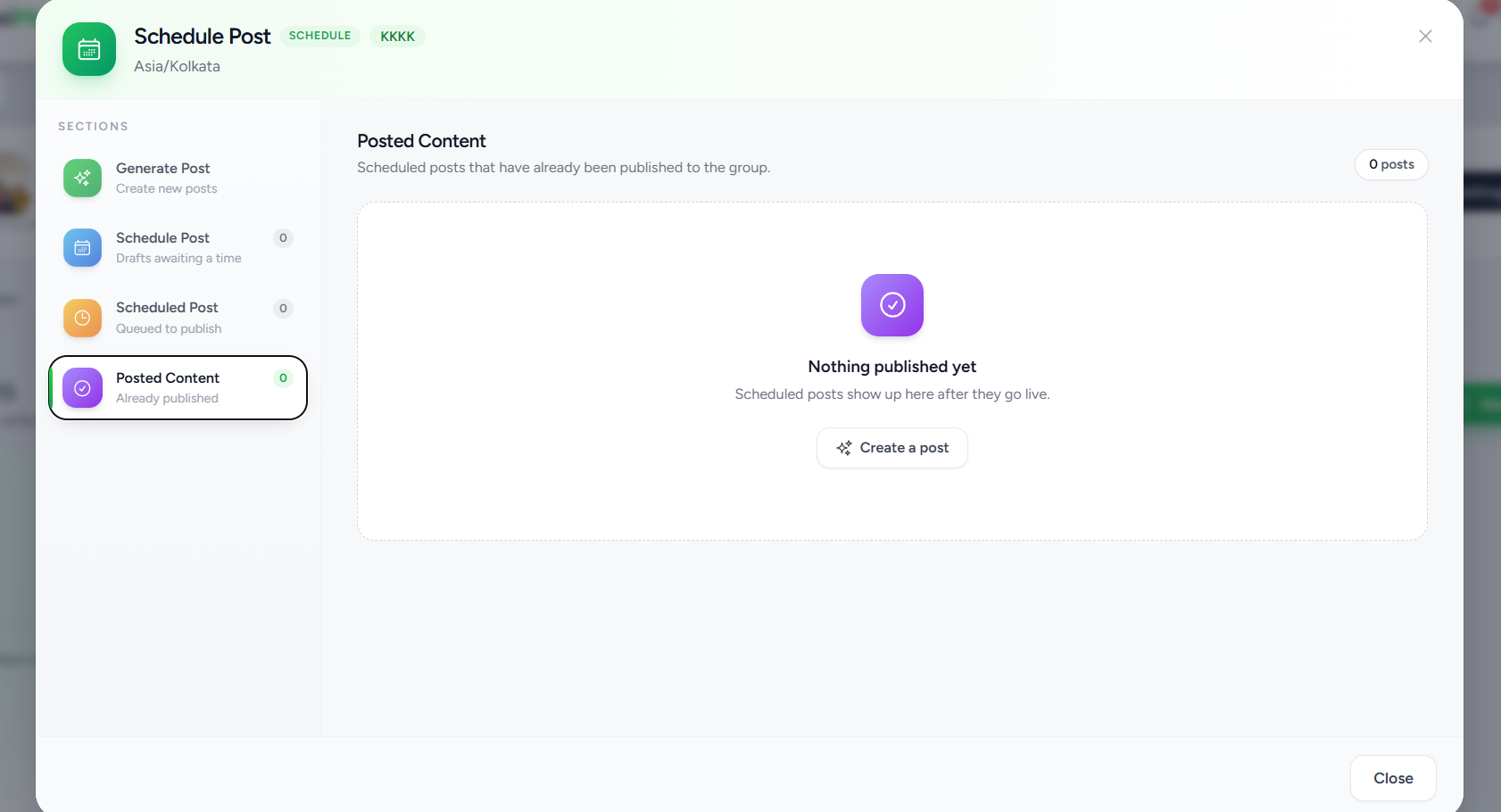
You will see: your post in Posted Content after it goes live.
Quick Fixes
| Problem | Fix |
|---|---|
| Schedule Post is missing | Check you opened the right community. Use Content & tools → Schedule Post |
| My post is only a draft | Open Schedule Post. Click Set date & time, pick a time, click Schedule |
| The Schedule button is grey | Set a date and time on the draft first |
| AI will not generate | Check your Community AI credits. Each post uses 1 |
| I cannot find the instructor | Open Community Settings → AI & Automation. Check Admins & Instructors |
| The post is not live as expected | Check an instructor is assigned and the schedule is saved. Check the time against the community time zone at the top of Schedule Post |
Was this article helpful?
That’s Great!
Thank you for your feedback
Sorry! We couldn't be helpful
Thank you for your feedback
Feedback sent
We appreciate your effort and will try to fix the article