Multi-currency lets buyers pay in their own money. It is like a shop that takes rupees, dollars and dirhams. You can set it on products, bumps and coupons.
✅ Before You Start
- Build your funnel pages first: sales page, checkout page and thank-you page.
- Connect a payment gateway for each currency you want to sell in.
- Razorpay, Cashfree and Instamojo accept INR only. At checkout they show only when the buyer pays in INR.
- Stripe, PayPal and Paddle cover most other currencies. PayPal cannot take INR.
Little words, big meanings
| Word | What it means |
|---|---|
| Base price | your main price and currency |
| Market rate | official daily exchange rate (ECB) |
| Pay in switch | currency picker buyers see at checkout |
| Bump | small add-on offer at checkout |
| Fixed Price coupon | takes off a set amount |
? The 3 Pricing Types
You will see these 3 options on products and bumps.
| Option | What it does |
|---|---|
| Manual | You type the exact price for each currency. It does not change by itself. |
| Automatic: choose currencies | You pick the currencies. Your base price is converted at the market rate. |
| Automatic: visitor's currency | Each visitor sees your price in their local currency, at the market rate. It depends on the visitor's country. |
?️ Part A: Multi-Currency on a Product
1 Open Payment & Pricing
- Open your product.
- Click Payment & Pricing in the left menu.
- Add a pricing and pick your pricing model.
- On Configure Details, check the Currency and enter the Price.
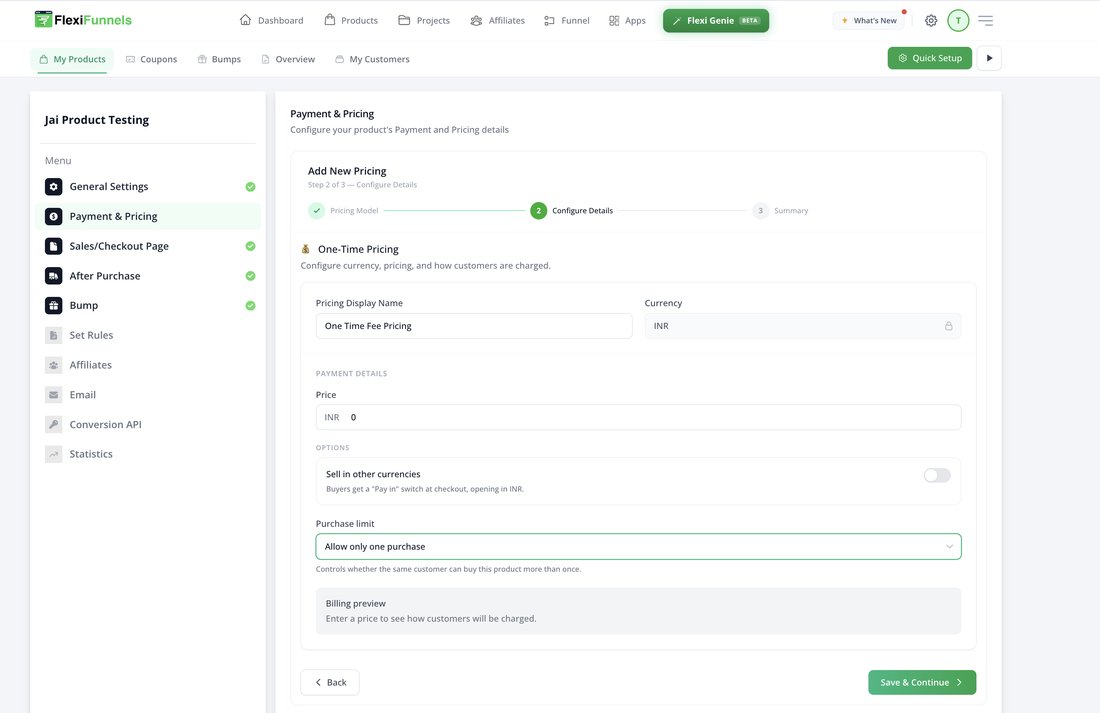
This currency and price are your base price.
2 Turn on Sell in other currencies
- Under Options, turn on the Sell in other currencies switch.
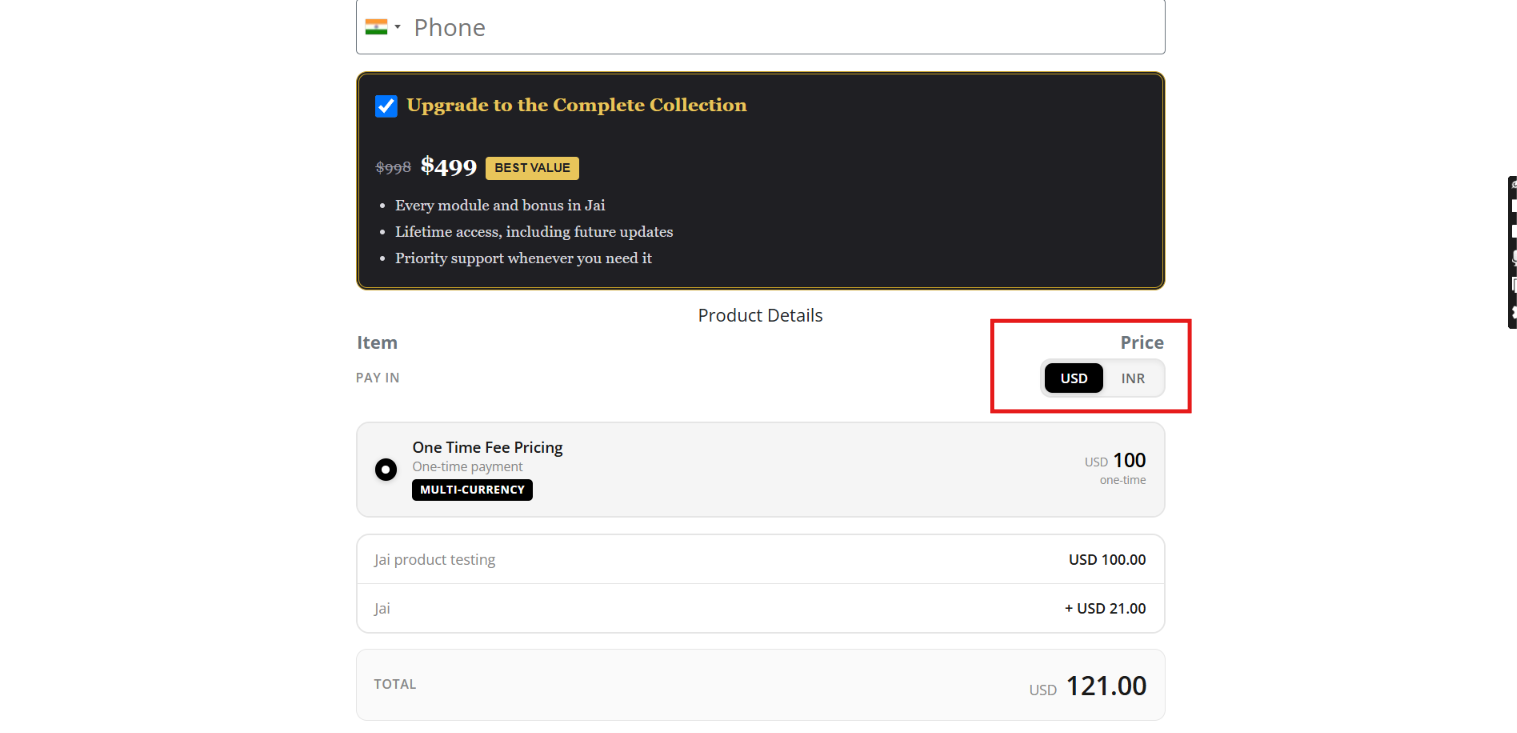
- Buyers will get a Pay in switch at checkout.
- Checkout opens in your base currency first.

Switch on. The 3 pricing types appear.
3 Pick one pricing type
Option A: Manual
- Select Manual.
- Under Currencies, pick a currency (for example INR (₹)).
- Type the exact Price for that currency.
- Under Accept INR with (it shows the currency you picked), tick the gateway(s).
- Need more? Click + Add currency.
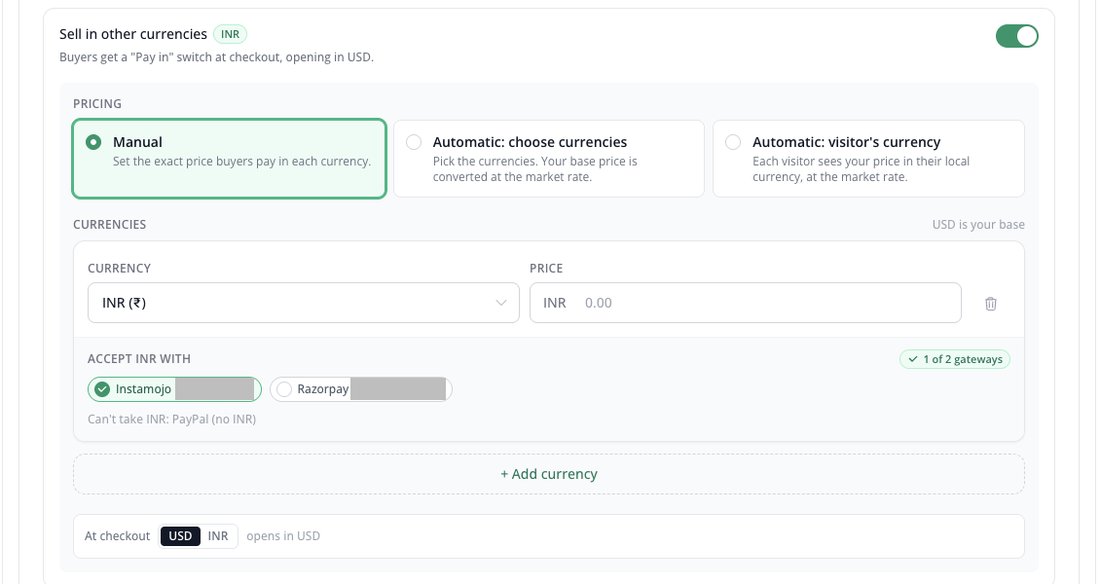
Manual: you set the exact INR price.
Live Preview:
Option B: Automatic: choose currencies
- Select Automatic: choose currencies.
- Pick the currencies you want. Use + Add currency for more.
- The price fills in by itself (for example ≈ INR 95.16).
- Tick the gateway(s) under Accept INR with.
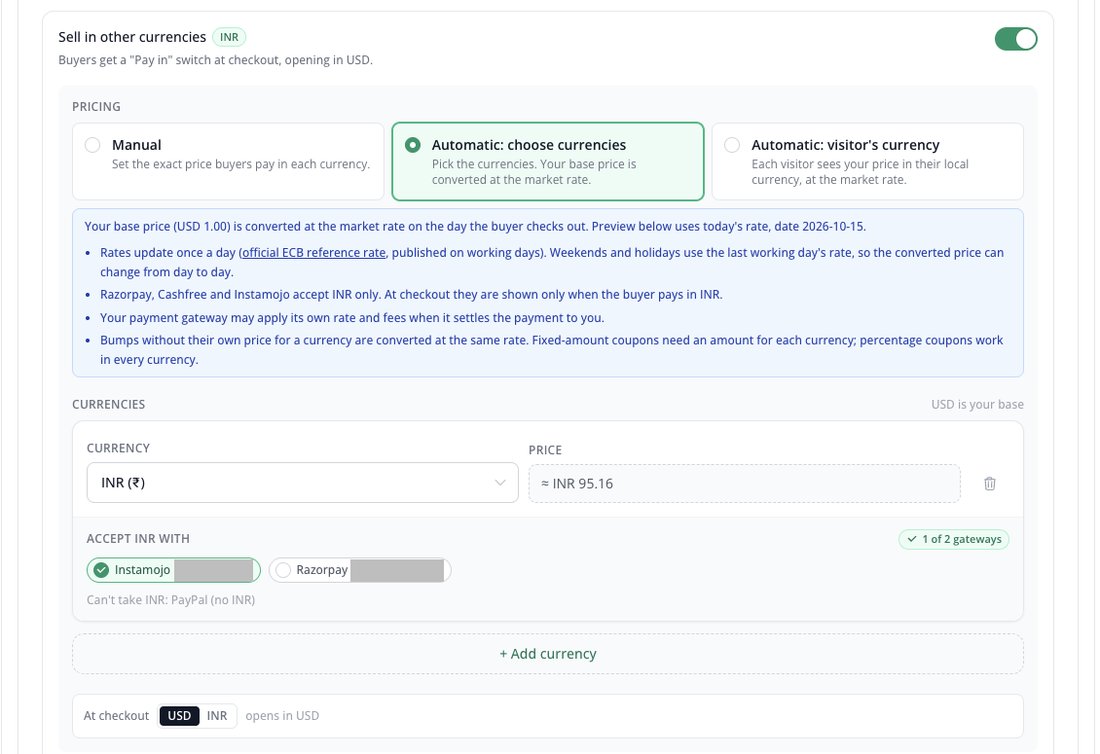
The ≈ price is a preview at today's rate.
Live Preview:
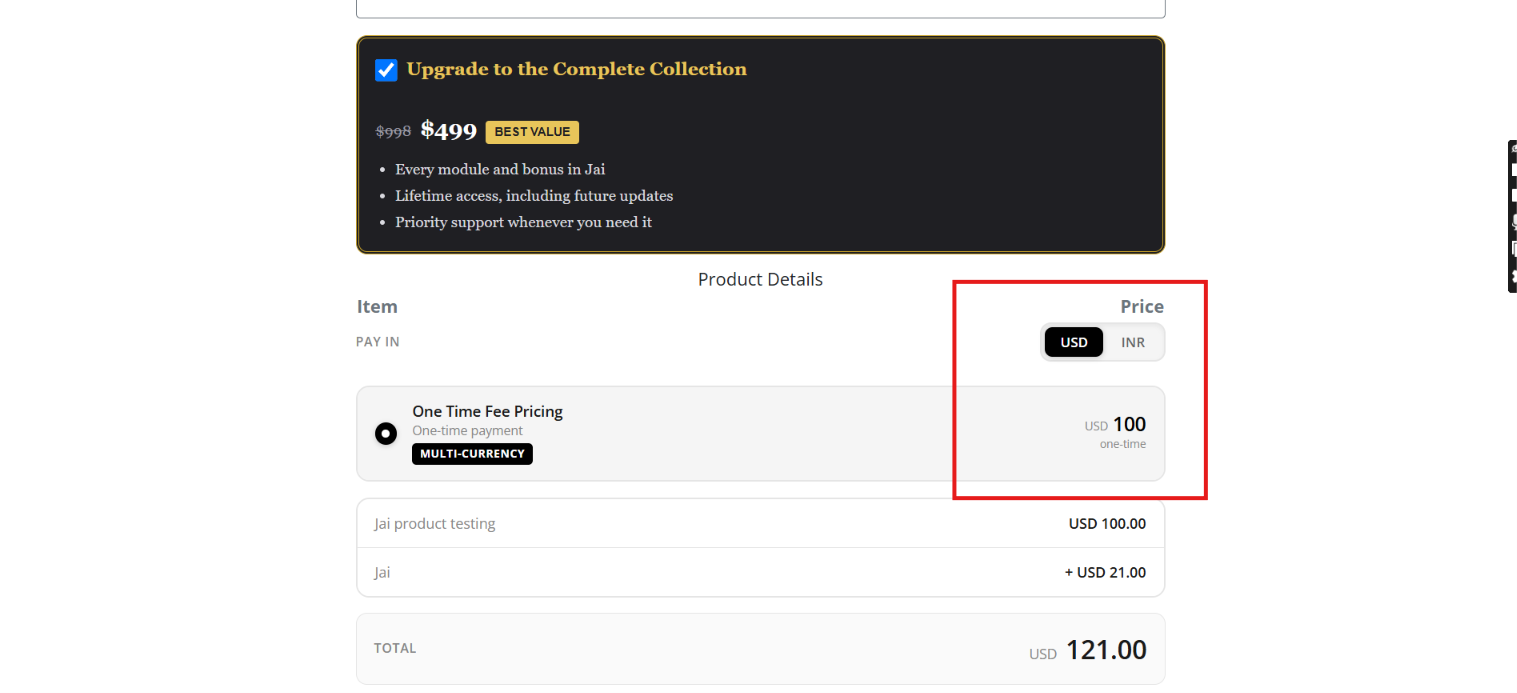
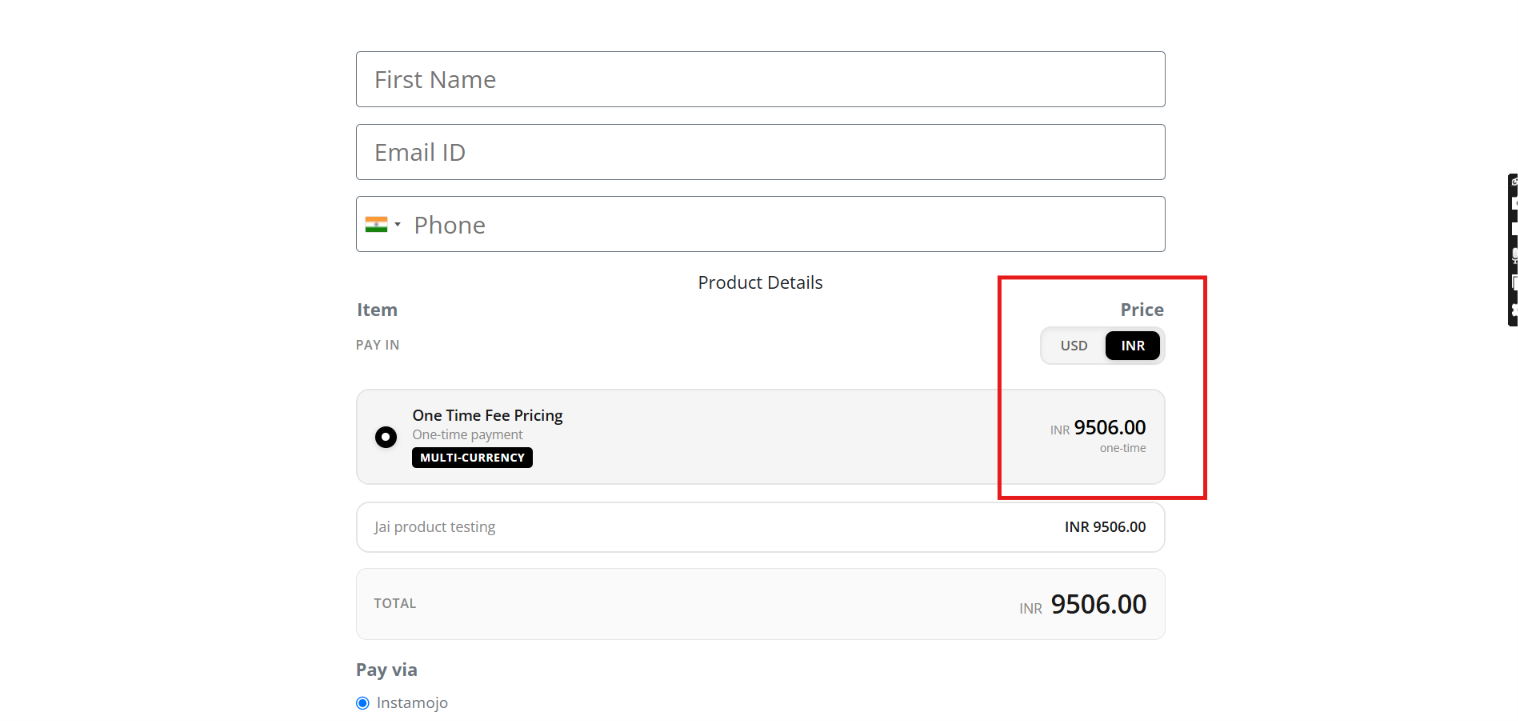
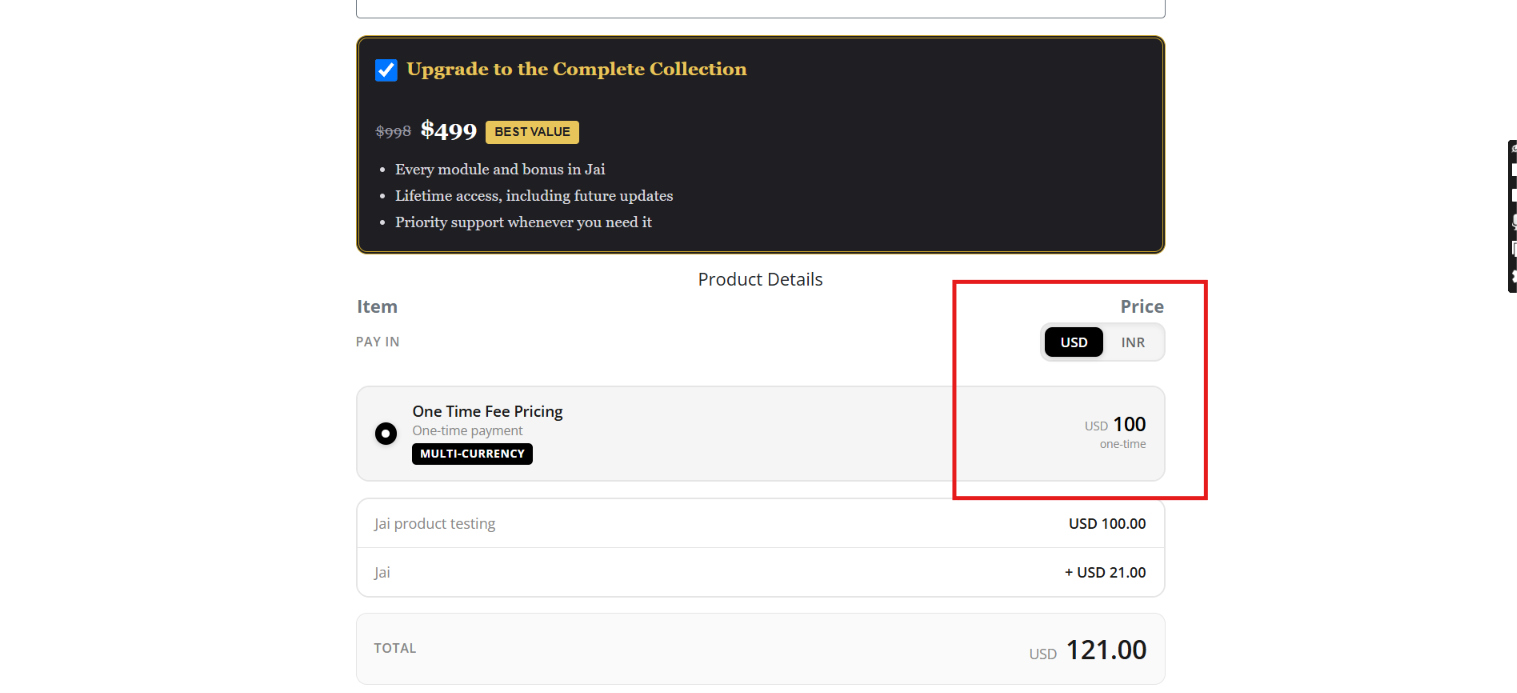
Option C: Automatic: visitor's currency
- Select Automatic: visitor's currency.
- Under Accept visitors' currencies with, tick your gateways.
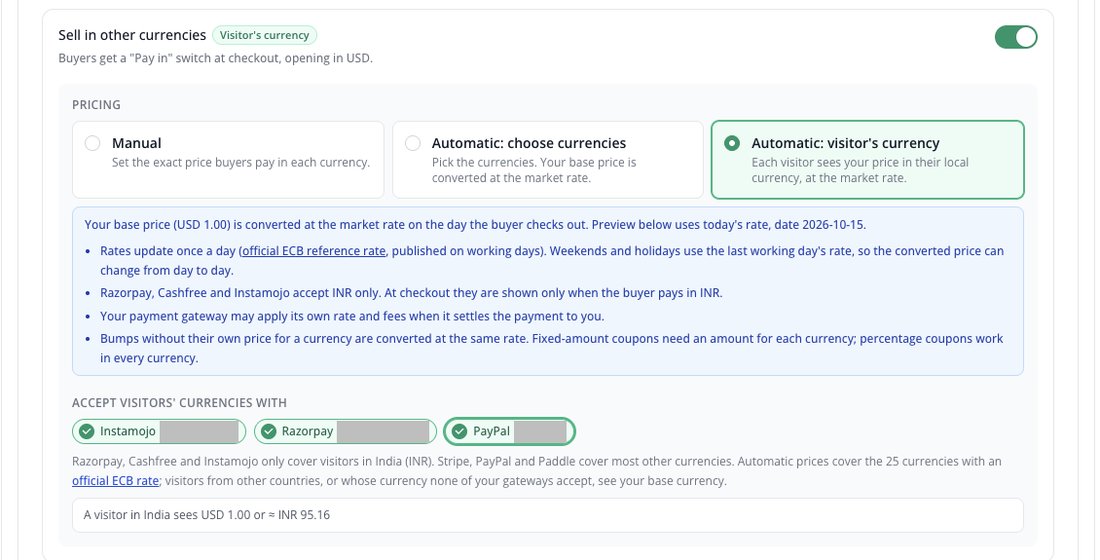
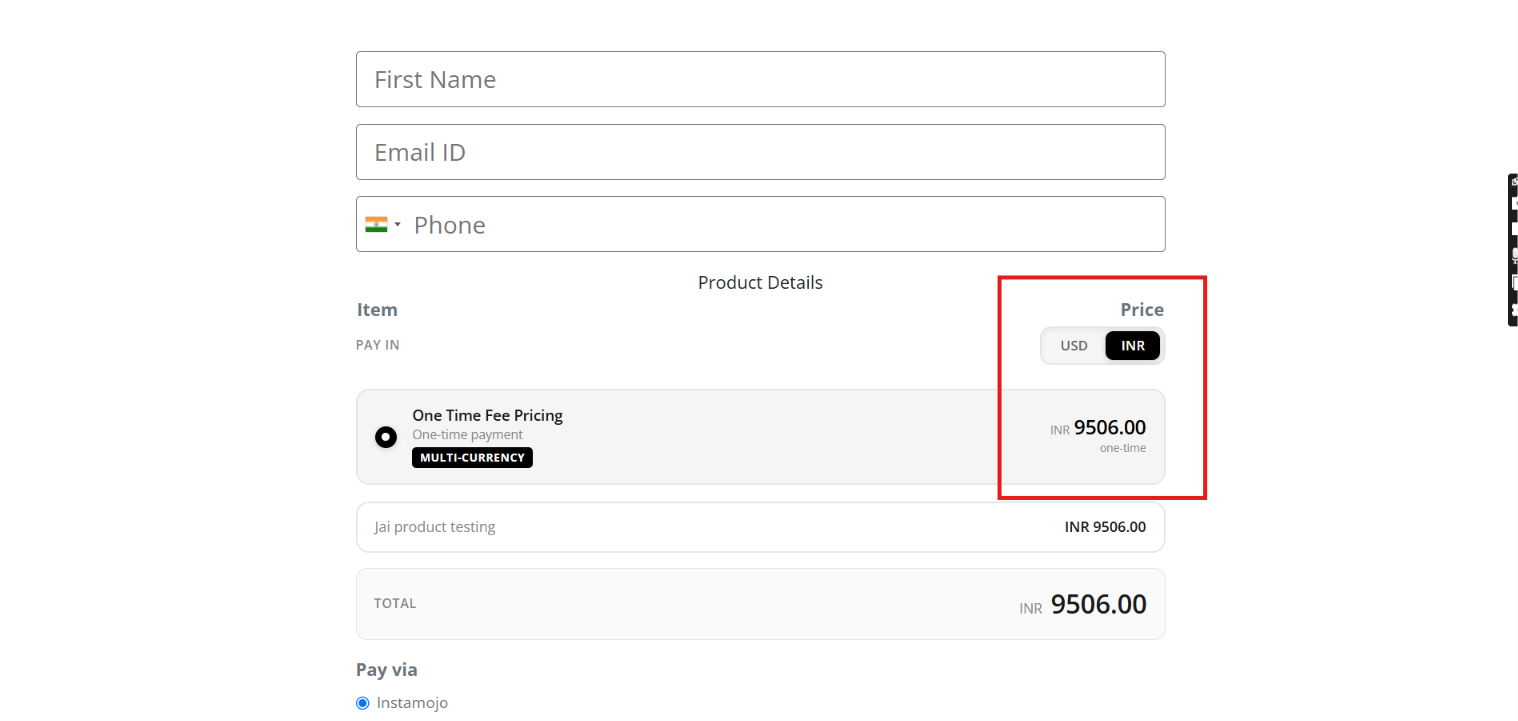
Visitor's currency: the price follows the buyer's country.
4 Save, finish the product and republish
- Click Save & Continue and finish the Summary.
- Connect your sales, checkout and thank-you pages to the product.
- Finish the rest of the product setup.
- Republish your sales page, checkout page and thank-you page.
? Part B: Multi-Currency on a Bump
5 Open the bump Pricing tab
- Go to Products → Bumps and create a new bump.
- Fill in the Details tab first.
- Open the Pricing tab.
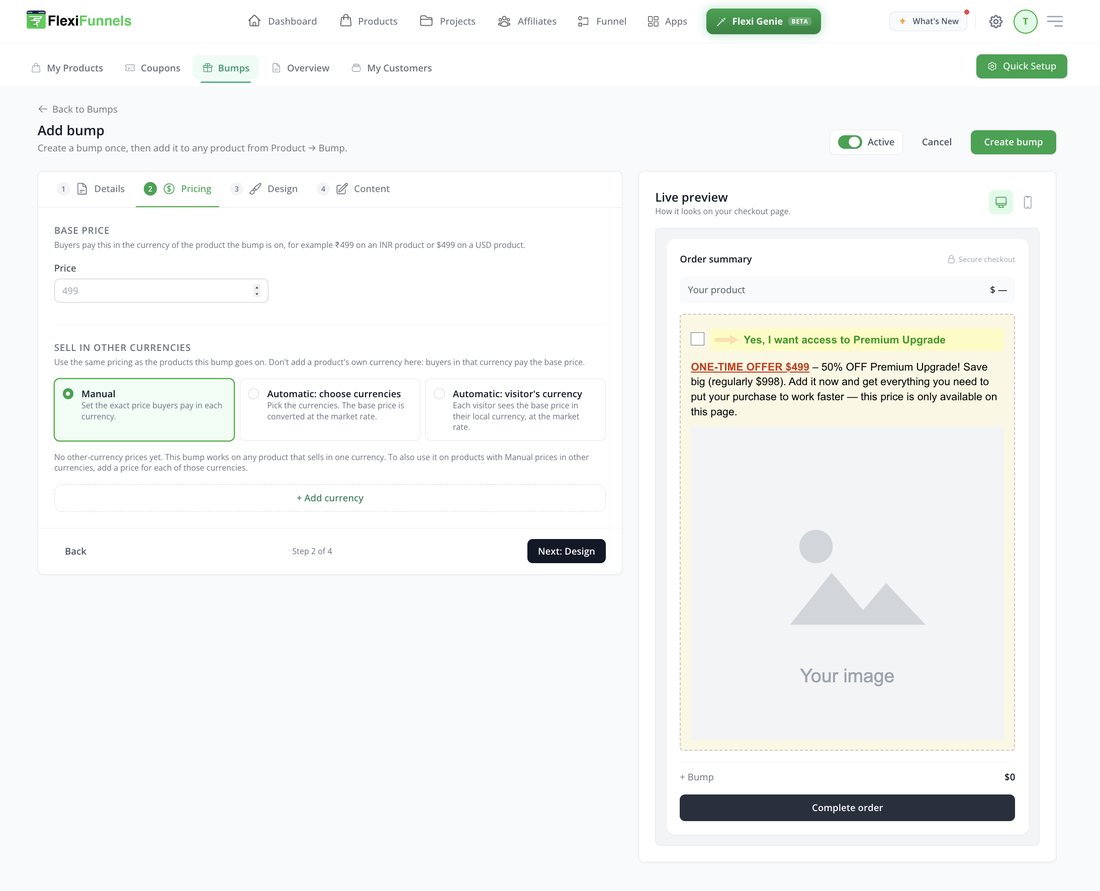
Step 2 of 4: Pricing.
6 Set the base price
- Under Base Price, type the Price.
- Buyers pay this in the product's own currency.
- Example: ₹499 on an INR product, or $499 on a USD product.

Base price of the bump.
7 Pick the same pricing type as your product
Use the same type as the products this bump goes on.
Option A: Manual
- Select Manual.
- Click + Add currency, pick a currency, and type its price.
- Add one price for each other currency your product sells in.
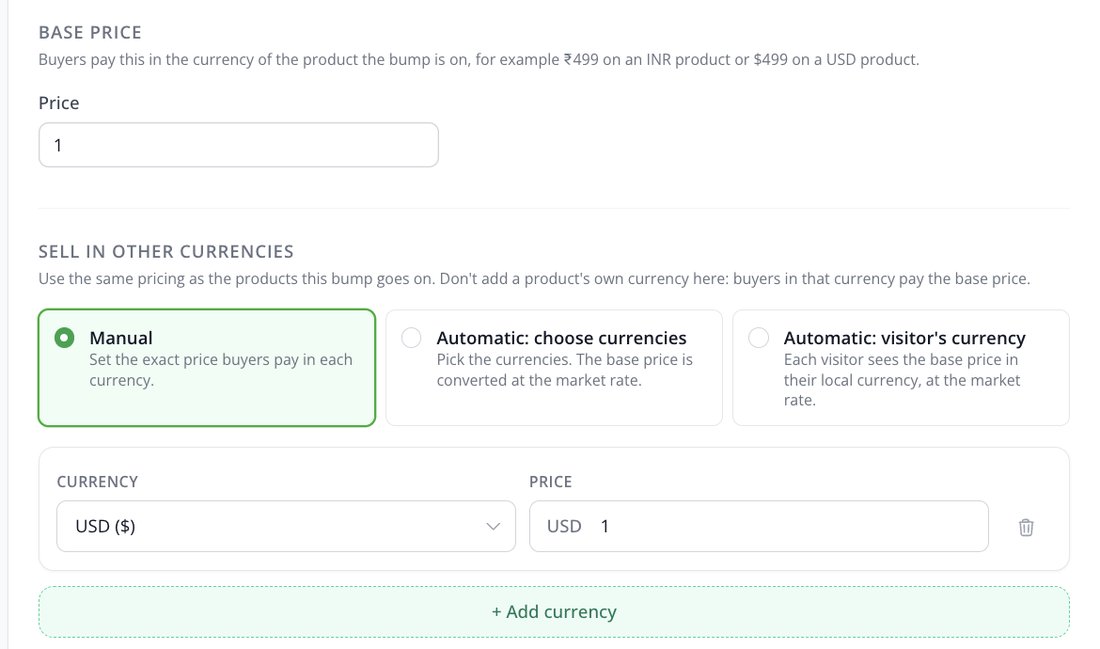
Manual: one price per currency.
Option B: Automatic: choose currencies
- Select Automatic: choose currencies.
- Click + Add currency and pick each currency. No price is needed.
- This fits products whose price converts automatically to these currencies.
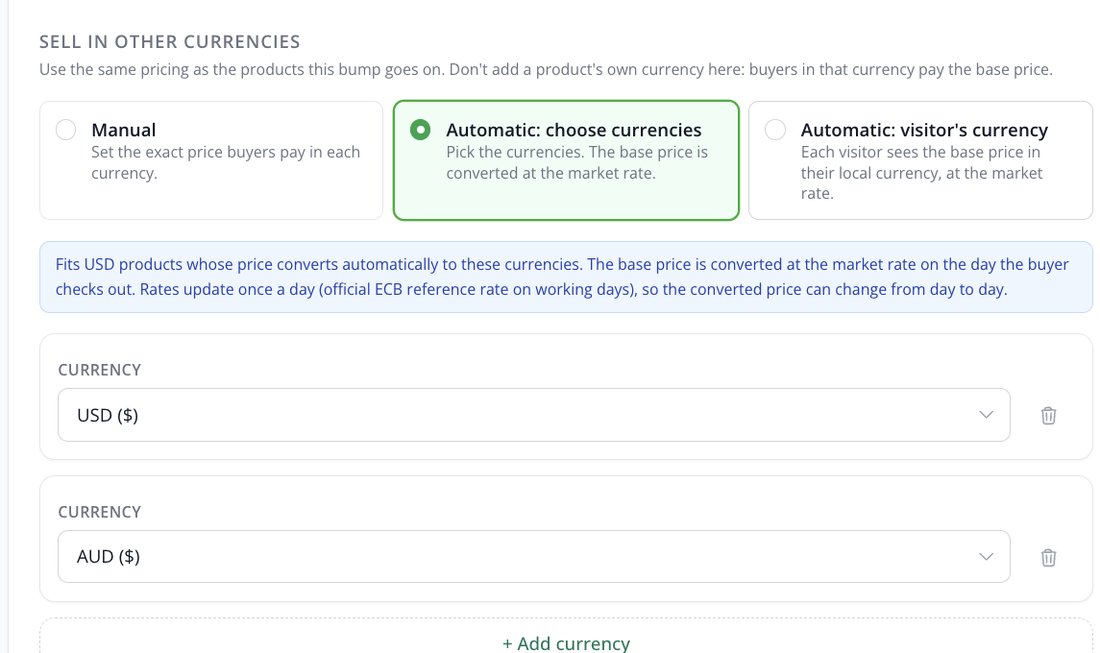
The base price is converted at the market rate.
Option C: Automatic: visitor's currency
- Select Automatic: visitor's currency.
- Nothing else to add. The price follows the buyer's country.
- This fits products that use Automatic: visitor's currency.
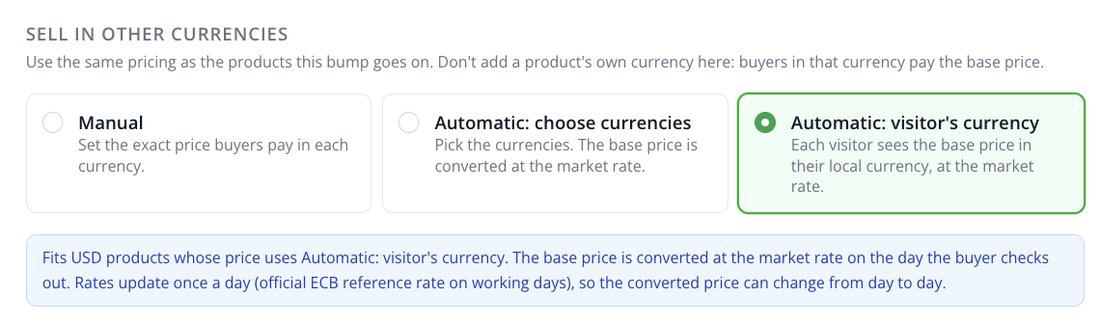
Visitor's currency for bumps.
8 Check the preview and create the bump
- If Live preview shows Preview in, use it to check each currency.
- Finish the Design and Content tabs.
- Click Create bump.
- Add it to a product from Product → Bump, then test the checkout.
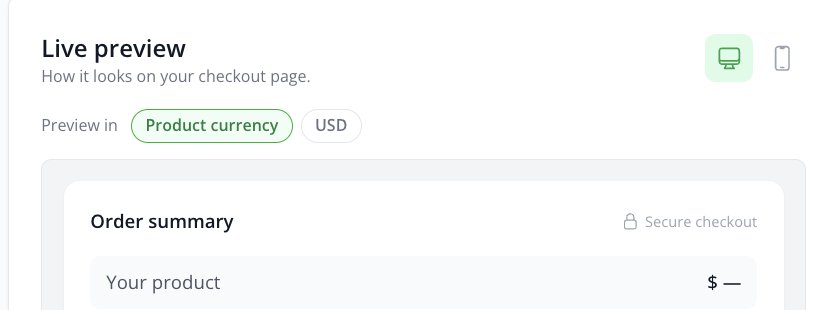
Preview in: Product currency or another currency.
?️ Part C: Multi-Currency on a Coupon
9 Create a coupon
- Go to Products → Coupons.
- Click Create Coupon.
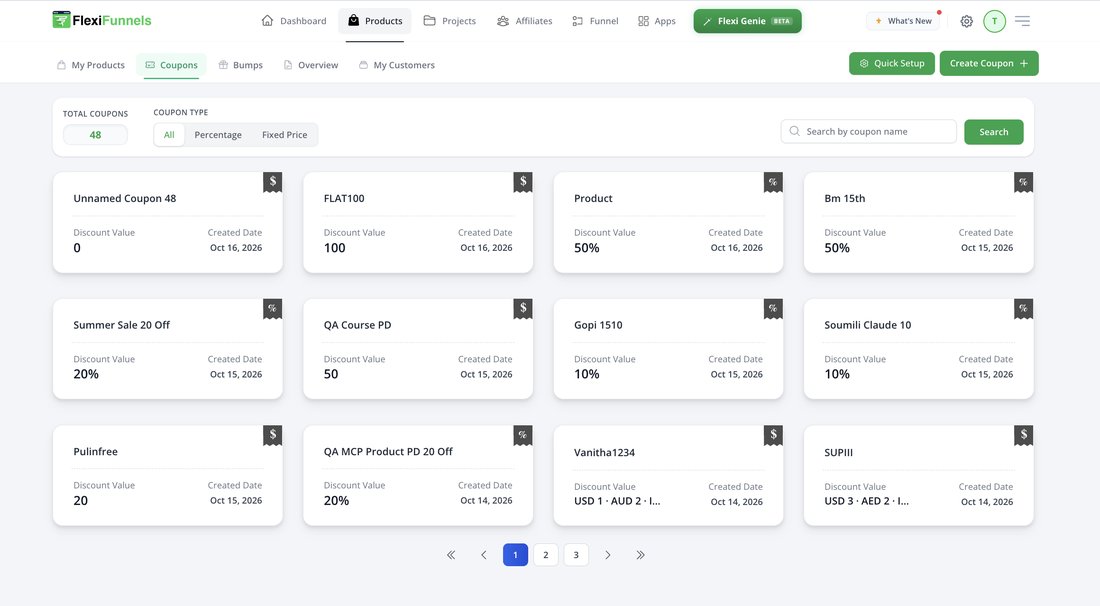
Coupons list with the Create Coupon button.
10 Choose Fixed Price
- Enter the Coupon Name and Coupon Code (or click Generate).
- Set Discount Type to Fixed Price.
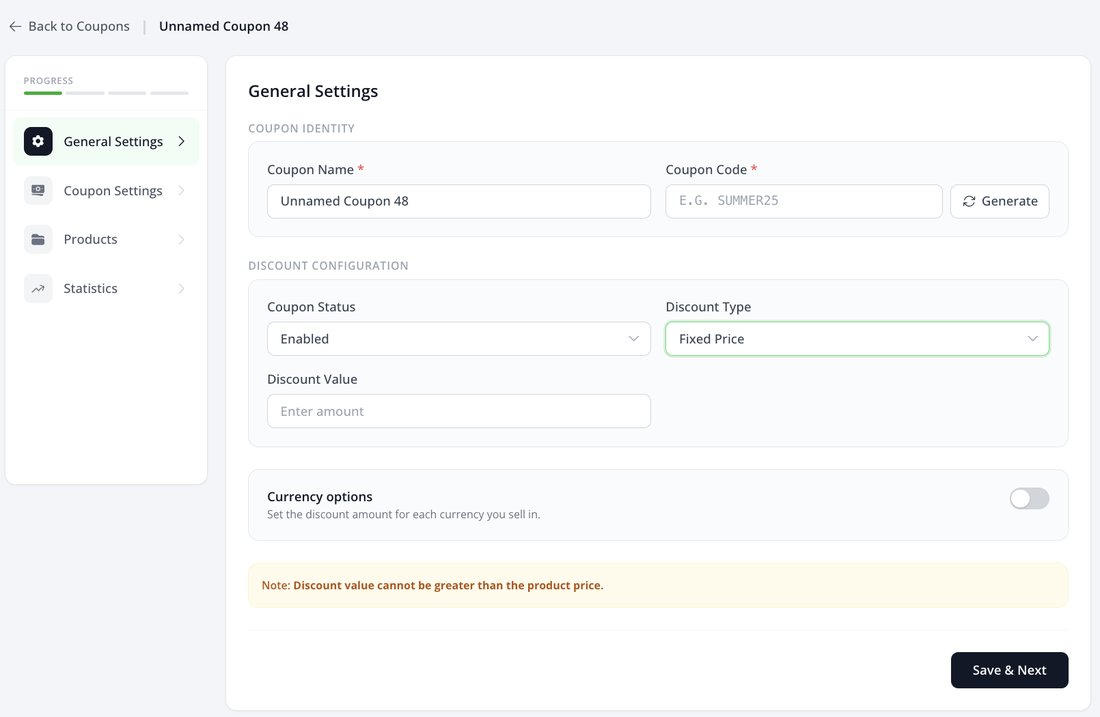
Currency options appear for Fixed Price coupons.
11 Turn on Currency options
- Turn on the Currency options switch.
- Pick a Currency and type its Discount.
- Click + Add currency for each currency you sell in.
- Click Save & Next and finish the other coupon settings.
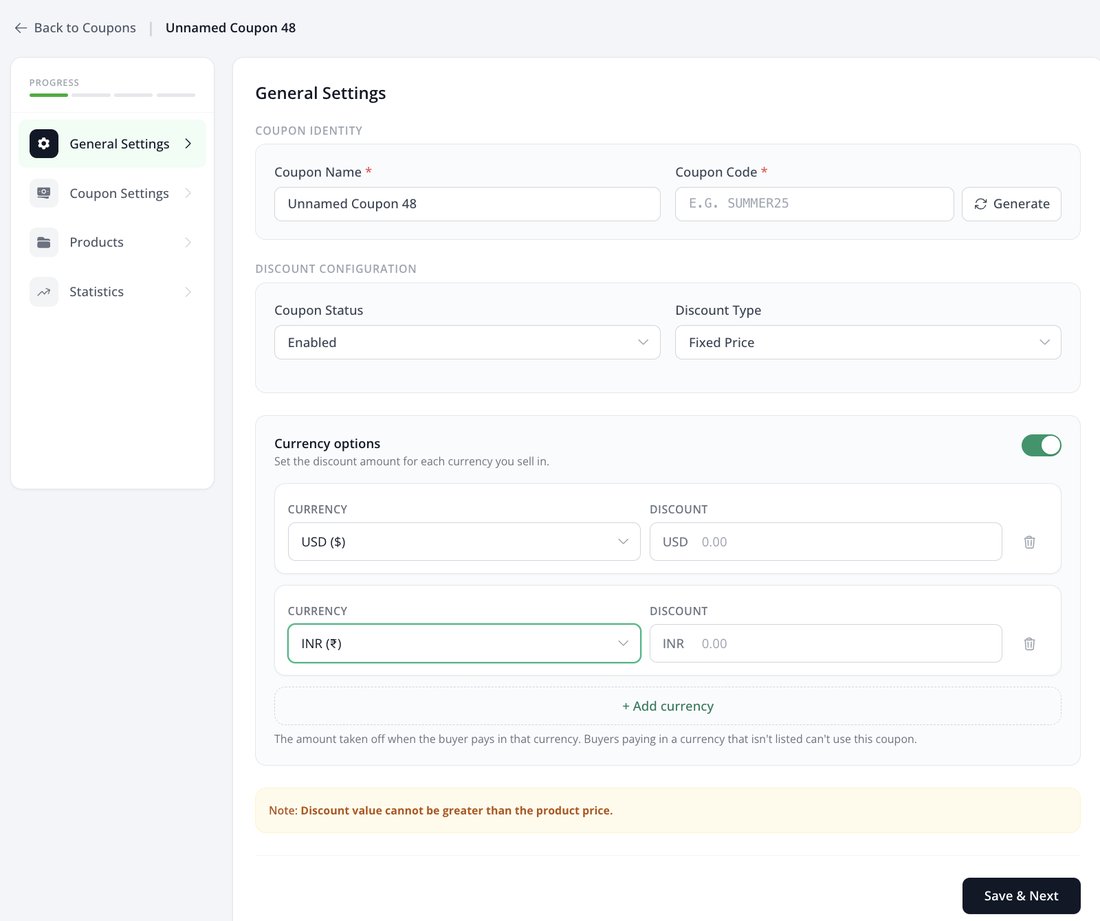
One discount amount per currency.
? Test Your Checkout
- Open your checkout page and use the Pay in switch.
- Check the product, bump and coupon in each currency.
- For Automatic: visitor's currency, turn on a VPN and pick another country.
Was this article helpful?
That’s Great!
Thank you for your feedback
Sorry! We couldn't be helpful
Thank you for your feedback
Feedback sent
We appreciate your effort and will try to fix the article