Adding 2 step checkout with MCP
Use the Double Order Form component to collect customer account details first, then present checkout and payment options in a separate step.
Open the relevant FlexiFunnels project and make sure a Checkout page is ready to edit. Configure the product, pricing, currency, and payment integrations required for your funnel.
STEP 01
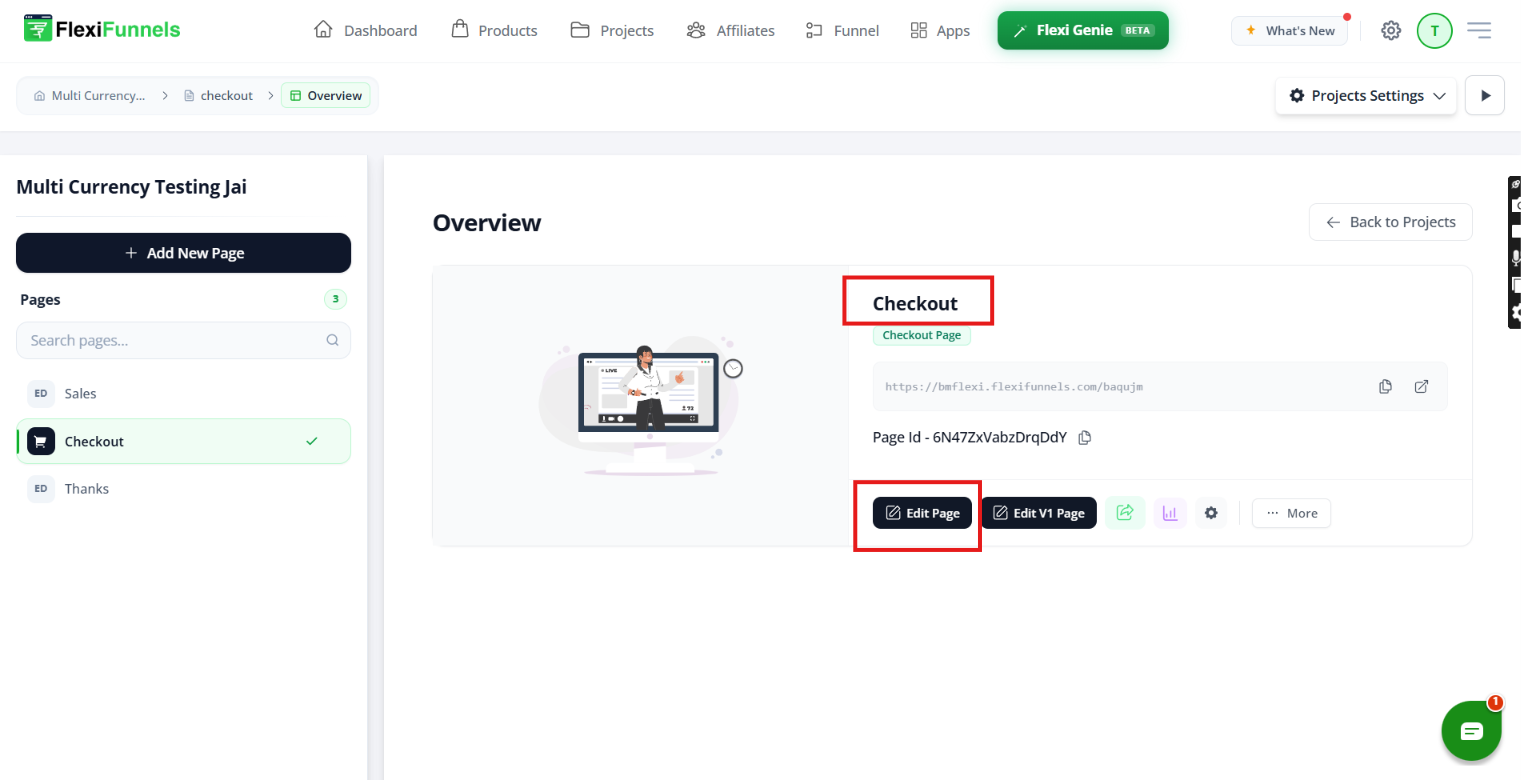
Open the checkout page
In the project overview, select the Checkout page and click Edit Page to open it in the page editor.
STEP 02
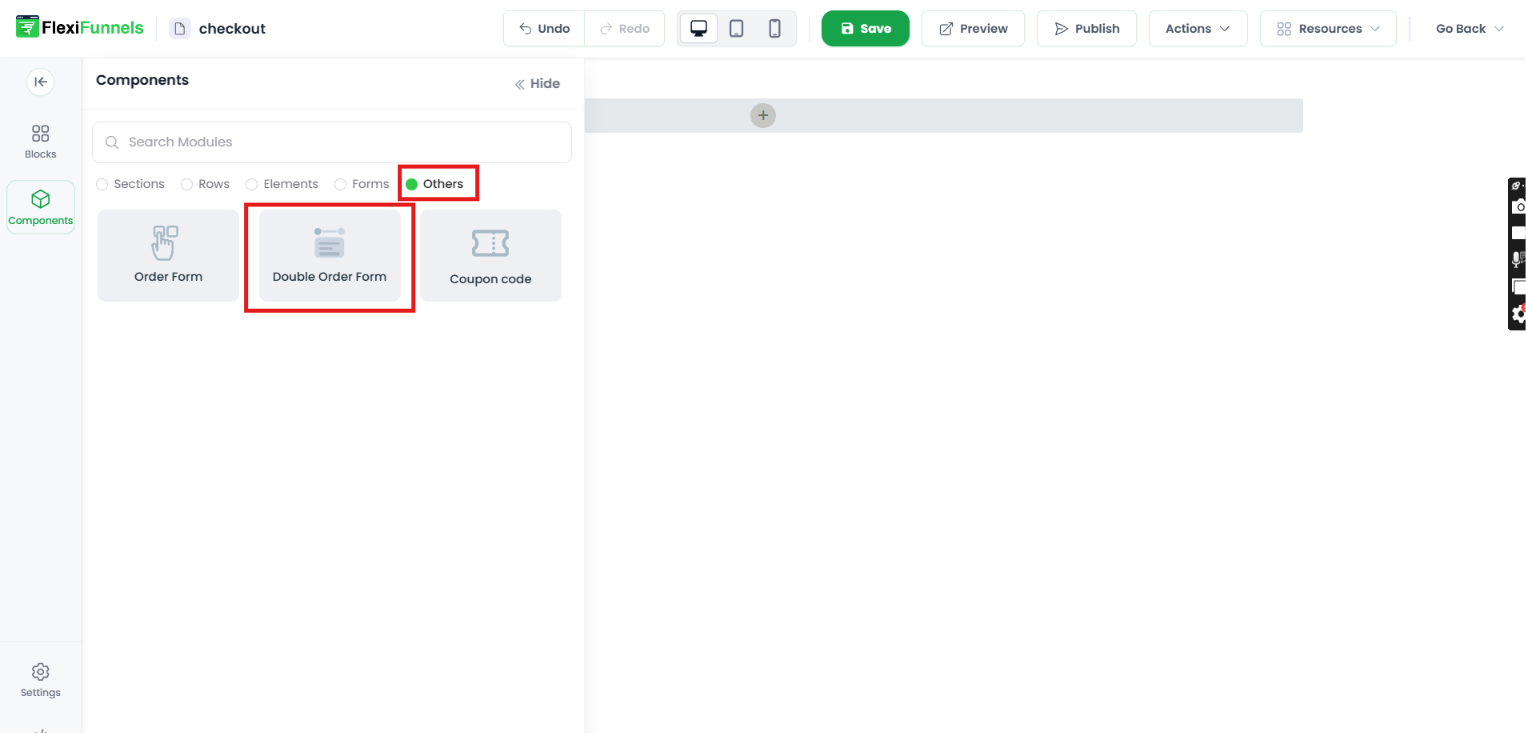
Add the Double Order Form component
Open Components, choose Others, then select Double Order Form. Add it to the page where you want the two-step checkout to appear.
STEP 03
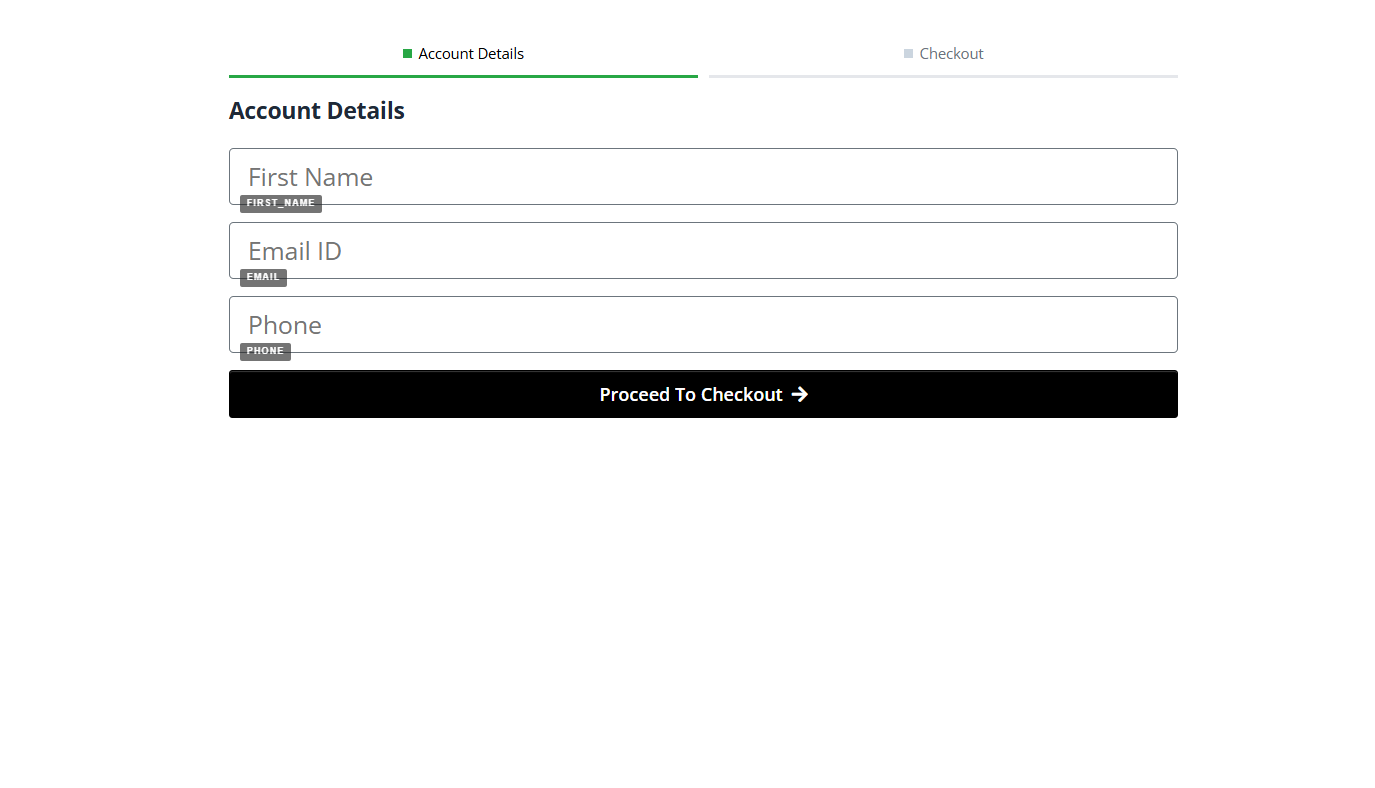
Review the Account Details step
The first step collects First Name, Email ID, and Phone. Customers continue to the payment step using Next.
STEP 04
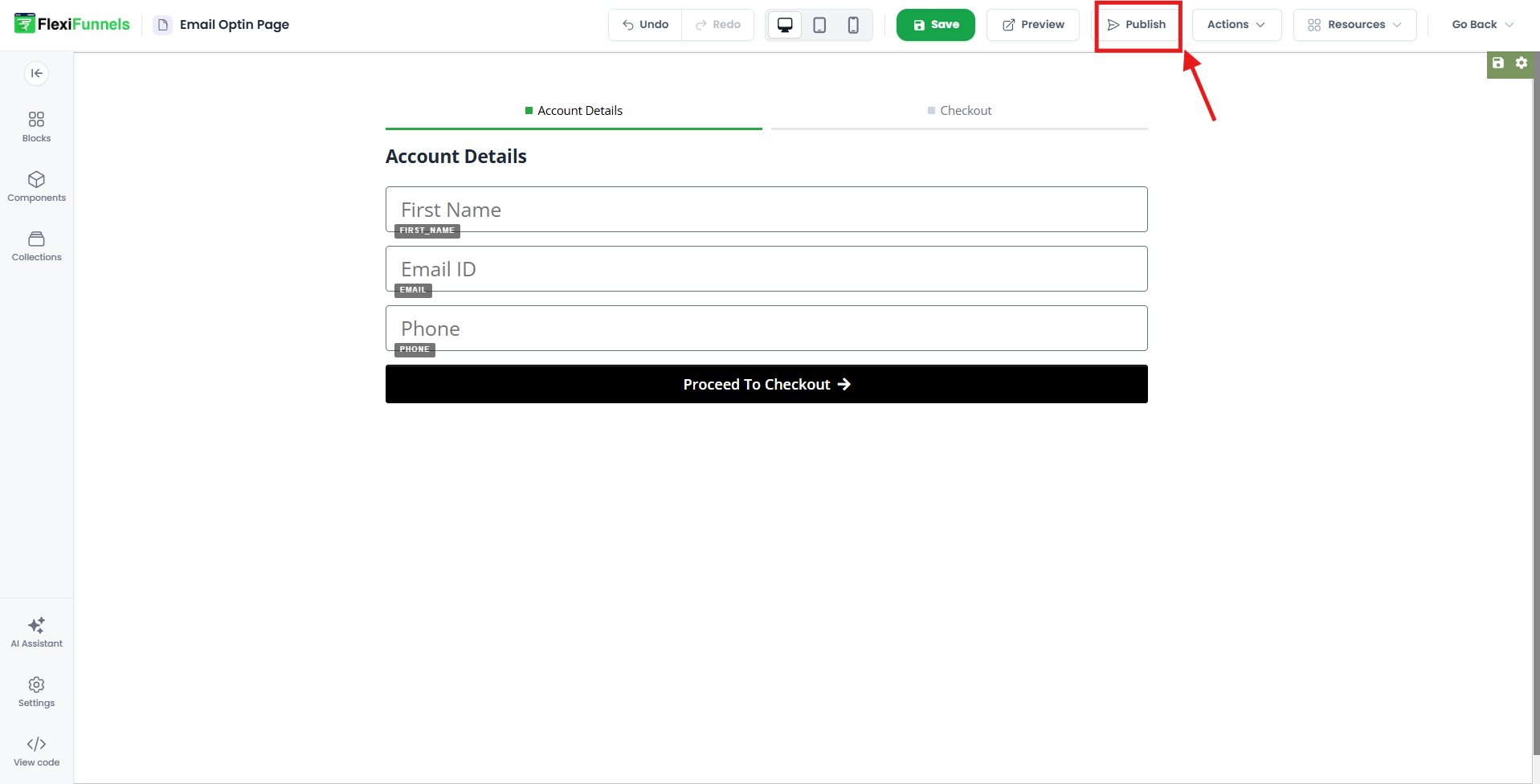
Save and publish the page
Save your changes, then click Publish in the editor toolbar to publish the updated checkout page.
STEP 05
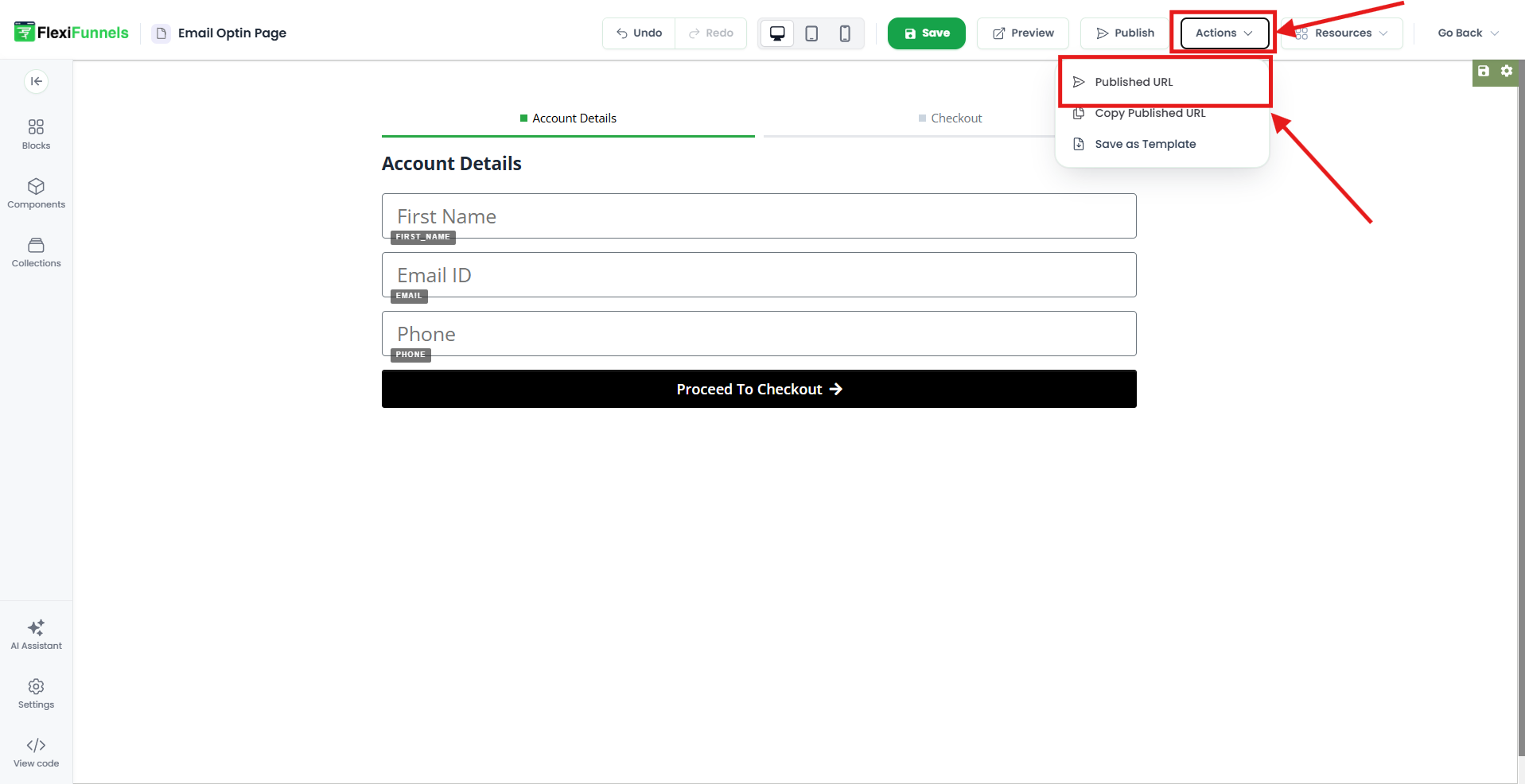
Open the published URL
After publishing, open Actions and select Published URL to view the live page. Use Copy Published URL to copy the link.
STEP 06
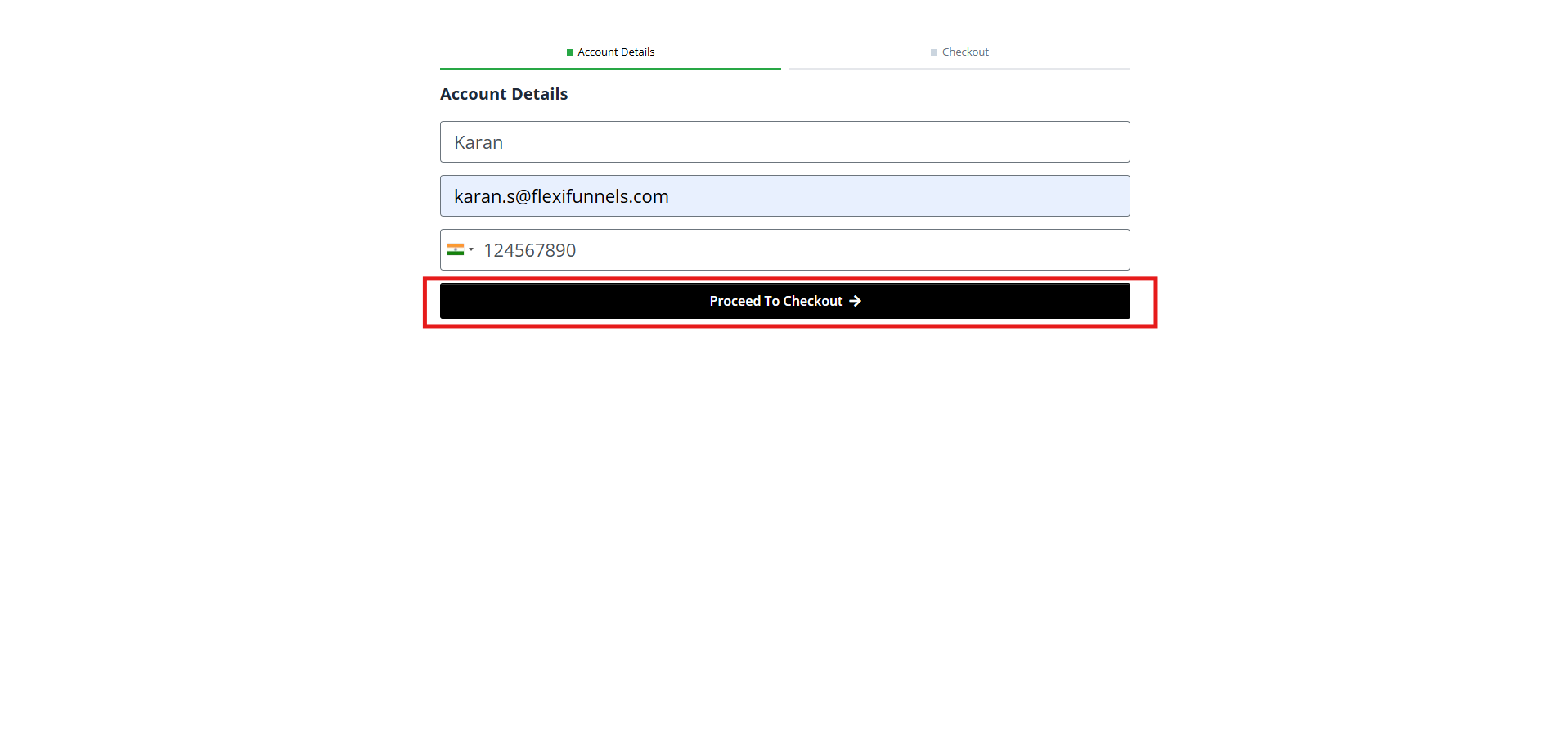
Test the first step
Open the published page, enter test customer details, and click Next. Use test data while validating the flow.
STEP 07
Verify checkout and currency options
Confirm the second step shows the correct product, total, currency options, and payment methods. The example shows INR and USD; available options depend on your configuration.
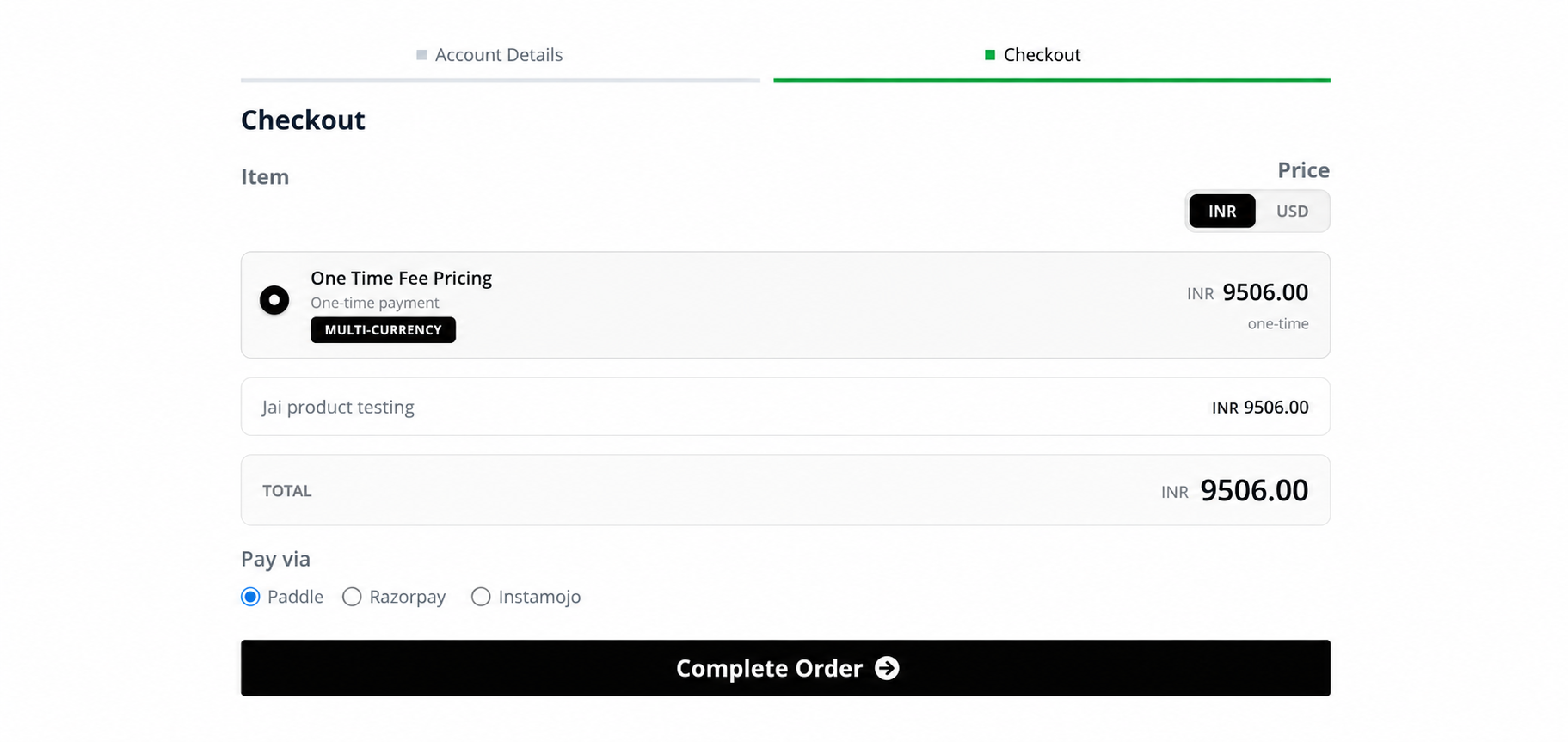 Checkout step showing INR and USD options and payment methods.
Final testing checklist
- Confirm the Double Order Form displays correctly on desktop and mobile.
- Check that the Account Details step accepts valid customer information.
- Verify that Next moves the customer to the checkout step.
- Confirm the product name, price, total, currency options, and payment methods.
- Run a test purchase using your payment provider’s supported test mode, where available.
- Save and publish the page again after making changes.
Was this article helpful?
That’s Great!
Thank you for your feedback
Sorry! We couldn't be helpful
Thank you for your feedback
Feedback sent
We appreciate your effort and will try to fix the article