Connect Claude or ChatGPT to FlexiMembership. Then set up points, levels, badges, rewards and the leaderboard by chatting.
Gamification is like a video game ? for learning. Members earn points, climb levels and win prizes.
| Set up (configure) | Give by hand (grant) | |
|---|---|---|
| Badge | Add a badge. Members earn it when their points reach your number. | Award a badge to one named member, whatever their points. |
| Reward | Add a reward. Members unlock it at your points. | Grant a reward to one named member. Then mark it delivered. |
No emailsNothing here sends an email. Members see badges and rewards the next time they open the app. Tell people yourself when you give them something.
Before You Start
- Connect FlexiMembership to Claude (a Connector) or ChatGPT (a Plugin). Make sure it is authorized.
- Know the project to work in.
- Decide how many points each activity is worth.
- Plan your levels, badges and rewards, and the points each needs.
- For a reward, prepare a link or a short text on how to claim it.
- Start each request with “In FlexiMembership”.
Steps
1See your current setup
- Ask for your points, levels, badges and rewards.
- You see what members earn points for, and how many members reached each level.
- You see how many members earned each badge and reward.
- You also see the latest reward grants.
- You see if the Leaderboard and Rewards tabs are shown.
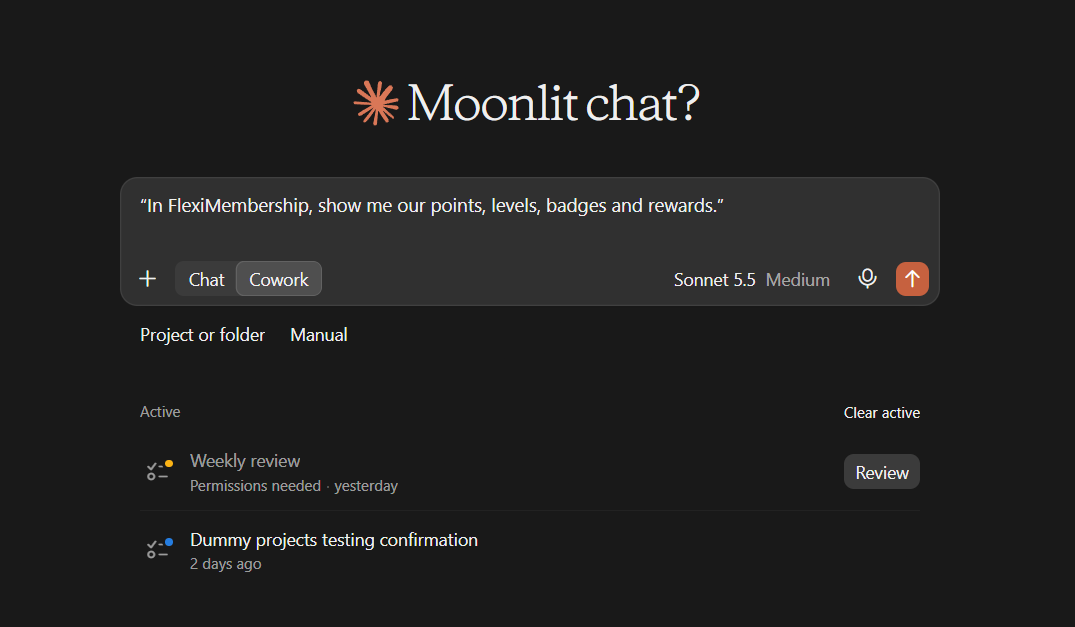
Example prompt“In FlexiMembership, show me our points, levels, badges and rewards.”
2Set points for activities
- You can set points for: profile picture, community post and comment, and like.
- Also for: lesson complete, lesson discussion and discussion like.
- Use whole numbers. 0 means no points.
- Changes apply from now on. Points already earned are not recalculated.
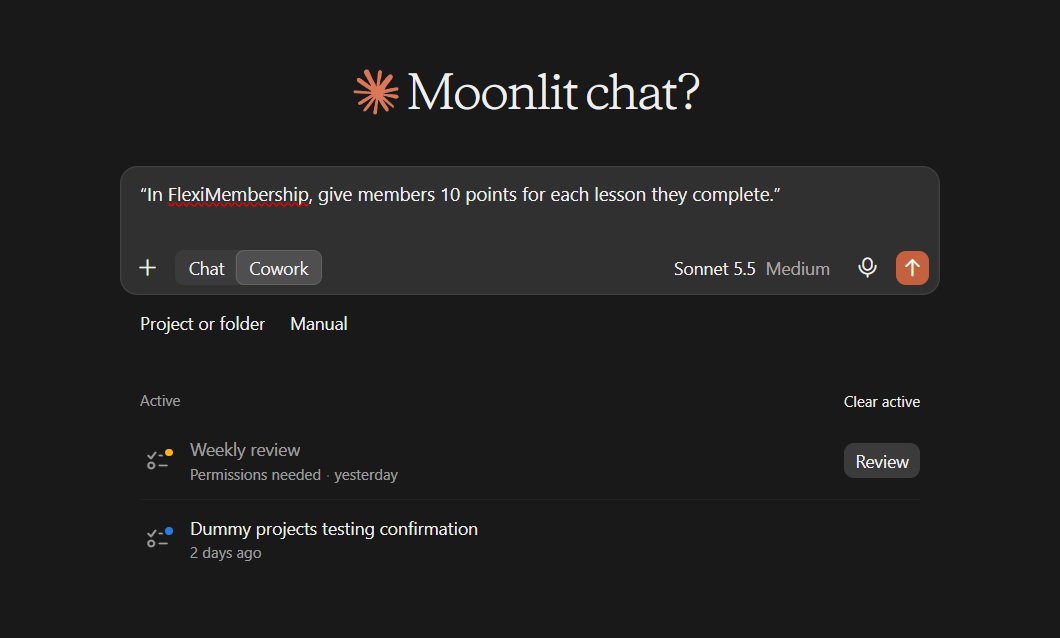
Example prompt“In FlexiMembership, give members 10 points for each lesson they complete.”
3Set your levels
- Rename a level, change its points, or add a new level after the highest.
- Points go from 1 to 1,000,000. A name can be up to 100 characters.
- Members level up on their own as points grow.
- Levels are never removed or renumbered here.
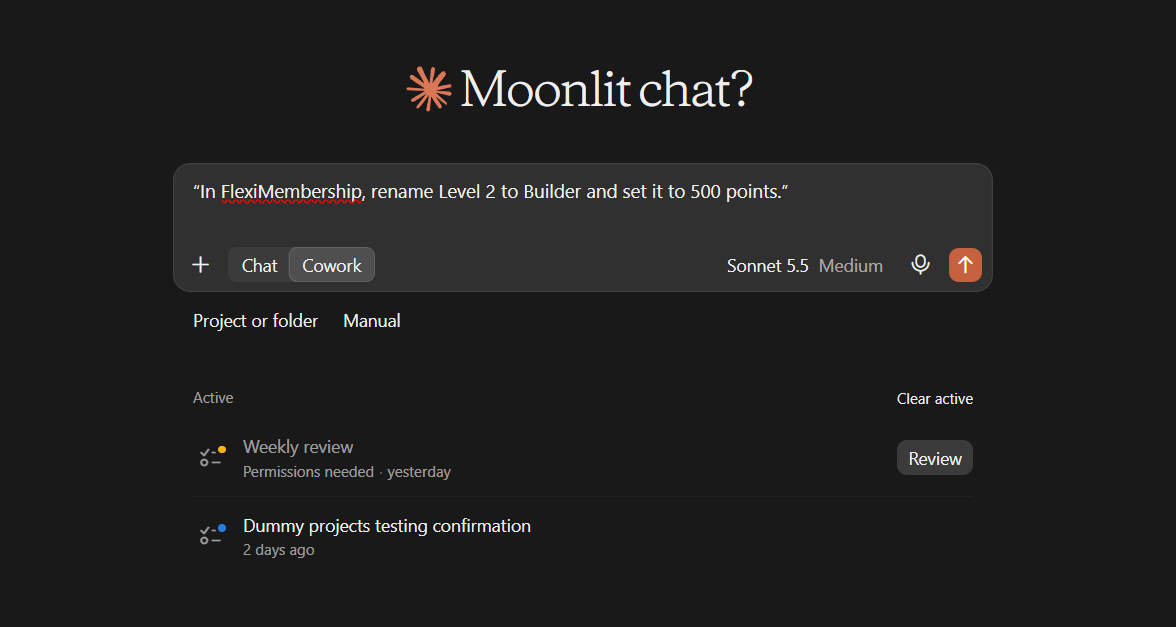
Example prompt“In FlexiMembership, rename Level 2 to Builder and set it to 500 points.”
Good to knowCourses and communities can unlock at a level. Create the levels first. See Articles 1 and 4.
4Create and change badges
- A badge needs a name (2–50 characters) and points (1–1,000,000).
- A picture link is optional.
- It is active at once. Members who already have enough points see it as earned.
- You can rename a badge, change its points or picture, or switch it off.
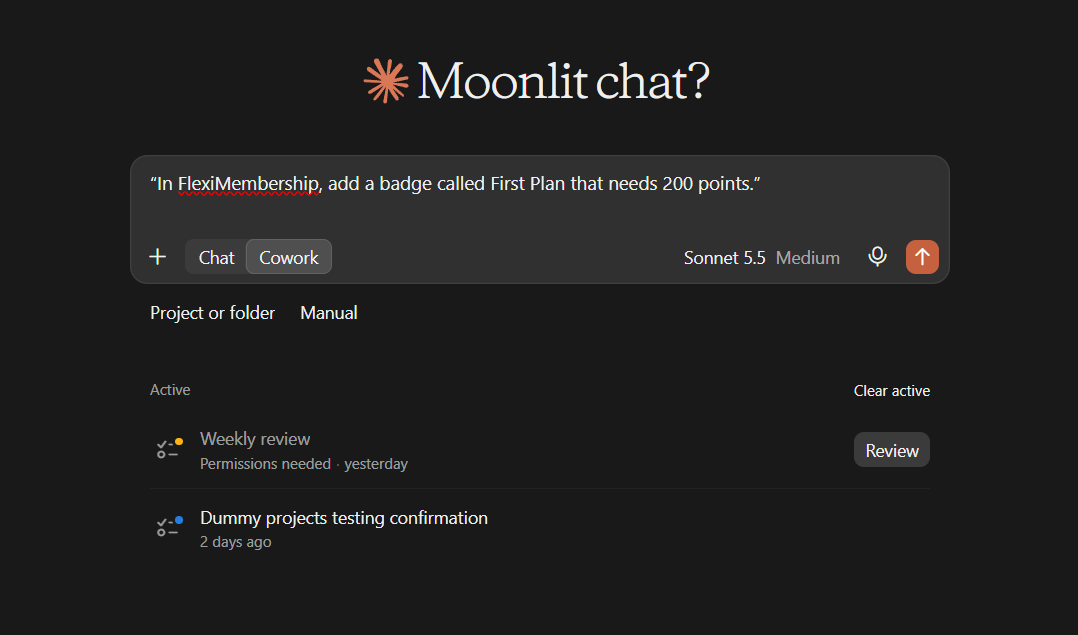
Example prompt“In FlexiMembership, add a badge called First Plan that needs 200 points.”
Example prompt“In FlexiMembership, change the Automation Pro badge to need 800 points.”
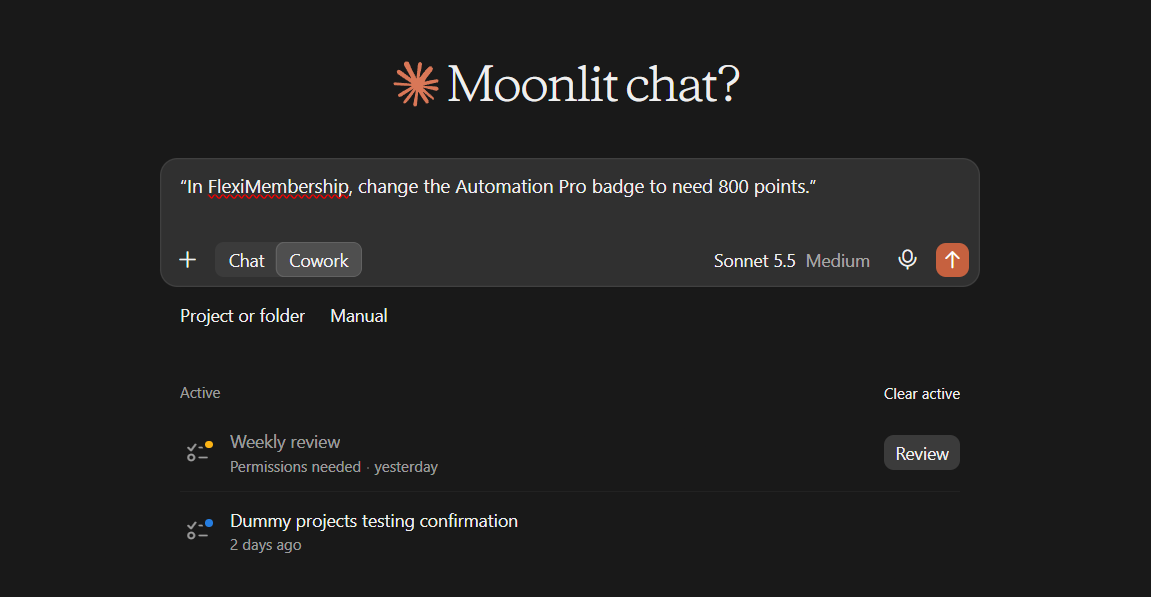
Be careful: it is live at onceA badge is live the moment you confirm. Members already above the points see it as earned. Raising points takes nothing away from anyone.
5Create and change rewards
- A reward needs a name, points and a type.
- Types: instructions (text on how to claim), url, video, audio and file.
- A link type needs a matching link. Instructions need a description.
- The button says “Claim Reward” unless you change it.
- You can switch a reward off. Members already given it keep it.
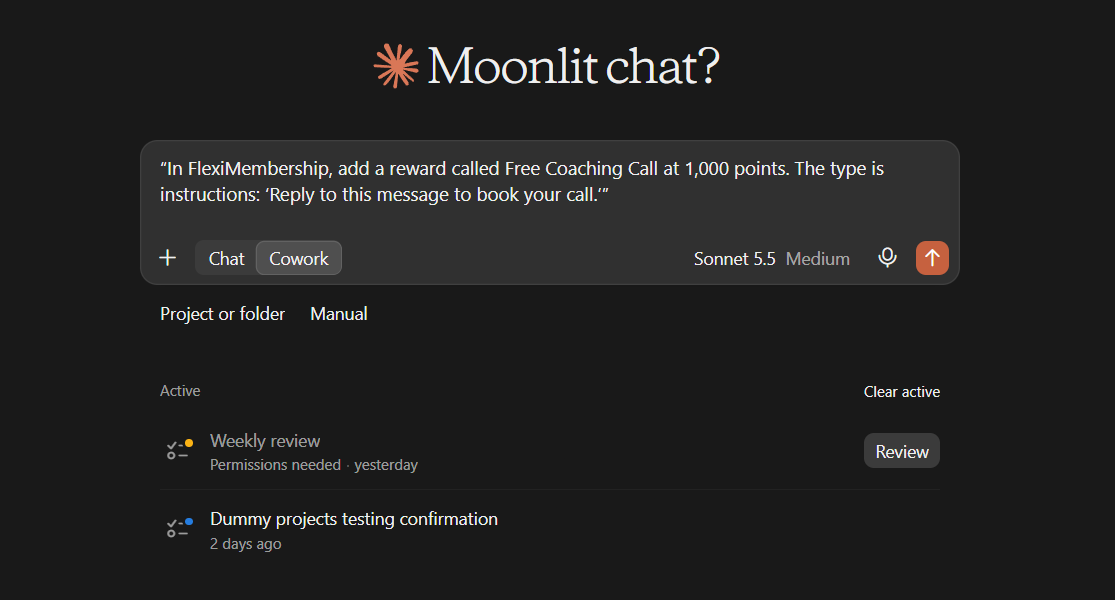
Example prompt“In FlexiMembership, add a reward called Free Coaching Call at 1,000 points. The type is instructions: ‘Reply to this message to book your call.’”
6Give a badge or reward by hand
- Name the member and the badge or reward. Add a note if you like.
- It works whatever the member’s points.
- If it was taken away before, it is given back.
- After you deliver a reward, mark it as fulfilled.
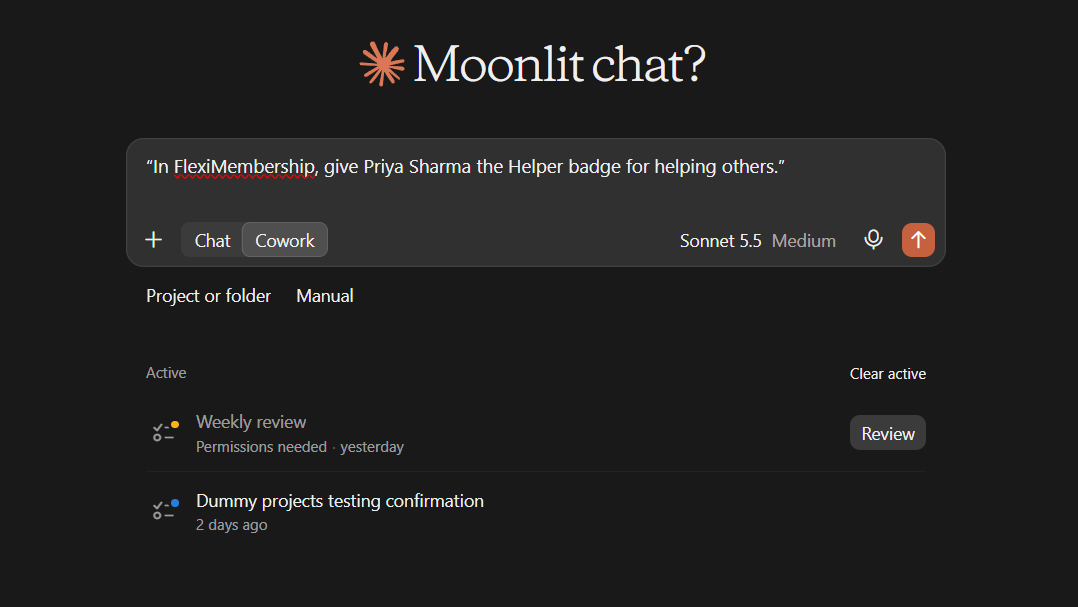
Example prompt“In FlexiMembership, give Priya Sharma the Helper badge for helping others.”
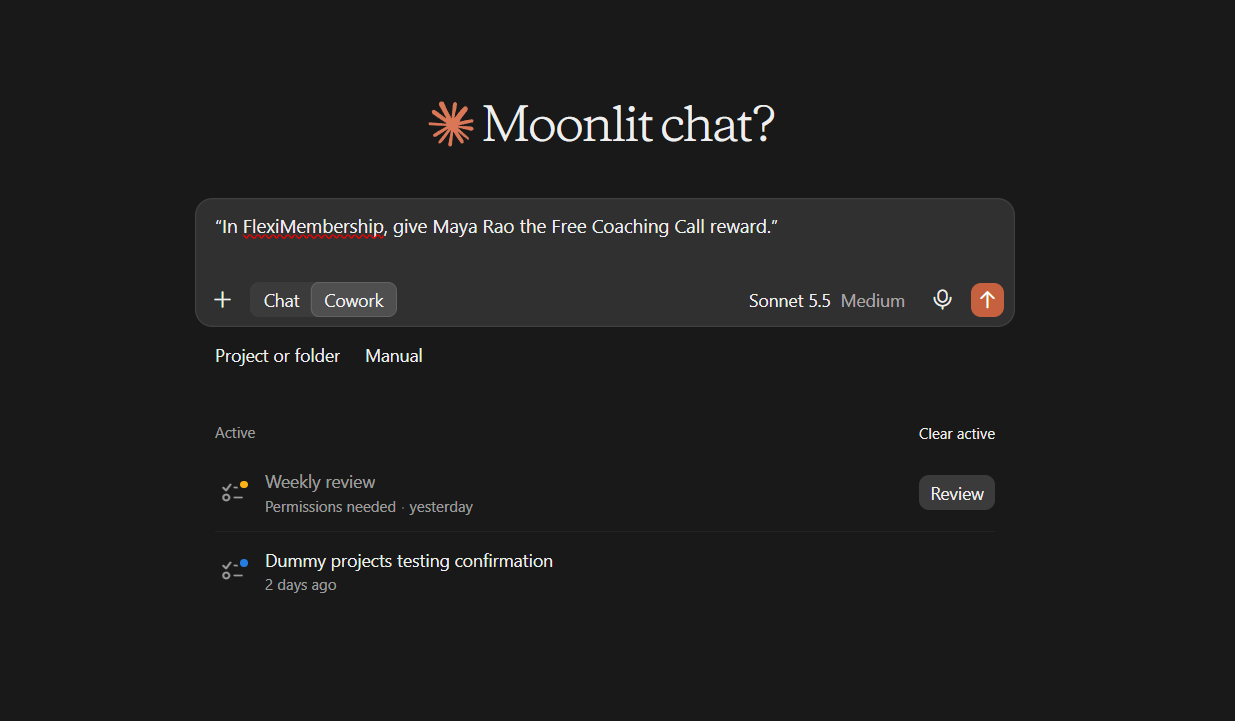
Example prompt“In FlexiMembership, give Maya Rao the Free Coaching Call reward.”
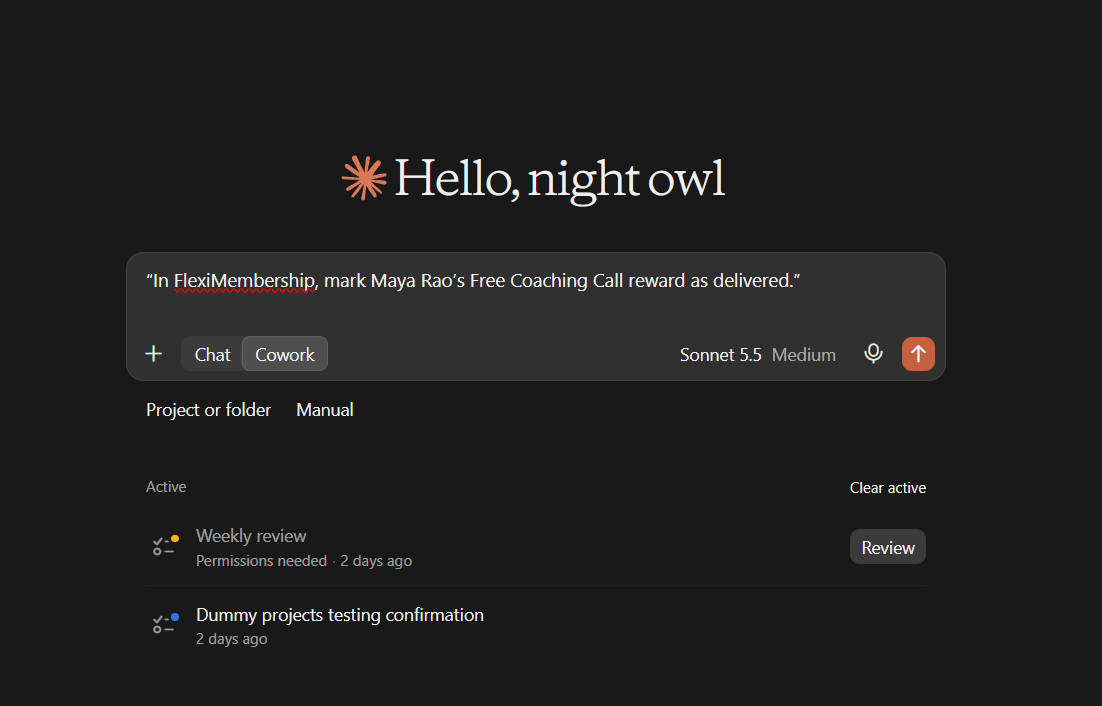
Example prompt“In FlexiMembership, mark Maya Rao’s Free Coaching Call reward as delivered.”
Be careful: the right personCheck the member’s name before you confirm. No email is sent.
7Take a badge or reward back
- Name the member and the badge or reward.
- It is switched off. It stays on record as revoked.
- You can give it again later.
- Points do not change. No email is sent.
- It is refused if the member does not hold it.
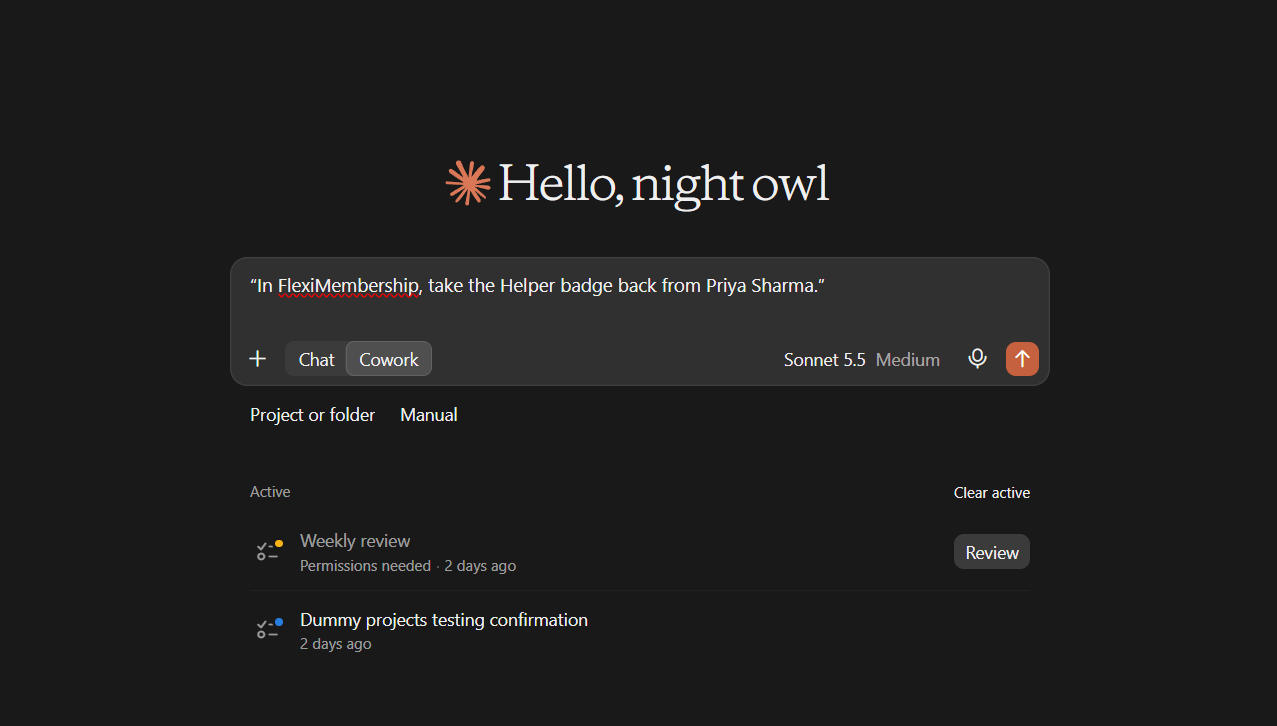
Example prompt“In FlexiMembership, take the Helper badge back from Priya Sharma.”
8Use the leaderboard
- Ask for the top members. You see rank, points, level and badges.
- Instructors and hidden members are left out.
- You can hide one member, such as a staff or test account.
- They lose their rank for everyone. Points, level and badges stay.
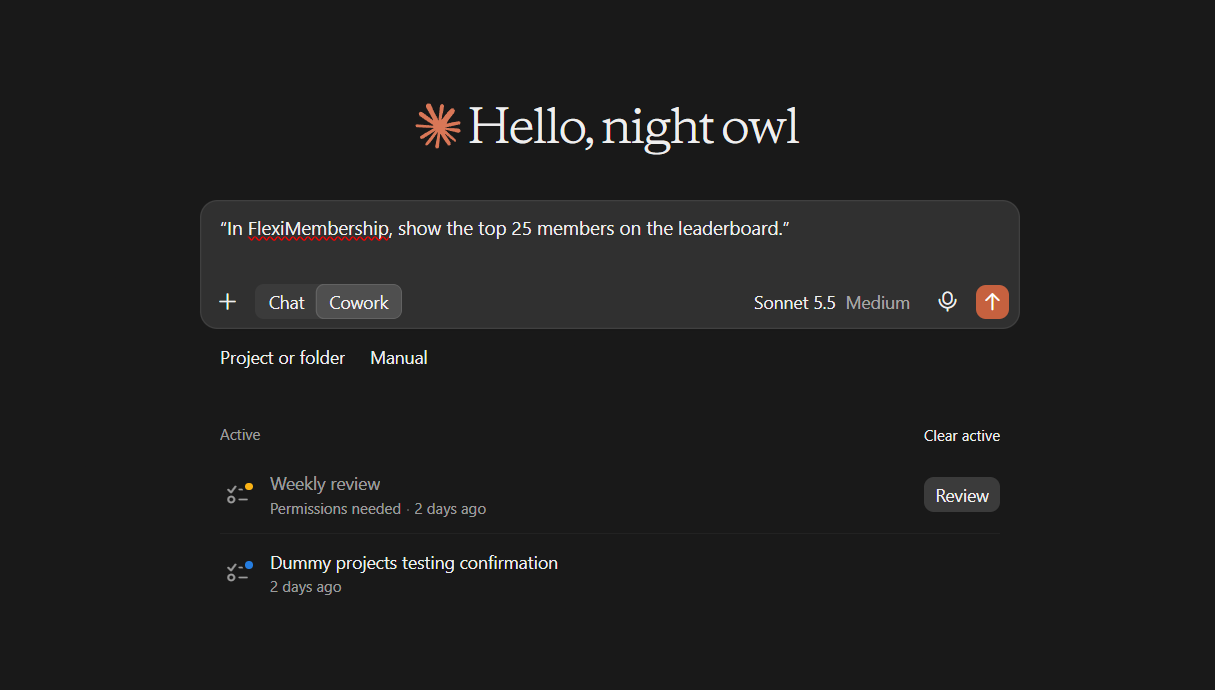
Example prompt“In FlexiMembership, show the top 25 members on the leaderboard.”
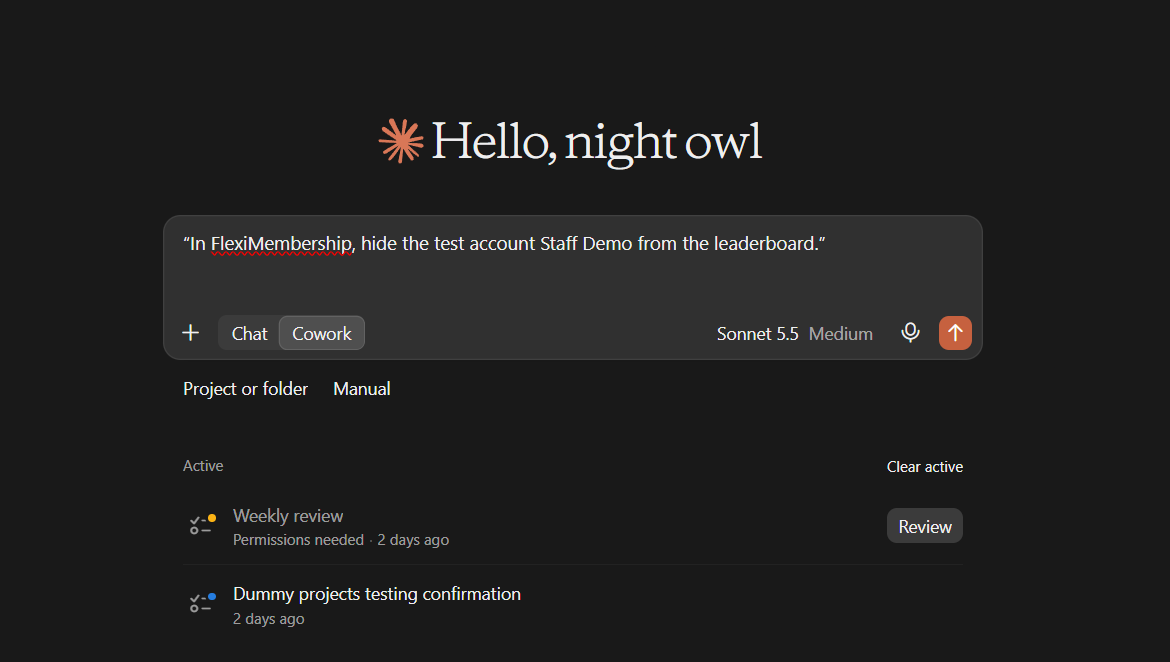
Example prompt“In FlexiMembership, hide the test account Staff Demo from the leaderboard.”
Be careful: hidingShowing a hidden member again is done in the dashboard. The AI can only hide.
Behind the Scenes: MCP Tools Involved
| Task | Related MCP tool(s) |
|---|---|
| See the whole gamification setup | get_gamification |
| Set points for activities | update_gamification_settings |
| Rename levels, change points or add levels | update_levels |
| Change the points a badge or reward needs | set_points_rules |
| Create a badge | add_badge |
| Change or switch off a badge | update_badge |
| Give a badge by hand | award_badge |
| Create a reward | add_reward |
| Change or switch off a reward | update_reward |
| Give a reward by hand | grant_reward |
| Mark a reward as delivered | mark_reward_fulfilled |
| Take a badge or reward back | withdraw_award |
| See the leaderboard | get_leaderboard |
| Hide a member from the leaderboard | set_leaderboard_visibility |
| Find a member | list_members |
Ready-to-Use Prompts
- “In FlexiMembership, show me our points, levels, badges and rewards.”
- “In FlexiMembership, give members 10 points for each lesson they complete.”
- “In FlexiMembership, add a badge called First Plan that needs 200 points.”
- “In FlexiMembership, give Priya Sharma the Helper badge for helping others.”
- “In FlexiMembership, add a reward called Free Coaching Call at 1,000 points.”
- “In FlexiMembership, show the top 25 members on the leaderboard.”
Tips for Better Results
- Look at your setup first.
- Make levels before you use them for a course or community.
- Name the badge or reward exactly as it appears.
- Name the member by full name or email.
- Mark rewards as fulfilled when you deliver them.
- After a change, ask the AI to show the setup again.
Quick Fixes
| Problem | Fix |
|---|---|
| Members did not get an email. | None is sent. Tell members yourself. |
| Old points did not change. | Points per activity apply from now on. Earlier points are not recalculated. |
| A reward still looks undelivered. | Ask the AI to mark it as fulfilled after you deliver it. |
| I cannot show a hidden member again. | Do it in the dashboard. |
| I cannot remove a level. | Levels are not removed here. Use the dashboard. |
| Members do not see the leaderboard or rewards. | The tabs may be hidden. See Article 12 for menus. |
| The AI does not use FlexiMembership. | Check the connector or plugin is connected and authorized. Add “In FlexiMembership” to your prompt. |
Explore the complete FlexiMembership MCP Tools Reference: View the documentation for a detailed explanation of available MCP tools, their functionality, and how to use them.
Limitations
- No email or alert is sent for points, badges or rewards.
- Points per activity apply from now on.
- Levels are never removed or renumbered here.
- A hidden leaderboard member can only be shown again in the dashboard.
- Deleting badges and rewards is not described. You can switch them off.
- No undo is described. Read each preview before you confirm.
Was this article helpful?
That’s Great!
Thank you for your feedback
Sorry! We couldn't be helpful
Thank you for your feedback
Feedback sent
We appreciate your effort and will try to fix the article