Gamification in Flexi Memberships
Modified on Thu, 13 Aug at 5:40 PM
Gamification helps increase member engagement by rewarding activity inside your membership. You can assign points for specific actions, create progression levels, award badges for achievements, and unlock rewards when members reach predefined milestones.
Using gamification encourages members to stay active, complete lessons, participate in discussions, and interact with your community.
Accessing Gamification Settings
To configure Gamification:
- Open your Membership.
- Click Settings.
- Navigate to Engagement.
- Select Gamification.
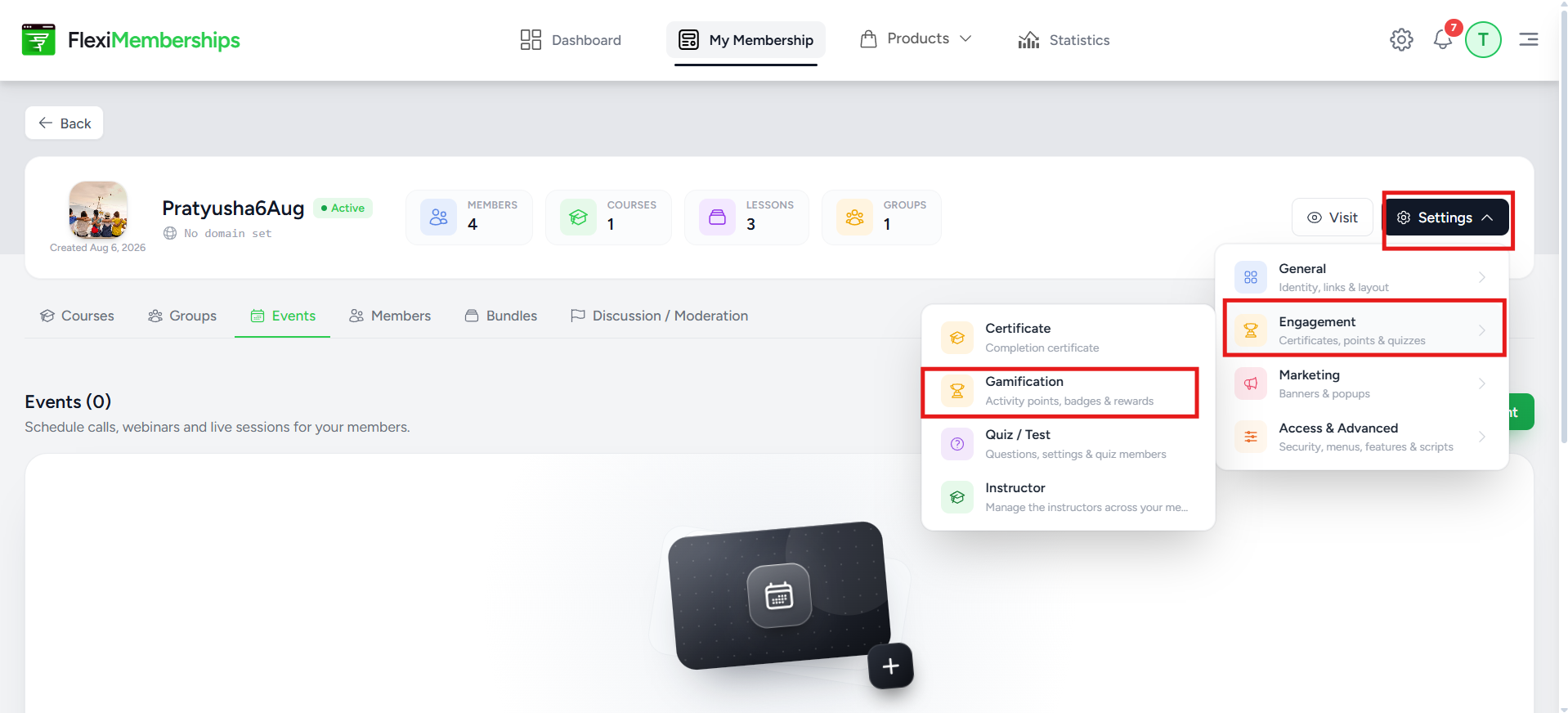
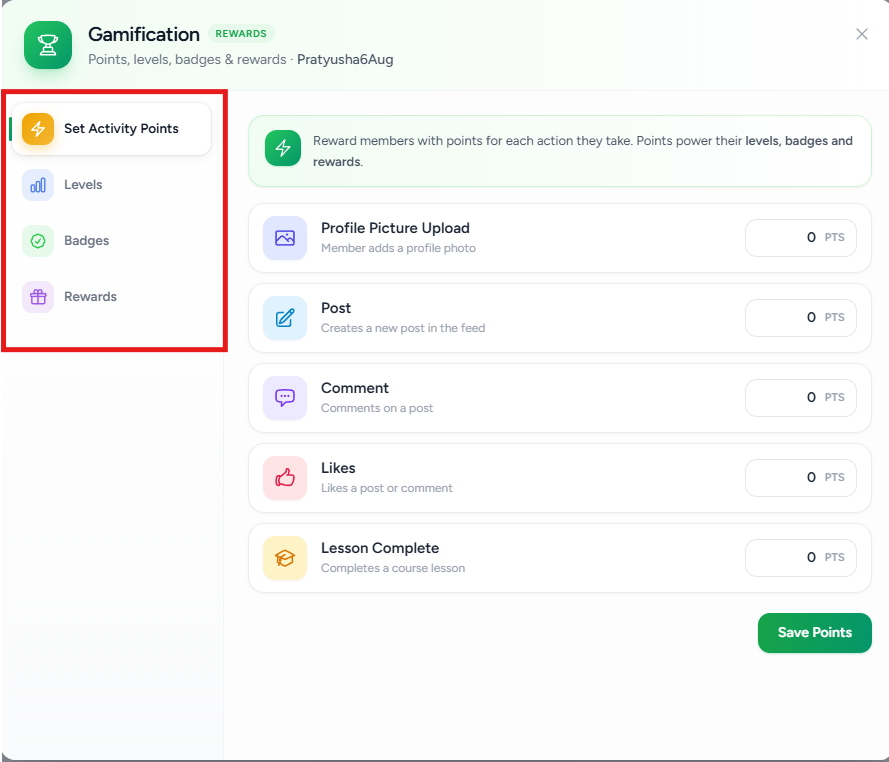
The Gamification panel opens with four configuration sections:
- Set Activity Points
- Levels
- Badges
- Rewards
Set Activity Points
The Set Activity Points section allows you to decide how many points members earn for completing different activities inside your membership.
Members automatically accumulate these points as they interact with your courses and community.
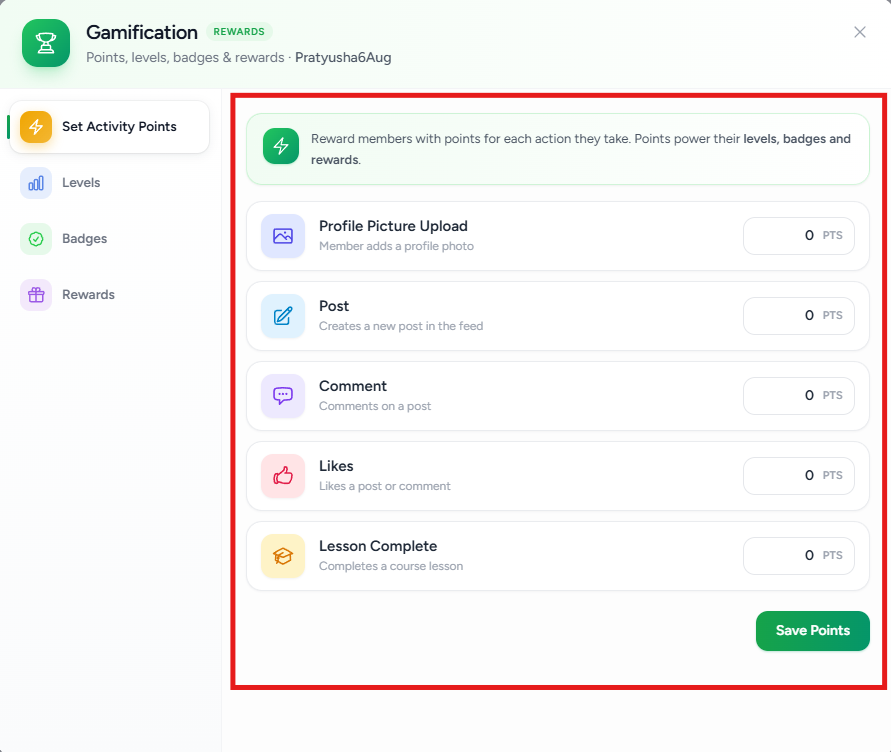
Available Activities
Profile Picture Upload
Award points when a member uploads or changes their profile picture.
This is useful for encouraging members to complete their profile.

Post
Award points whenever a member creates a new post inside a community group.
Encourages discussions and community engagement.

Comment
Award points whenever a member comments on an existing post.
Useful for promoting conversations between members.

Likes
Award points when members like posts or comments.
This encourages members to interact with existing discussions.

Lesson Complete
Award points whenever a member successfully completes a lesson.
This helps motivate members to continue progressing through their courses.

Configuring Activity Points
For each activity:
- Click the Points field.
- Enter the number of points to award.
- Repeat for every activity you want to reward.
- Click Save Points.
From that point onward, members automatically receive the configured points whenever they perform the corresponding activity.
Levels
Levels create a progression system that members unlock as they accumulate activity points.
Instead of simply collecting points, members can progress through multiple achievement levels.
Examples:
- Beginner
- Explorer
- Intermediate
- Advanced
- Expert
- Master
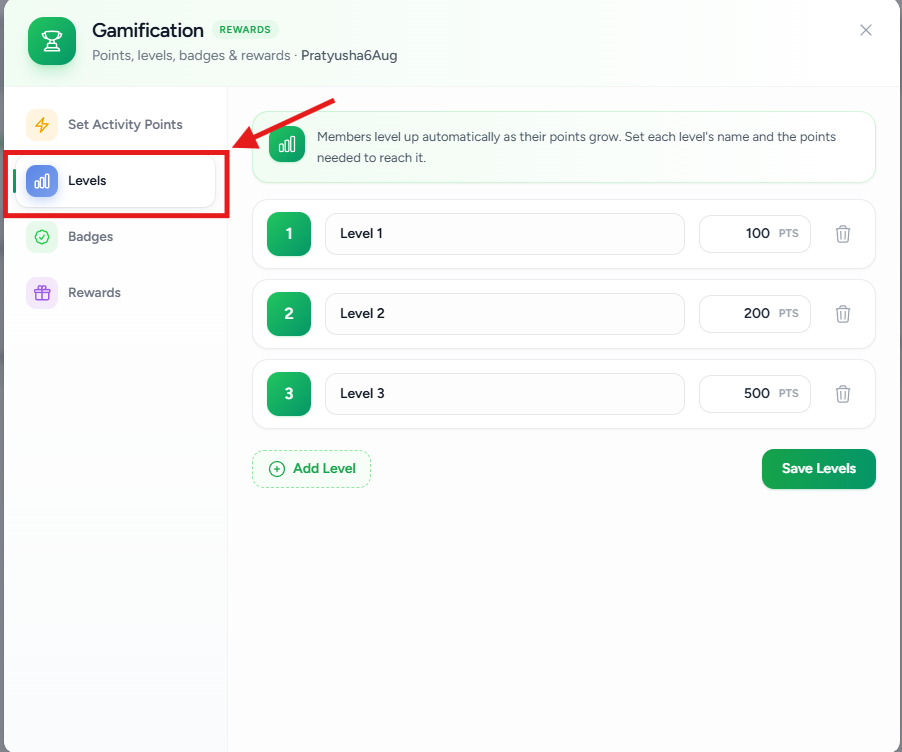
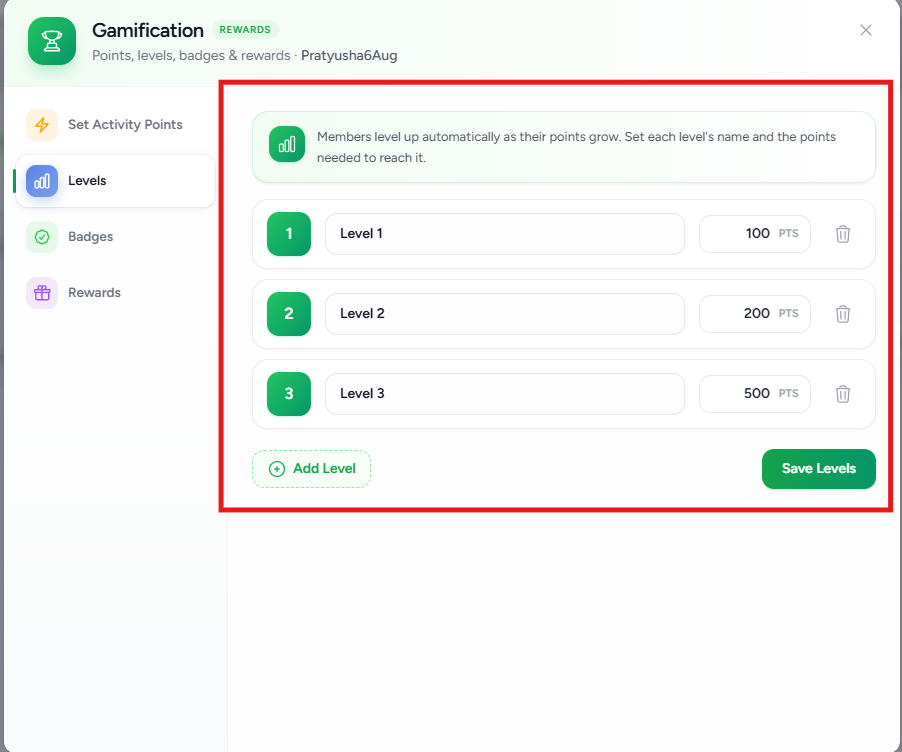
Creating Levels
Each level requires:
- Level Number
- Level Name
- Required Points
Example:
| Level | Required Points |
|---|---|
| Level 1 | 100 |
| Level 2 | 200 |
| Level 3 | 500 |
When a member's total points reach the required threshold, they are automatically promoted to that level.
Adding a New Level
To create additional levels:
- Click Add Level.
- Enter a name.
- Specify the required point threshold.
- Click Save Levels.
You can create as many levels as needed.
Editing Levels
You can modify:
- Level name
- Required points
Changes take effect after saving.
Deleting Levels
Click the Delete icon beside a level to permanently remove it.
Only remove levels if they are no longer needed, as existing member progression may be affected.

Badges
Badges are achievement icons automatically awarded when members reach a specific point milestone.
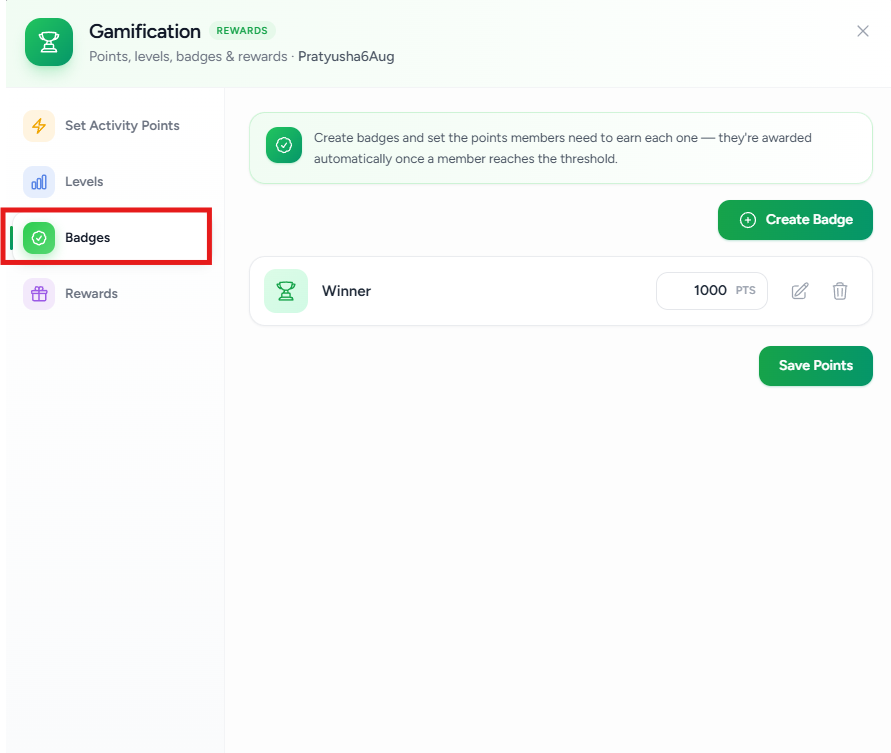
Unlike levels, badges act as visual achievements that recognize member accomplishments.
For example:
- Beginner
- Winner
- Community Helper
- Top Contributor
- Expert Learner
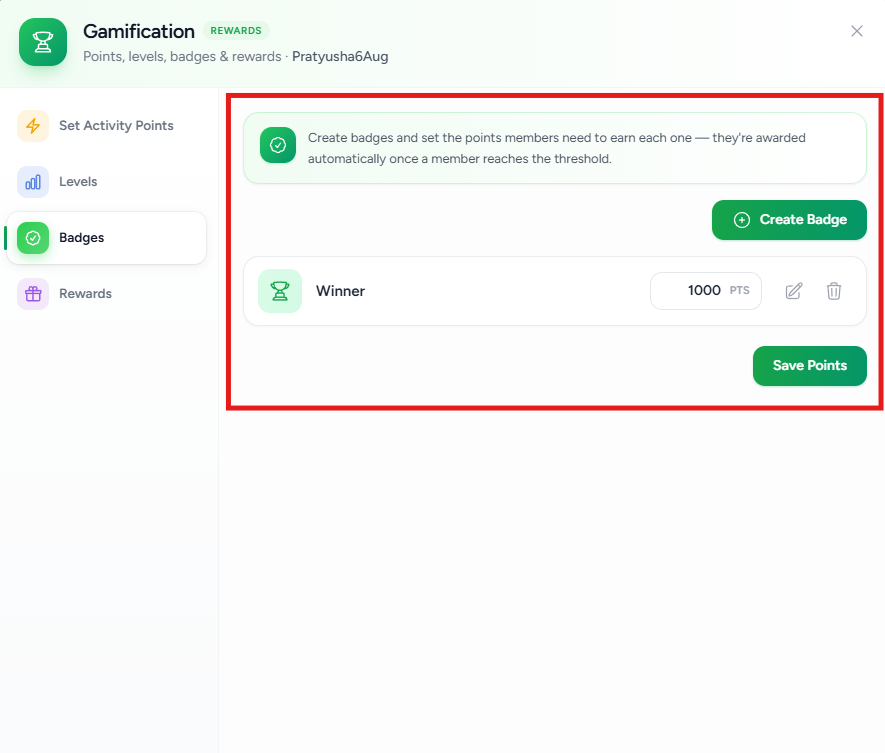
Creating a Badge
To create a badge:
- Open the Badges tab.
- Click Create Badge.
- Enter a badge name.
- Set the required points.
- Save your changes.
Once members earn the required number of points, the badge is awarded automatically.
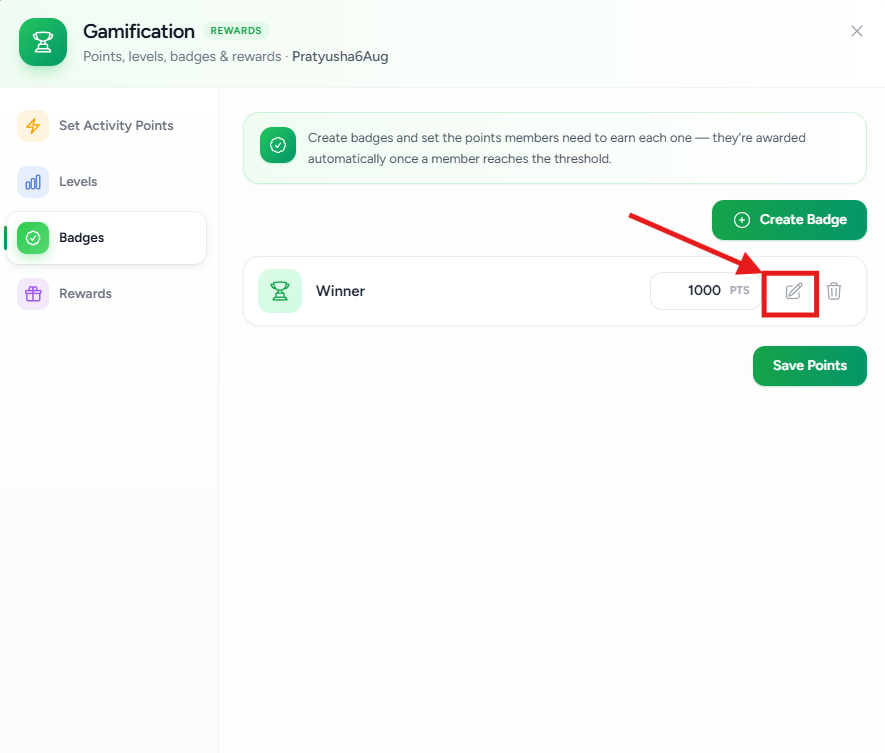
Editing a Badge
You can edit:
- Badge name
- Required points
Click the Edit icon beside the badge to make changes.
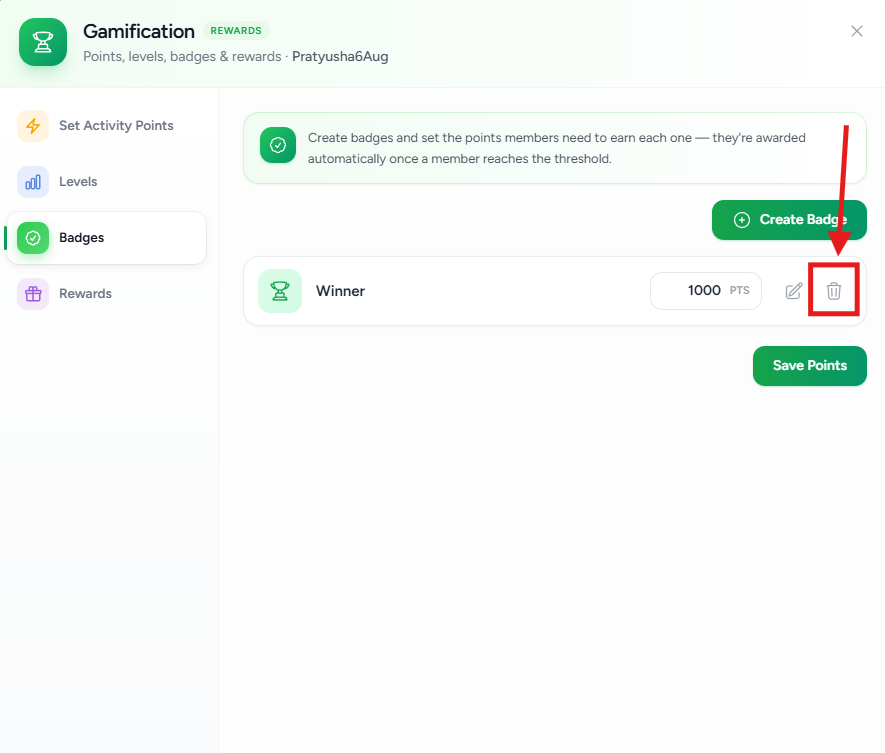
Deleting a Badge
Click the Delete icon to permanently remove a badge.
Members will no longer be able to earn that badge after it is deleted.
Rewards
Rewards allow you to automatically unlock downloadable content or exclusive resources after members reach a specified point threshold.
Unlike badges, rewards provide something tangible to the member.
Creating a Reward
To add a reward:
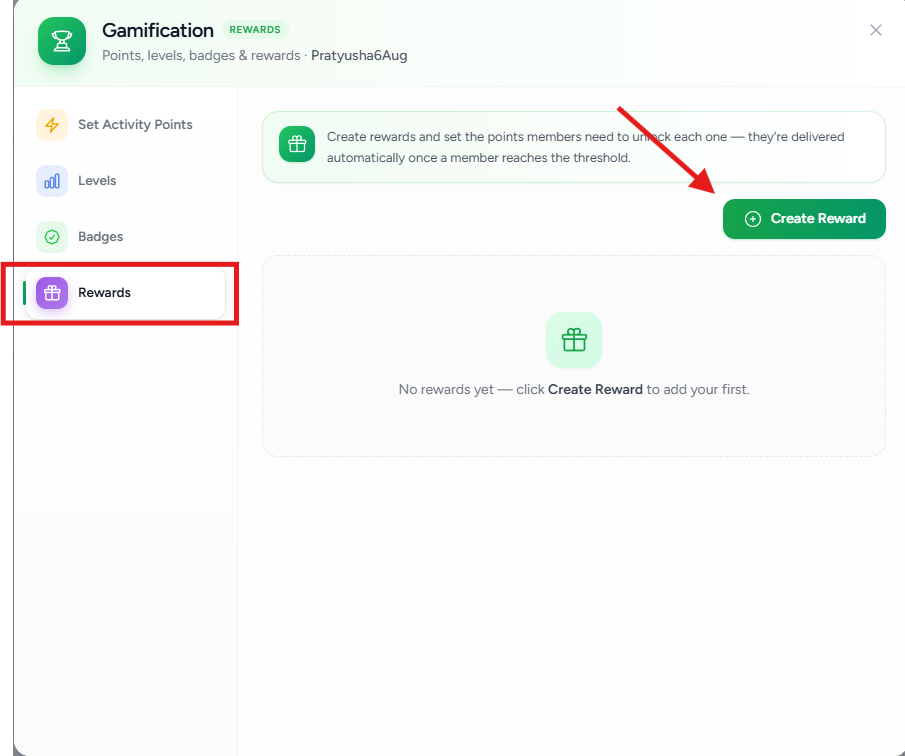
- Open the Rewards tab.
- Click Create Reward.
- Choose the reward type.
- Configure the reward.
- Save the reward.
The reward is automatically unlocked once members reach the required points.
Available Reward Types
Flexi Memberships supports multiple reward formats.
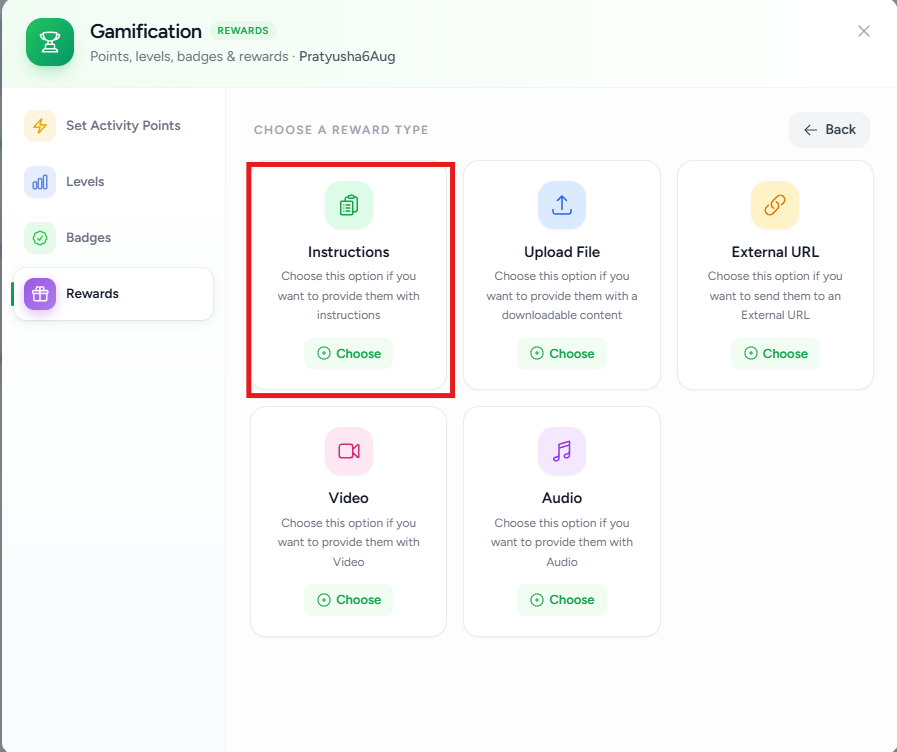
Instructions
Use this reward type to display written instructions or a message to members.
Ideal for:
- Congratulations messages
- Bonus guidance
- Achievement instructions
- Next-step directions
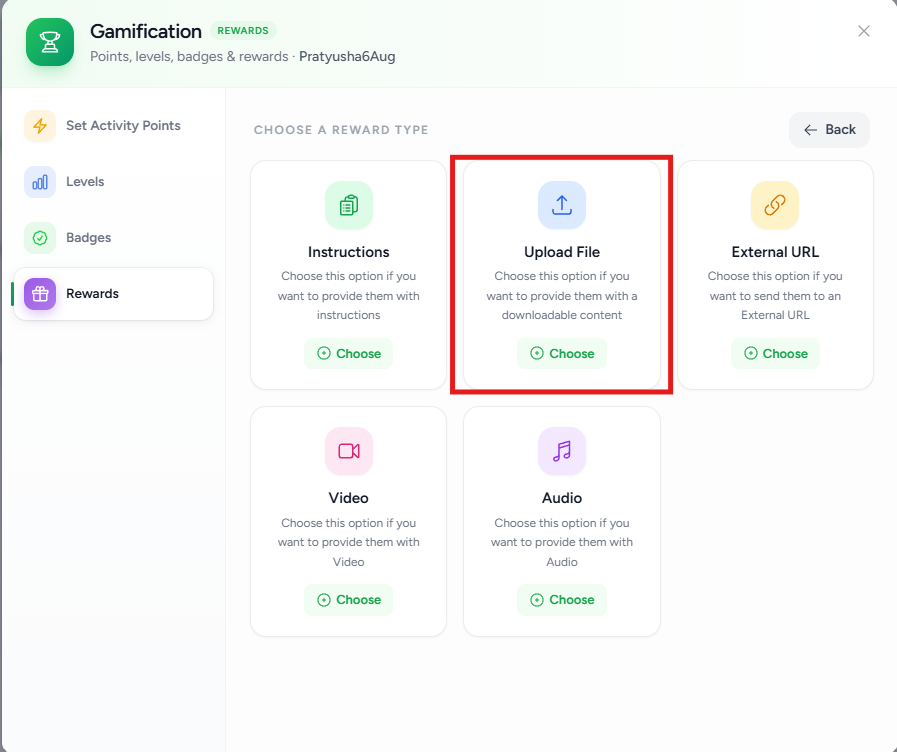
Upload File
Upload a downloadable file that members receive after unlocking the reward.
Supported examples include:
- PDF guides
- Checklists
- Templates
- Worksheets
- ZIP files
- Documents
This option is useful for delivering bonus resources.
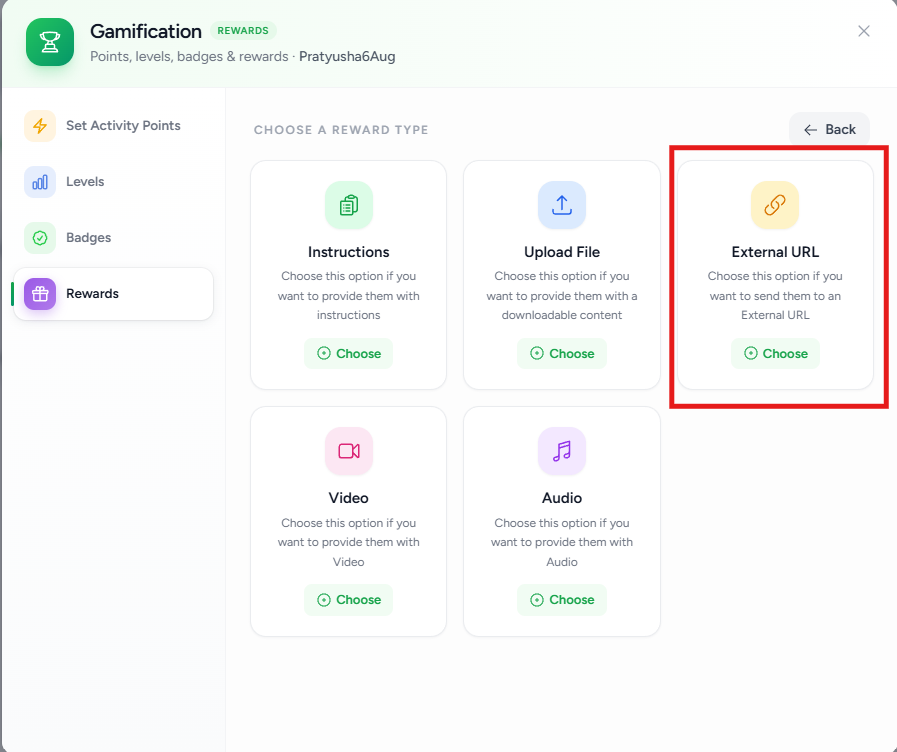
External URL
Redirect members to an external website after they unlock the reward.
Examples include:
- Private webpages
- Google Drive folders
- External learning platforms
- Bonus course portals
- Affiliate resources
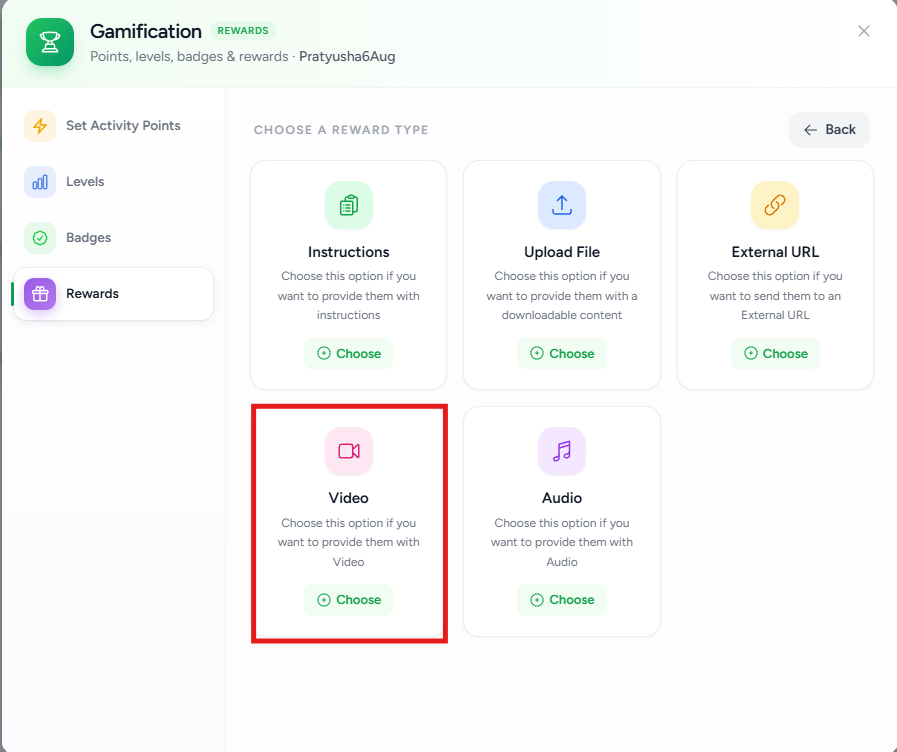
Video
Unlock exclusive video content as a reward.
This is useful for:
- Bonus lessons
- Behind-the-scenes content
- Premium training
- Recorded webinars
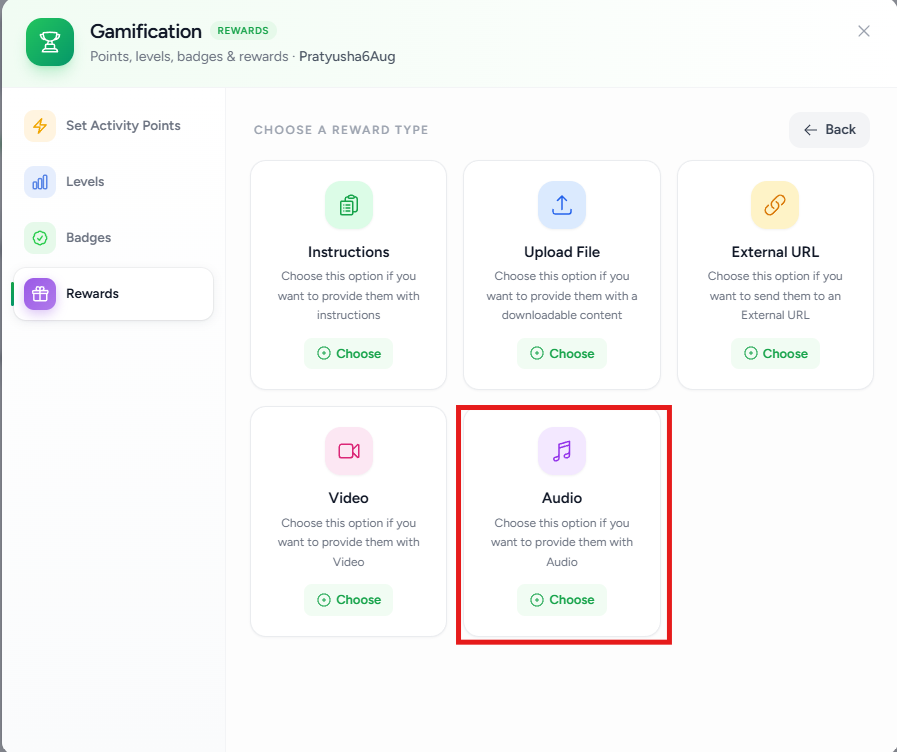
Audio
Provide exclusive audio content to members.
Examples include:
- Podcasts
- Guided meditations
- Audio lessons
- Motivational recordings
How Gamification Works
A typical member journey looks like this:
- A member joins your membership.
- They complete activities such as uploading a profile picture, completing lessons, posting, commenting, and liking content.
- They earn activity points automatically.
- As their points increase, they progress through Levels.
- Upon reaching specific milestones, they earn Badges.
- Once reward thresholds are met, exclusive Rewards are automatically unlocked.
Everything happens automatically based on the rules you configure.
Best Practices
- Reward meaningful actions instead of assigning points to every activity.
- Encourage course completion by assigning higher points to lesson completion.
- Use levels to give members a sense of progression.
- Award badges for significant milestones to recognize achievements.
- Offer valuable rewards that motivate continued participation.
- Periodically review your point values to maintain a balanced progression system.
- Combine gamification with community discussions and events to keep members consistently engaged.
Was this article helpful?
That’s Great!
Thank you for your feedback
Sorry! We couldn't be helpful
Thank you for your feedback
Feedback sent
We appreciate your effort and will try to fix the article