Configuring Membership Menus
Modified on Thu, 13 Aug at 5:41 PM
The Membership Menus settings allow you to control which navigation items are visible to members inside your membership. This helps you simplify the member experience by displaying only the features that are relevant to your audience.
For example, if your membership does not use events or community groups, you can hide those menus so members only see the sections they need.
Accessing Membership Menu Settings
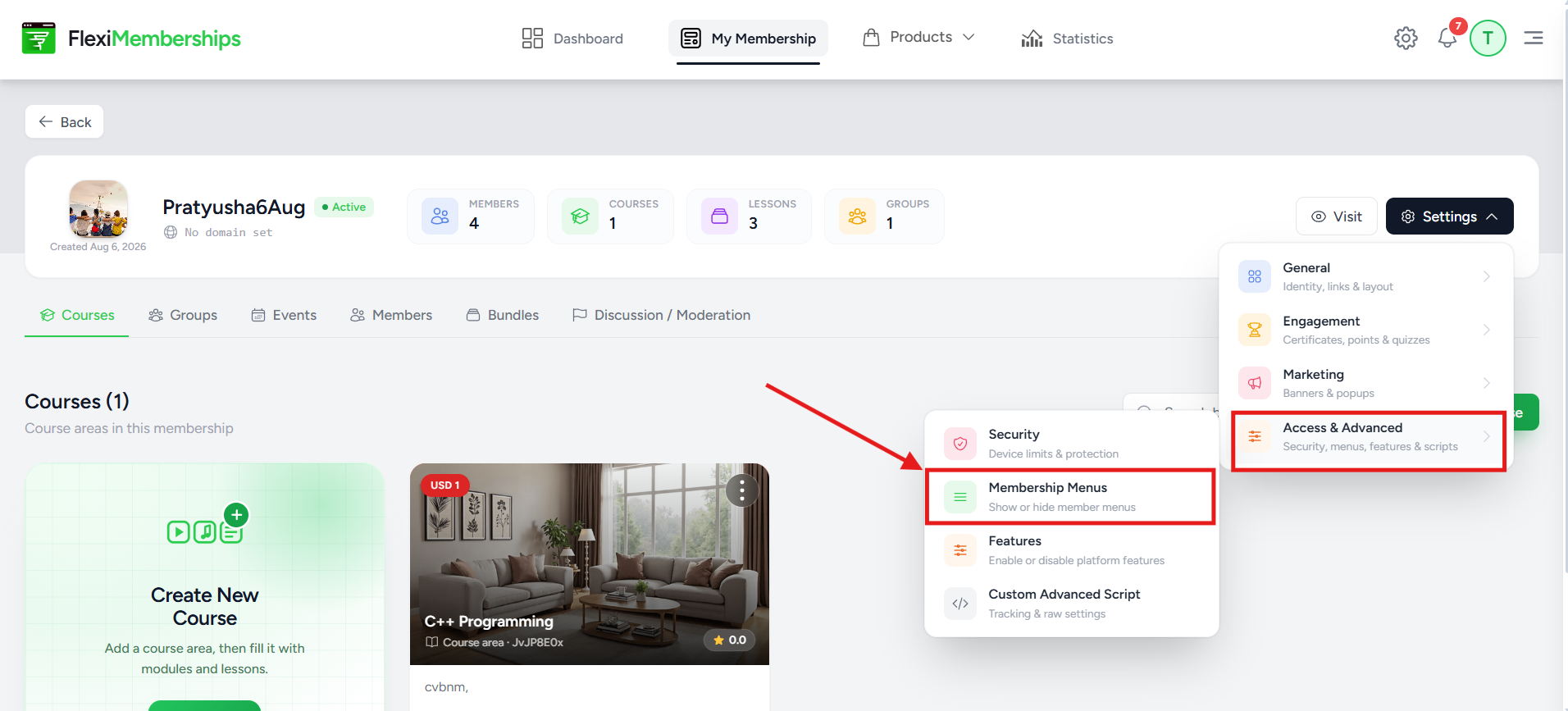
To configure your membership menus:
- Open your Membership.
- Click Settings.
- Navigate to Access & Advanced.
- Select Membership Menus.
The Membership Menus window displays all available navigation items along with individual visibility toggles.
Understanding Membership Menus
Each menu item includes an Enable/Disable toggle.
- Enabled – The menu is visible to all members.
- Disabled – The menu is hidden from every member within that membership.
Changes apply across the entire membership once saved.
Note: Hiding a menu only removes it from the member navigation. It does not delete any associated content or disable the feature itself.
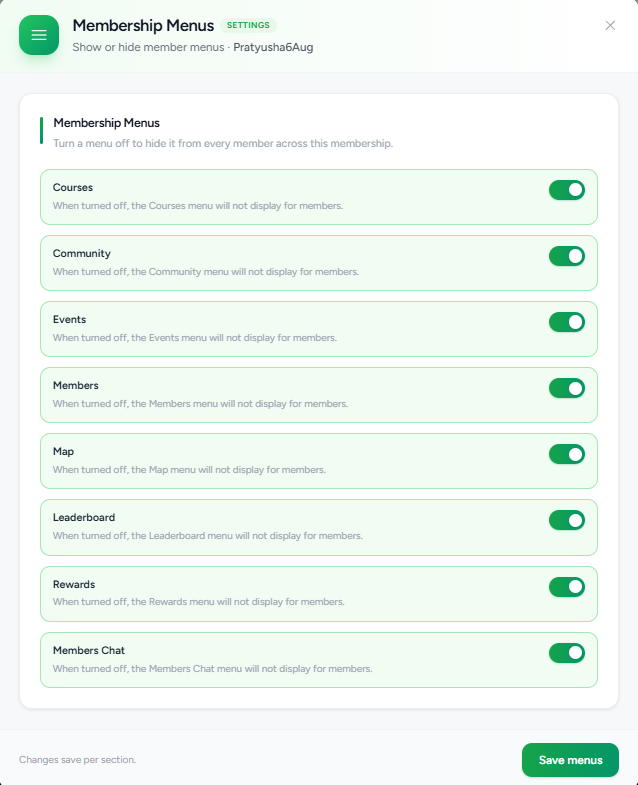
Available Membership Menus
Courses
The Courses menu provides members with access to all course areas included in the membership.
Keep this enabled if your membership delivers educational content through courses.
When disabled:
- Members cannot access the Courses section from the navigation.
- Existing course content remains intact and can be re-enabled later.
Community
The Community menu displays the Groups section where members can participate in discussions, share posts, and engage with other members.
Keep this enabled if your membership includes community interaction.
When disabled:
- The Community menu is hidden.
- Members cannot access Groups from the navigation.
Events
The Events menu gives members access to scheduled events such as:
- Live sessions
- Webinars
- Workshops
- Google Meet sessions
- Zoom meetings
Disable this menu if your membership does not host live events.
Members
The Members menu allows members to browse other members within the membership.
This is useful for community-driven memberships where networking and collaboration are encouraged.
When disabled:
- Members cannot view the member directory.
Map
The Map menu provides access to the membership's learning or navigation map (if configured).
Disable this option if your membership does not use the Map feature.
Leaderboard
The Leaderboard menu displays member rankings based on engagement and activity.
This menu is commonly used alongside the Gamification system.
When enabled, members can view:
- Point rankings
- Member positions
- Competitive progress
Disable it if your membership does not use leaderboards or point-based engagement.
Rewards
The Rewards menu allows members to view and access rewards they have earned through the Gamification system.
Rewards may include:
- Downloadable files
- Videos
- Audio content
- External links
- Instructions
If you are not using Gamification rewards, you can safely hide this menu.
Members Chat
The Members Chat menu provides members with access to the built-in chat functionality.
Enable this menu if you want members to communicate directly with one another.
Disable it if private messaging is not required within your membership.
Saving Your Changes
After enabling or disabling the required menu items:
- Review your menu configuration.
- Click Save menus.
Your updated navigation settings are immediately applied across the membership.
Things to Remember
- Menu visibility is configured separately for each membership.
- Hiding a menu does not remove or delete its associated data.
- Hidden features can be made visible again at any time by re-enabling their toggle.
- Members only see the menus that are enabled for their membership.
- Simplifying the navigation can improve the overall member experience by reducing unnecessary menu options.
Best Practices
- Hide menus for features your membership does not use.
- Keep the Courses menu enabled if your membership includes structured learning content.
- Enable Community only when member discussions and group interactions are part of your learning experience.
- Display Events only if you regularly host live sessions or webinars.
- Enable Leaderboard and Rewards together when using Gamification to encourage engagement.
- Review your menu configuration periodically as your membership grows and new features are introduced.
Was this article helpful?
That’s Great!
Thank you for your feedback
Sorry! We couldn't be helpful
Thank you for your feedback
Feedback sent
We appreciate your effort and will try to fix the article