What Is a Domain Homepage?
A Domain Homepage is the page that displays when someone visits your root domain URL (without any path).
Think of it like a store's front door—when someone walks in without looking for anything specific, they see the main storefront.
What it means:
- When visitor types just your domain (no path)
- They see your homepage
- You choose which page displays there
- Can be any landing page you've created
Why This Matters
User Experience:
✓ Visitors see your main page first
✓ Professional landing experience
✓ Sets expectations
Branding:
✓ Control what people see
✓ Make good first impression
✓ Direct traffic to right page
Conversions:
✓ Route traffic to converting page
✓ Optimize for your goal
✓ Increase results
Structure:
✓ Organize your domain
✓ Set main entry point
✓ Manage visitor flow
Prerequisites
Before setting homepage, you need:
- Domain added to FlexiFunnels
- Domain must be connected
- Already in your settings
- (See "Connect Custom Domain" guide)
- Landing pages created
- At least one page exists
- In your project
- Ready to set as homepage
- Domain verified
- DNS records are correct
- Domain is active
- Working properly
Step-by-Step: Set Domain Homepage
Step 1: Log Into FlexiFunnels
- Log into your account
- You're in dashboard
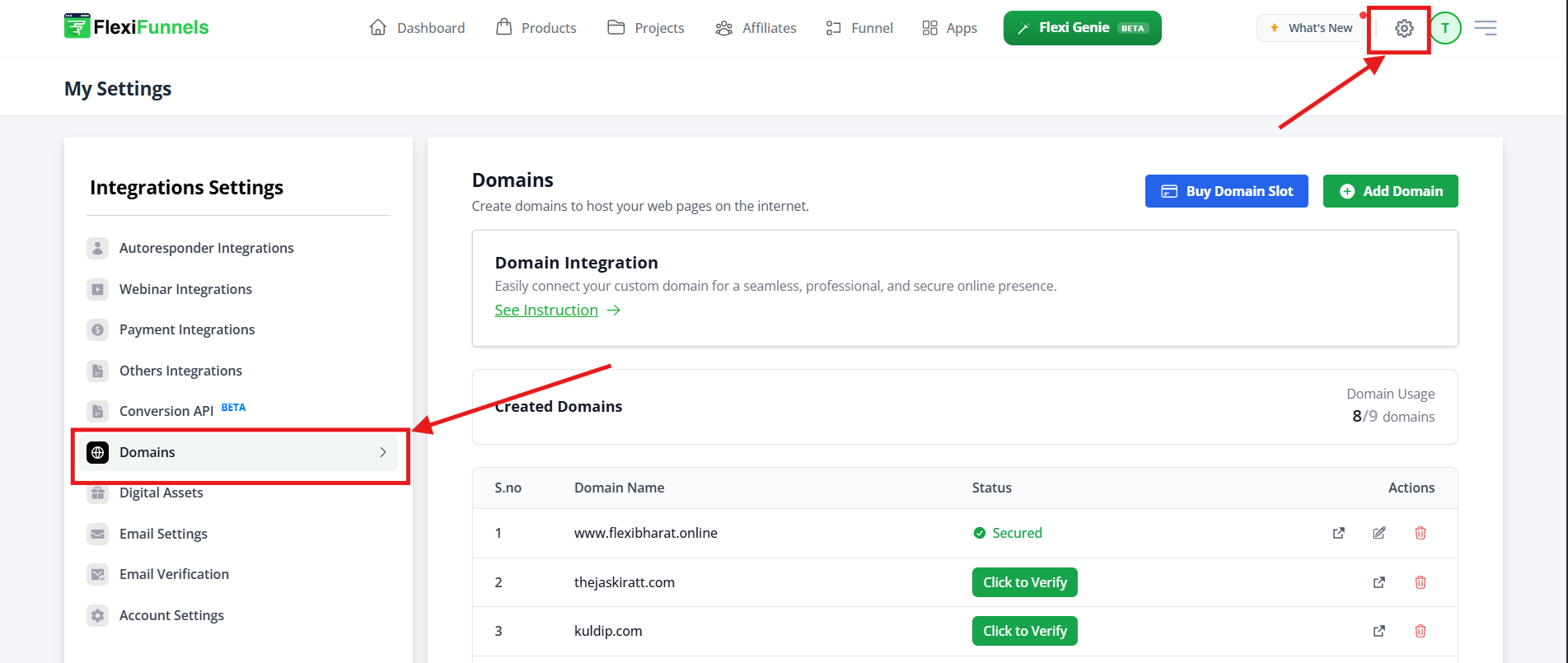
Step 2: Go to Domain Settings
- Find "Domains" in main menu
- Or look for "Project Settings" → "Domain Settings"
- You see list of your connected domains
Step 3: Locate Your Domain
- Find the domain you want to configure
- Click on it to open settings
- Or find "Edit" button next to domain
Step 4: Look for Homepage Setting
In domain settings, find:
- "Homepage" option
- "Root URL Page" setting
- "Home Page" dropdown
- "Default Page" option
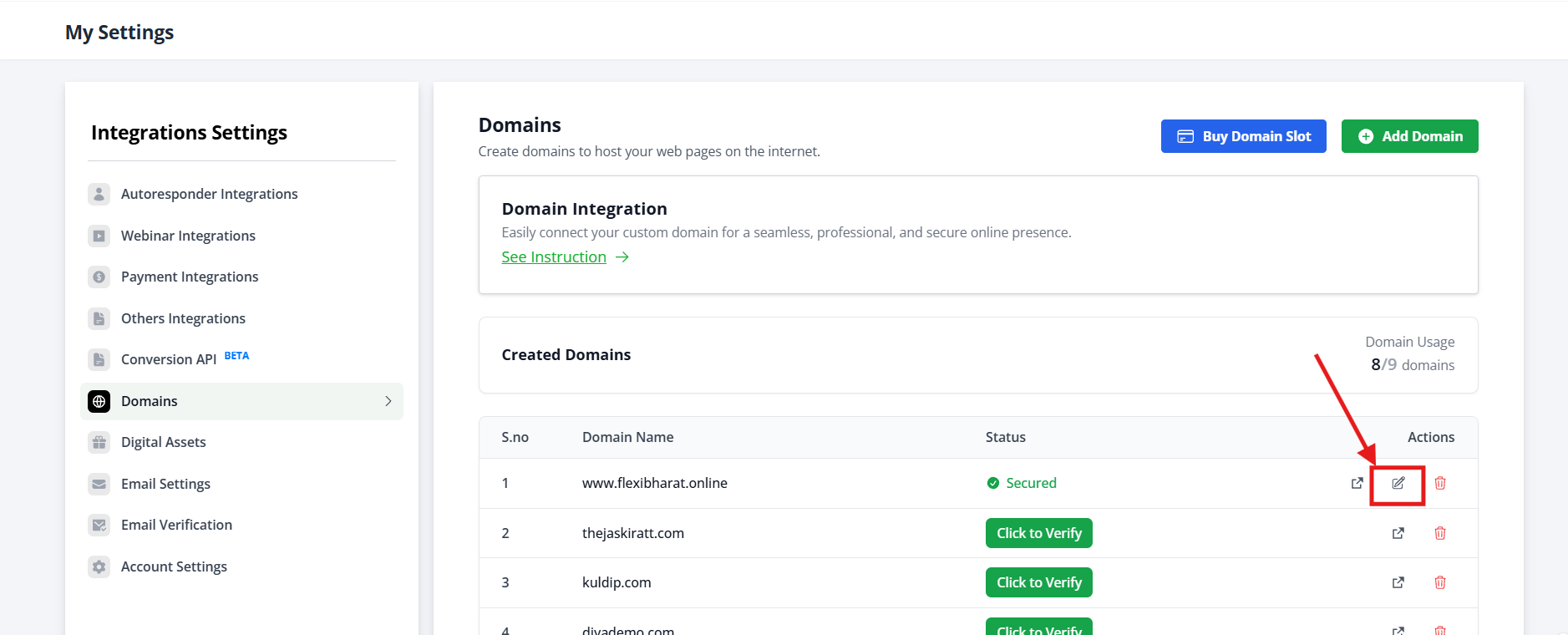
Step 5: Click Edit/Change
- Click "Edit" button next to homepage setting
- Or click the homepage field
- Options appear to select
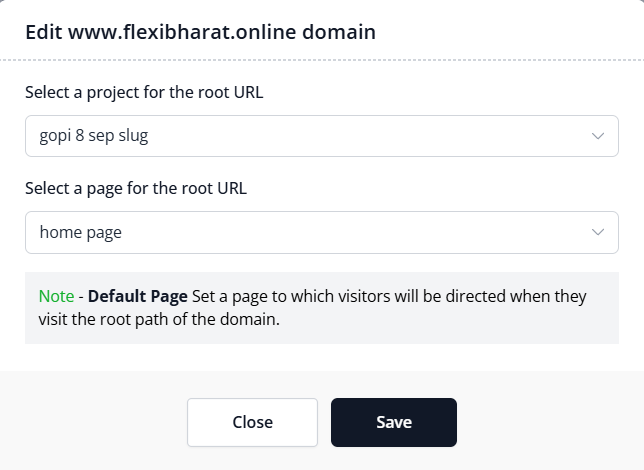
Step 6: Choose Landing Page
- See dropdown menu of available pages
- Browse your landing pages
- Select the one to display at root URL
Step 7: Confirm Selection
- Click the page you want
- Or click "Select" after choosing
- Page is selected as homepage
Step 8: Save Settings
- Look for "Save" button
- Click it
- Settings are saved
- Confirmation message appears
✓ Homepage is now set!
Root URL vs. Paths
ROOT URL (Homepage)
Format: https://www.yourbrand.com
What it is:
- Just your domain
- No page path after domain
- Your homepage setting determines what displays
PATH (Specific Page)
Format: https://www.yourbrand.com/sales
What it is:
- Domain + specific page path
- Displays specific page
- Not affected by homepage setting
Common Situations & Quick Fixes
Situation 1: "I Set Homepage, But It's Still Showing Old Page"
What's happening: Homepage setting didn't apply.
Diagnostic steps:
- Clear browser cache
- Old page might be cached
- Clear cookies and cache
- Open in incognito mode
- Test again
- Verify save was successful
- Did you click Save?
- Did confirmation message appear?
- Go back to settings
- Is your choice still selected?
- Wait for propagation
- DNS changes take time
- Wait 5-10 minutes
- Then test
- Test on different device
- Use phone or different computer
- See if it shows new page
- Rules out local cache
Situation 2: "I Want Different Homepage Than Current Page"
What's happening: Want to change homepage.
Steps:
- Go to domain settings
- Find homepage setting
- Click Edit
- Select different page
- Save
- Done!
Situation 3: "Can I Have Multiple Homepages?"
What's happening: Want different pages for different situations.
Answer: Technically yes, using subdomains.
Solution:
Main domain:
yourbrand.com → Homepage 1
Subdomains (separate homepages):
sales.yourbrand.com → Sales Page (its own homepage)
lead.yourbrand.com → Lead Magnet (its own homepage)
webinar.yourbrand.com → Webinar (its own homepage)
Each has own homepage setting!
Situation 4: "Someone Visits Domain/Random Path, What Happens?"
What's happening: Visitor goes to non-existent path.
Answer: Shows your homepage.
Example:
Visitor goes to: yourbrand.com/xyz (doesn't exist)
System shows: Your homepage (Sales Page)
This is default behavior!
Was this article helpful?
That’s Great!
Thank you for your feedback
Sorry! We couldn't be helpful
Thank you for your feedback
Feedback sent
We appreciate your effort and will try to fix the article