.
What Are Custom Fields?
Custom fields are the individual input boxes, dropdowns, checkboxes, and other elements you add to a form to collect specific information from visitors.
Think of it this way: When you fill out a form, each piece of information you enter is a custom field. Email, name, date of birth, dietary preference—each is a separate custom field.
In FlexiFunnels: You start with basic fields (name, email), then add custom fields to collect additional information you need.
Why Add Custom Fields?
You add custom fields to collect information beyond just name and email.
Real-world reasons:
- Qualify leads — Ask "What's your budget?" to filter out unqualified prospects
- Personalize follow-ups — Collect "Company name" so you can address people by company in emails
- Track preferences — Ask "What topics interest you?" (checkboxes) to segment your list
- Schedule appointments — Add a date field so they pick their preferred meeting date
- Gather consent — Add a checkbox for "I agree to your privacy policy" for legal compliance
- Route leads — Ask "Which product?" (dropdown) to send them to the right department
- Understand intent — Ask "How did you hear about us?" (radio) to measure marketing effectiveness
Rule of thumb: Only ask for information you'll actually use. Every extra field reduces form completion rates.
Step-by-Step: Add a Custom Field to Your Form
Before you start, you should already have:
- A FlexiFunnels page in the editor
- A form element added to the page
If not, see Form Element Settings Guide.
Step 1: Open Form Settings
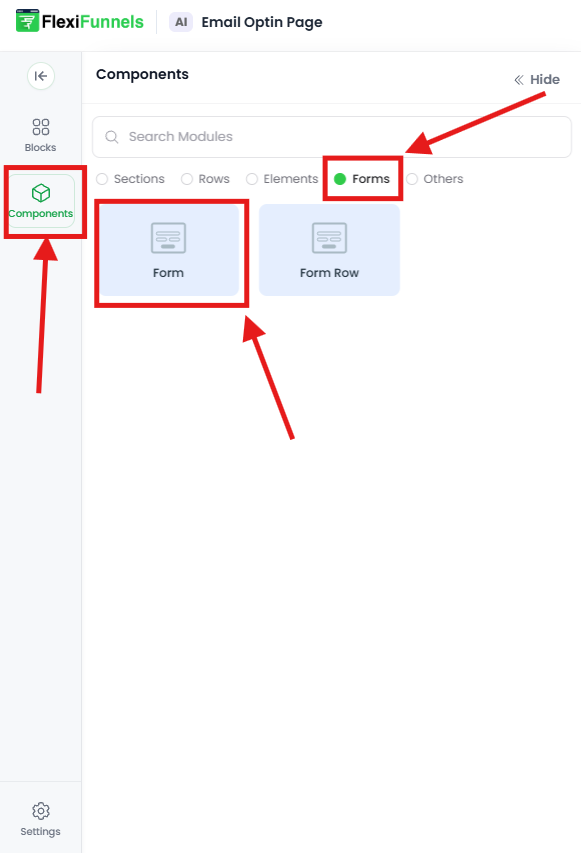
- Click on the form on your page
- Look for the gear icon ⚙️ (top-right of the form)
- Click it
- The form settings panel opens on the right
Step 2: Go to Advanced Settings
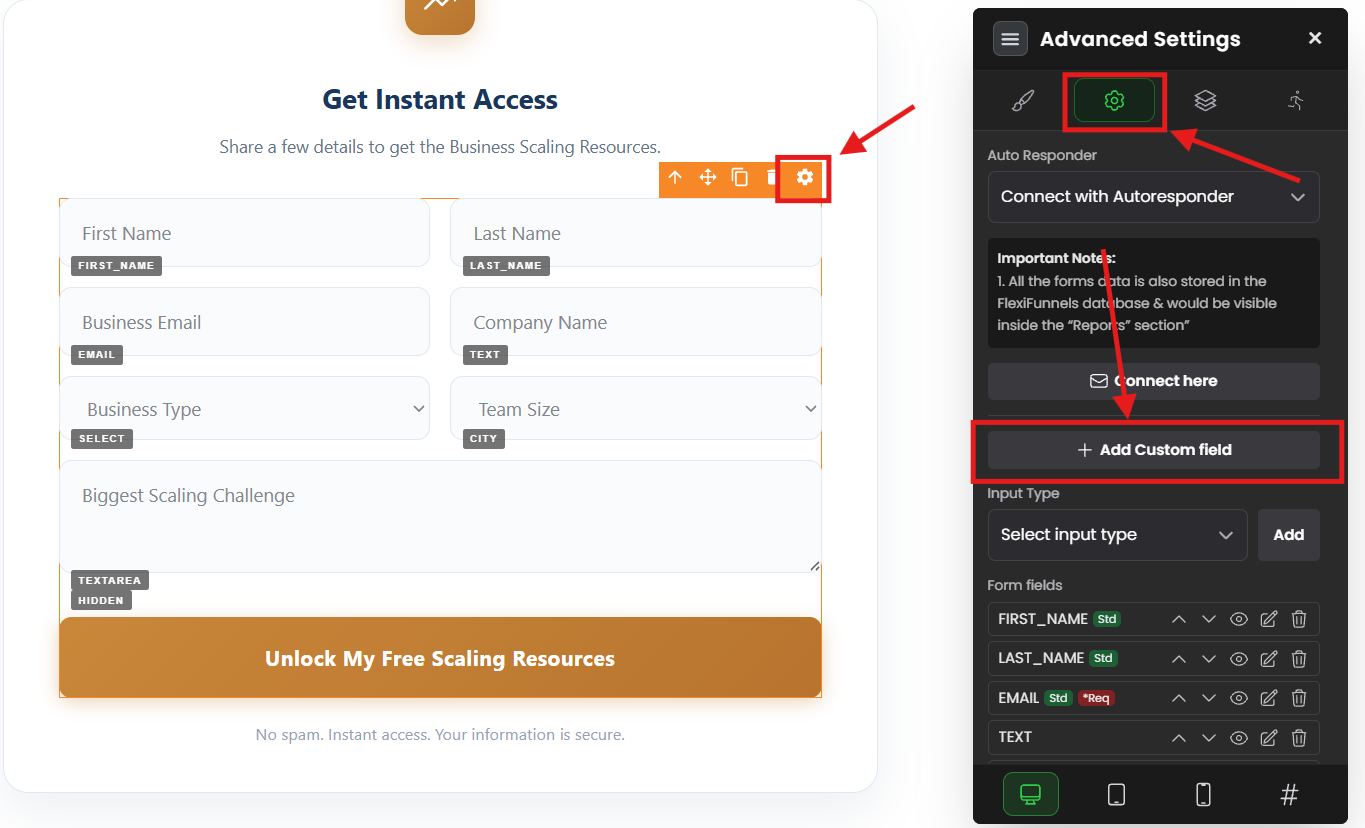
- In the form settings panel, find the "Advanced Settings" tab or section
- Click it
Step 3: Find the Custom Fields Section
- Look for a section labeled "Add Custom Field," "Custom Fields," or "Input Fields"
- You should see a button that says "+ Add Custom Field" or "Add Field"
Step 4: Click "Add Custom Field"
- Click the "+ Add Custom Field" button
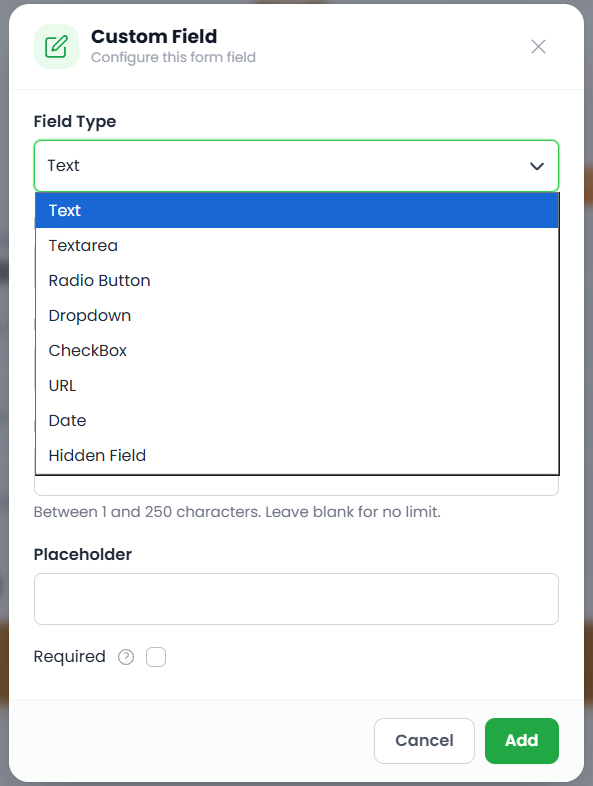
- A popup or dialog appears asking you to choose a field type
Step 5: Choose Your Field Type
- A list of field types appears (Text, Radio, Checkbox, Dropdown, Date, etc.)
- Click on the field type you need (see "Field Type Details" section below for guidance)
Step 6: Configure the Field
Depending on which type you chose, you'll see different options:
- For simple fields (Text, Textarea, Date, Number, Email): Just name it and you're done
- For fields with options (Radio, Checkbox, Dropdown): You need to define the choices
Step 7: Name Your Field
- In the "Field Name" or "Label" field, type what this field collects
- This is what users see: "First Name," "Email," "Favorite Color," etc.
Good field names:
- "Phone Number"
- "Company Name"
- "How did you hear about us?"
- "Which topics interest you?"
Poor field names:
- "Input1" (not descriptive)
- "Data" (too vague)
- "X" (meaningless)
Step 8: Add Options (If Applicable)
If you chose Radio, Checkbox, or Dropdown, you need to add the options users can choose from:
- Look for an "Add Option" or "+ Add Choice" button
- Click it
- Type the first option
- Click again to add more options
- Repeat until all options are added
Example for "How did you hear about us?":
- Google Search
- Social Media
- Friend Referral
- Paid Ad
- Other
Step 9: Mark as Required (Optional)
- Some fields might have a "Required" toggle or checkbox
- Toggle it ON if this field must be filled out
- Toggle OFF if it's optional
Use Required for: Email, name, anything critical to your process Use Optional for: Additional details, preferences, nice-to-have information
Step 10: Save
- Click "Save" or "Add Field"
- The field appears in your form preview
- Test it by filling out the form
✓ Your custom field is added!
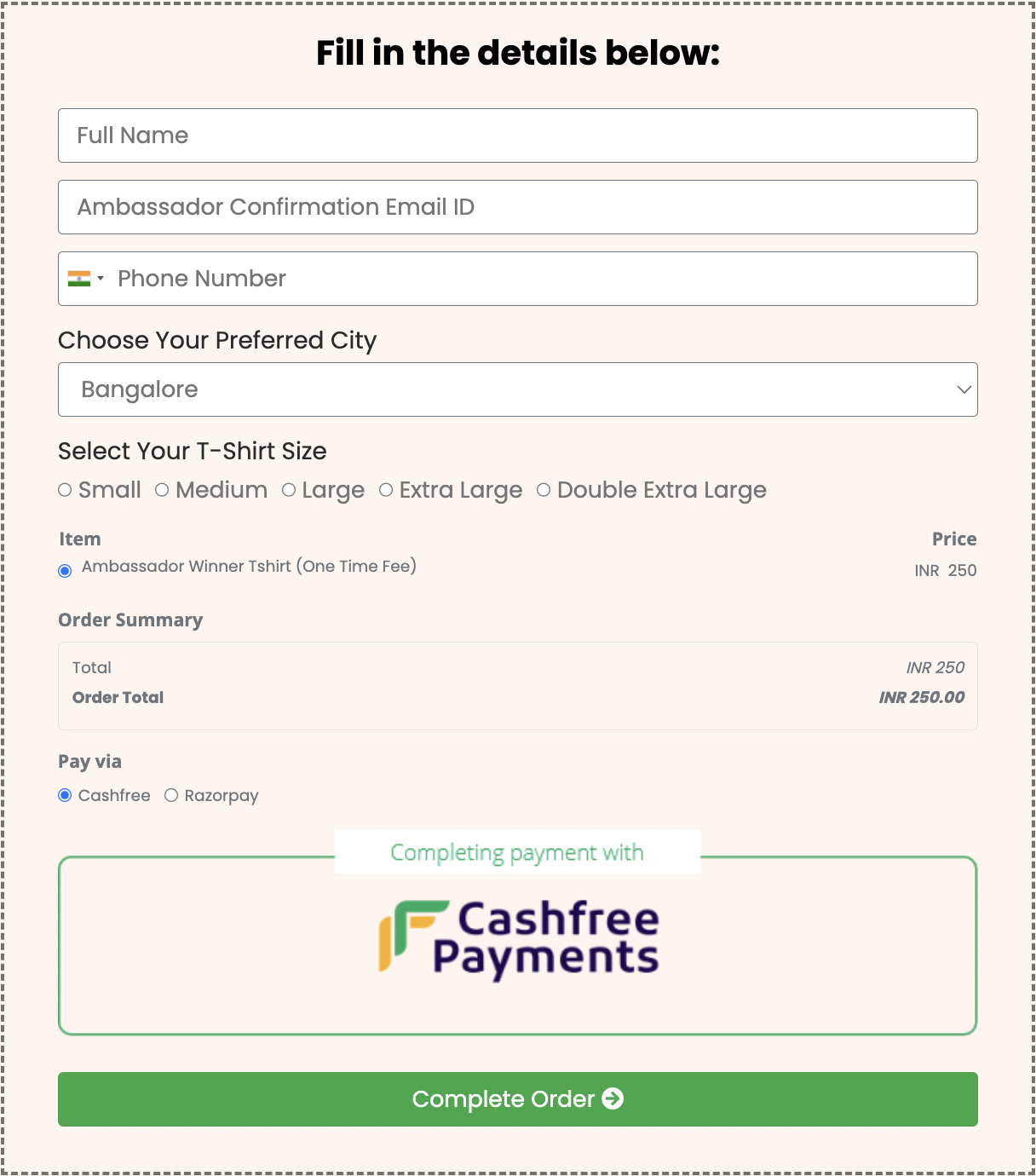
Design with new form fields:
Field Type Details with Real Examples
Now let's dive deep into each field type.
| Field Type | What It Is | Best For | Allow Multiple? | Example |
|---|---|---|---|---|
| Text | Single-line input | Names, titles, company | No | "First Name" |
| Textarea | Multi-line input | Long answers, feedback | No | "Tell us about your project" |
| Radio | Round buttons | ONE choice from small list | No | "Do you use a CRM? Yes/No/Unsure" |
| Checkbox | Square boxes | MULTIPLE choices | Yes | "Which topics interest you?" |
| Dropdown | Click-to-reveal list | ONE choice from long list | No | "Select your country" |
| Date | Calendar picker | Birthdate, appointment date | No | "Preferred meeting date" |
| Number | Numbers only | Phone, age, quantity | No | "Annual budget" |
| Email validation | Secondary email, work email | No | "Work email address" | |
| Hidden | Invisible to user | Tracking, UTM, affiliate codes | No | Campaign source |
Quick Decision: Which Field Type Do I Need?
Short text answer? → Text
Long answer? → Textarea
Pick ONE option? → Radio (2-5 options) or Dropdown (6+ options)
Pick MULTIPLE options? → Checkbox
Specific date? → Date
Numbers only? → Number
Email address? → Email
Invisible tracking? → Hidden
Field Type (Quick Reference)
TEXT FIELD
Use for: Names, emails, phone, short answers
Example: "Your company name"
Key feature: Single-line input
TEXTAREA FIELD
Use for: Feedback, questions, open-ended responses
Example: "What's your biggest challenge?"
Key feature: Multi-line input, capture detailed answers
RADIO FIELD
Use for: Yes/No, single choice from 2-5 options
Example: "Budget range: Under $500 / $500-1K / $1K-5K"
Key feature: Only ONE answer allowed
Not: Use Checkbox if they can pick multiple
CHECKBOX FIELD
Use for: Multiple selections, interests, preferences, opt-ins
Example: "Which topics interest you? ☐ Tech ☐ Marketing ☐ Sales"
Key feature: Users can select multiple options
Not: Use Radio if only one answer allowed
DROPDOWN FIELD
Use for: Long list (6+) of options, single choice
Example: "Select country" (50+ countries)
Key feature: Clean, doesn't overwhelm with visible options
Not: Use Radio for shorter lists (looks better)
DATE FIELD
Use for: Birthdate, appointment date, event date
Example: "Preferred meeting date"
Key feature: Calendar picker, can set min/max dates
NUMBER FIELD
Use for: Phone, age, budget, quantity
Example: "Annual marketing budget"
Key feature: Numbers only (prevents text entry)
EMAIL FIELD
Use for: Secondary email, work email (in addition to default email)
Example: "Work email address"
Key feature: Validates proper email format
HIDDEN FIELD
Use for: Tracking (referral source, campaign, affiliate code)
Example: Capture "facebook" from URL: page.com?source=facebook
Key feature: Invisible to user, captures data from URL
Common Situations & Quick Fixes
Situation 1: "I Added a Custom Field but It's Not Showing on the Published Page"
What's happening: The field appears in the editor but not on the live page.
Diagnostic steps:
- Verify the field was saved
- In form settings, does the field appear in the list?
- If not, it wasn't saved properly
- Try adding it again
- Check if page is published
- Even if the field is saved, the page needs to be published
- Go to Page Settings → Publish
- Publish the page
- Test on published URL only
- Don't test in the editor preview
- Go to the actual published page URL (not the editor)
- The field should appear there
- Check for visibility rules
- Some fields might have conditional visibility
- Go to form settings and check if a "Show if" or "Visibility" rule is hiding the field
Common root cause: Page not published, or field not actually saved.
Situation 2: "I Want to Change the Options in a Radio/Checkbox/Dropdown Field"
What's happening: You created a field but now want to edit the options.
Diagnostic steps:
- Open form settings
- Click the form gear icon
- Go to Advanced Settings
- Find your field in the list
- Look for the field name (e.g., "Which topics interest you?")
- Click on it to edit
- Edit the options
- You should see the list of options
- Look for Edit or pencil icon next to each option
- Click to edit an option
- Or look for "+ Add Option" to add new ones
- Or Delete buttons to remove options
- Save changes
- Click Save to confirm changes
Note: If you change options on a field that's already collecting data, the old responses aren't affected—only new submissions will use the new options.
Situation 3: "I'm Not Sure If I Should Use Radio or Checkbox"
Decision tree:
- Can the user pick MULTIPLE answers?
- Yes → Use Checkbox
- No → Use Radio
Examples:
- "What's your gender?" → Radio (one answer only)
- "What topics interest you?" → Checkbox (multiple answers okay)
- "Do you agree?" → Radio (yes/no is single choice)
- "Which features do you need?" → Checkbox (multiple selections)
Situation 4: "I Need to Limit Which Dates Users Can Pick"
What's happening: You added a date field, but users can pick past dates or dates way in the future.
Diagnostic steps:
- Open form settings
- Click the form gear icon
- Go to Advanced Settings
- Find the date field
- Locate your date field in the list
- Click to edit it
- Set min/max dates
- Look for "Minimum Date" or "From Date" option
- Set it to today or a specific date
- Look for "Maximum Date" or "To Date" option
- Set it to 30 days from now (or whatever makes sense)
- Save
- Click Save
Common examples:
- Appointment booking: Min = Today, Max = 30 days from now
- Birthdate verification: Min = 1900, Max = Today (minus 18 years)
Situation 5: "I Want the Same Hidden Field Across Multiple Forms"
What's happening: You created a hidden field for one form but need it on others too.
Solution:
- Copy the value: Note down the field name and value (e.g., "campaign_source=facebook")
- Add to other forms: Follow the "Step-by-Step" instructions above to add a hidden field to your other forms
- Use same name and value: Make sure the field name and value match exactly
This way, all your forms track the same data consistently.
Was this article helpful?
That’s Great!
Thank you for your feedback
Sorry! We couldn't be helpful
Thank you for your feedback
Feedback sent
We appreciate your effort and will try to fix the article