Before making your Sales Agent or Support Agent live, it's important to thoroughly test their responses. Testing helps you identify missing information, improve response quality, and ensure your agents provide accurate answers to your customers.
Think of it as role-playing with a new employee before their first real shift. A good manager doesn't put a new hire on the phones on day one — they play the customer first: ask the common questions, throw in a tricky one, push back on the price, and see how the new hire handles it. Every stumble in rehearsal is one less stumble in front of a real customer. Testing your AI agent works exactly the same way.
Before You Begin
Make sure you have completed these two setup steps:
- Create your Product Knowledge Base in Markdown (
.md) format. - Upload the Product Knowledge Base to the Vault and connect it to your Sales or Support Agent.
Once these steps are complete, you're ready to begin testing. (Both steps have their own guides — see Related Articles below.)
Follow These Steps
Step 1: Open the Chat Section
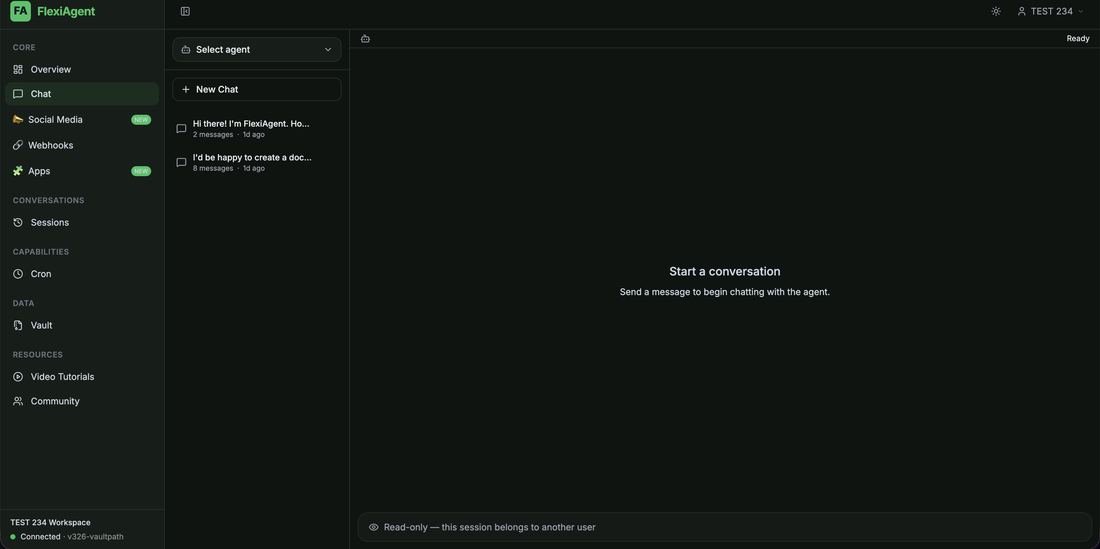
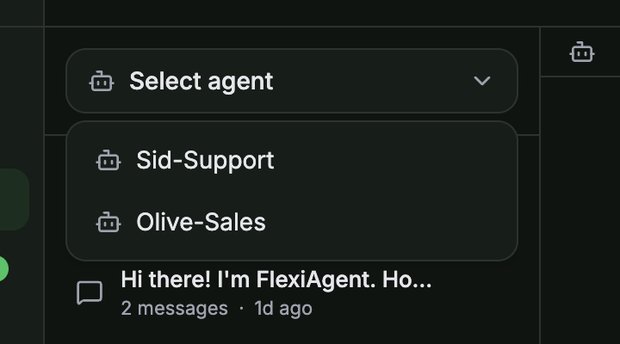
Navigate to the Chat section in your FlexiAgent dashboard and select the AI agent you want to test — for example, your Sales Agent or Support Agent. Then click + New Chat to begin a fresh conversation.
Step 2: Ask Real Customer Questions
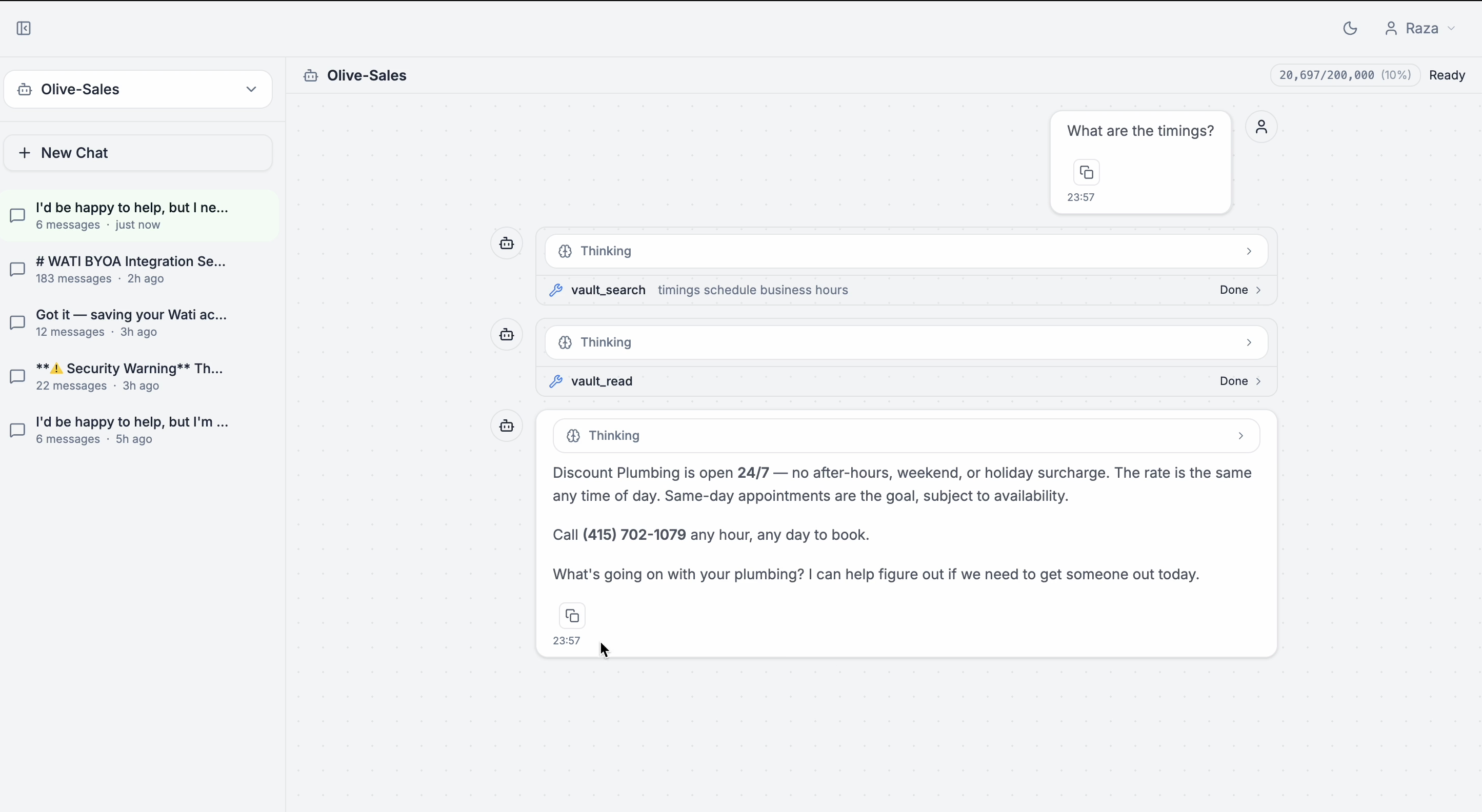
Think about the questions your customers ask most often and use those as your test cases. For example:
- What are your business hours?
- What are your pricing plans?
- Which services do you offer?
- Do you provide emergency support?
- Where are you located?
- How can I book an appointment?
The more realistic your questions, the better you'll understand how your AI agent performs.
Step 3: Test Different Conversation Scenarios
Don't limit yourself to basic questions. Try different customer situations to evaluate how the agent responds:
- Asking about pricing
- Requesting discounts
- Asking for a payment link
- Requesting to speak with a human representative
- Comparing services
- Asking follow-up questions
- Raising objections
For example, try telling your Sales Agent:
"Your services are too expensive."
Observe how the agent responds and whether it handles the objection naturally.
Step 4: Test the Agent with Challenging Questions
Ask questions that may not be directly covered in your knowledge base. This helps identify missing information and areas where your Product Knowledge Base needs improvement. For example:
- Can you explain your warranty policy?
- Do you offer weekend appointments?
- What payment methods do you accept?
- Can I reschedule my booking?
If the agent provides incomplete or incorrect answers, you'll know exactly what information needs to be added.
Step 5: Generate Additional Test Questions with Claude
If you're unsure what to test, you can use the same AI conversation — in Claude, ChatGPT, or Gemini — that you used to create your Product Knowledge Base (with the Vault Knowledge Builder prompts). Since the AI already knows your business details from that conversation, it can create highly relevant test questions.
Simply ask it:
"Generate customer questions to test my Sales Agent."
The AI will create a list of realistic customer queries that you can copy and paste into your FlexiAgent chat. This is an effective way to uncover gaps in your knowledge base before going live.
Review Every Response
As you test, carefully evaluate each response. Ask yourself:
- Is the answer accurate?
- Is it complete?
- Does it sound natural?
- Would a customer find it helpful?
- Is the response aligned with your business?
Make note of any responses that need improvement — a simple list of "questions the agent fumbled" becomes your to-do list for the next step.
Step 7: Update Your Product Knowledge Base
If you find missing or inaccurate responses, update your Product Knowledge Base with the necessary information. Common updates include:
- Missing services
- Updated pricing
- Additional FAQs
- Business policies
- Contact details
- Product features
After updating the file, replace the existing knowledge base in the Vault with the latest version. Your AI agent will automatically begin using the updated information.
.md version, and let the enrichment process complete. See the full walkthrough in the Related Articles below.Continue Testing
After uploading the updated knowledge base:
- Start a New Chat.
- Repeat your tests.
- Verify that the responses have improved.
Continue this test → update → re-test loop until you're satisfied with the quality and accuracy of your agent's answers. Most knowledge bases get dramatically better after just two or three rounds.
Best Practices
For the best results:
- Test using real customer questions — your inbox and past support tickets are the best question bank you own.
- Include both simple and complex scenarios.
- Challenge the agent with objections and follow-up questions.
- Test multiple conversation paths — the same question asked different ways.
- Keep refining your Product Knowledge Base as your business evolves — and after going live, review real conversations in the Sessions tab to keep finding improvement opportunities.
Common Situations & Quick Fixes
.md knowledge base file, replace the file in the Vault (delete old → upload new), then re-test the same question in a New Chat.Was this article helpful?
That’s Great!
Thank you for your feedback
Sorry! We couldn't be helpful
Thank you for your feedback
Feedback sent
We appreciate your effort and will try to fix the article