How to set up A/B split test campaigns between page variations, track their performance, and declare a winner using Claude or ChatGPT, once connected via MCP.
Overview
A split test (or A/B test) lets you show different visitors different versions of a page, so you can see which version performs better. Once Claude or ChatGPT is connected to your FlexiFunnels account via MCP, you can set up, monitor, and conclude these tests directly from your chat.
This article covers:
- Setting up a new split test campaign
- Starting or pausing a split test
- Renaming a split test campaign
- Reviewing performance results per variation
- Declaring a winning variation
Before You Begin
- Make sure FlexiFunnels is connected to Claude (as a Connector) or ChatGPT (as a Plugin). See Connecting Claude to FlexiFunnels via MCP or Connecting ChatGPT to FlexiFunnels via MCP if you haven't done this yet.
- Have at least two page variations ready to test against each other.
- Decide what you're testing for before setting up the campaign.
Step-by-Step: Common Split Testing Tasks
Step 1: Set Up a Split Test Campaign
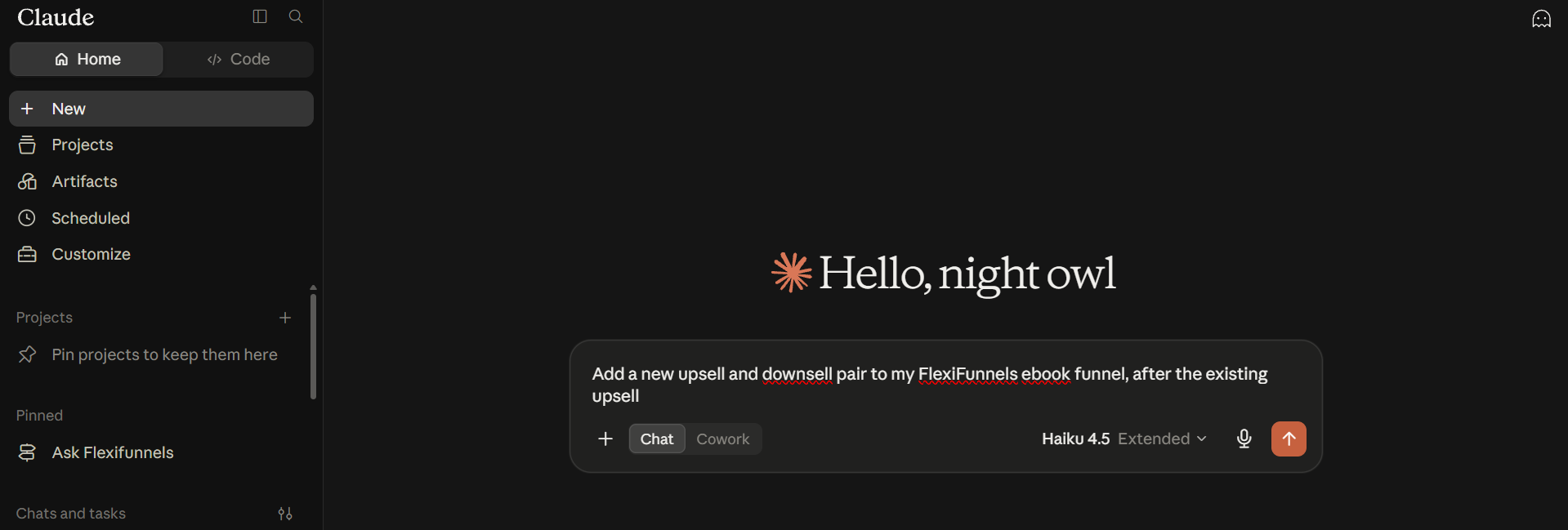
- Tell Claude or ChatGPT which pages you want to test against each other.
Example Prompt: "In FlexiFunnels, set up a split test between my two sales page headline variations."
Step 2: Start or Pause the Split Test
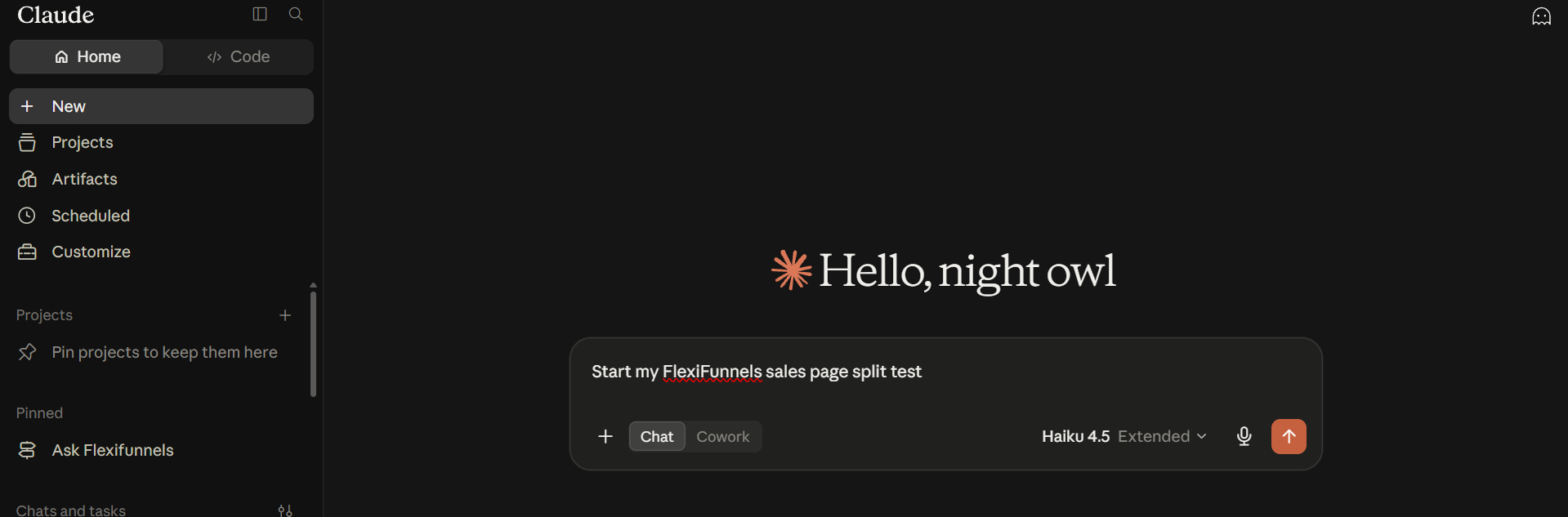
- Start the campaign so traffic begins splitting between variations, and pause it any time you need to.
Example Prompt: "Start my FlexiFunnels sales page split test."
Step 3: Rename a Split Test
- Update a campaign's name for clarity.
Example Prompt: "Rename my FlexiFunnels sales page split test to 'Headline Test - March'."
Step 4: Review Performance Results
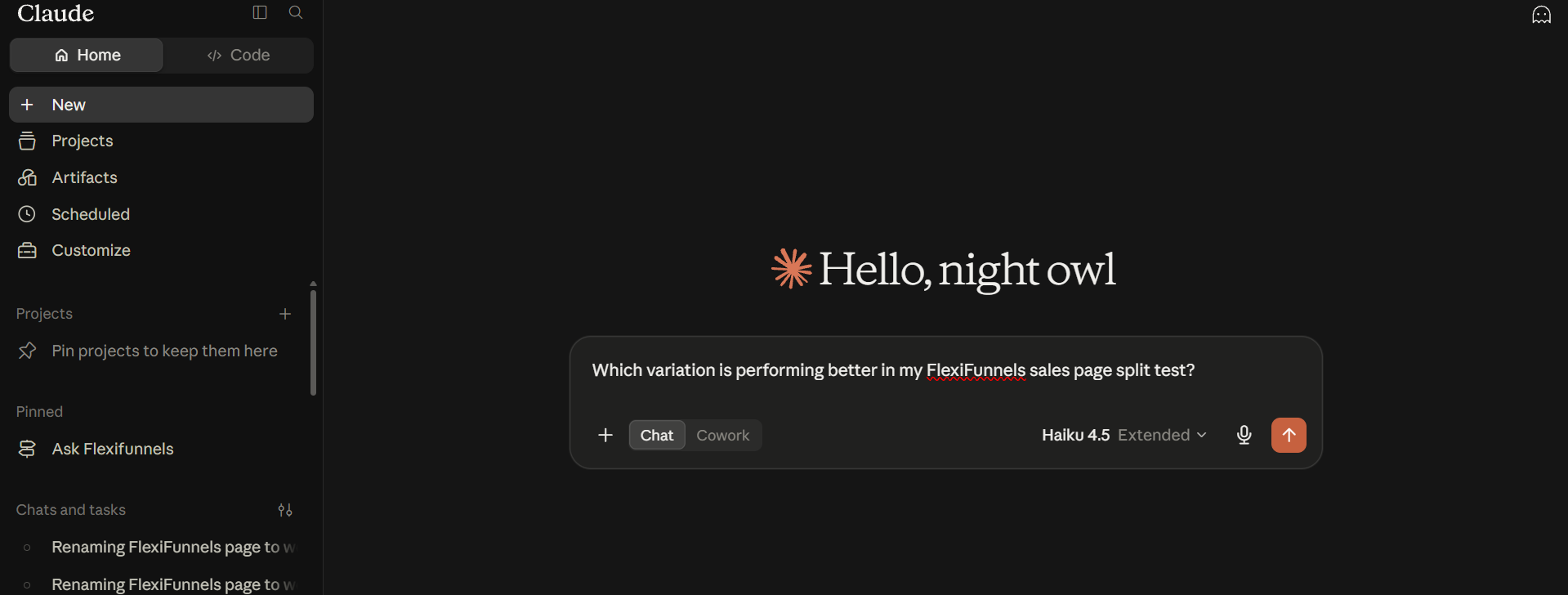
- Ask for a performance summary to see how each variation is doing.
Example Prompt: "Which variation is performing better in my FlexiFunnels sales page split test?"
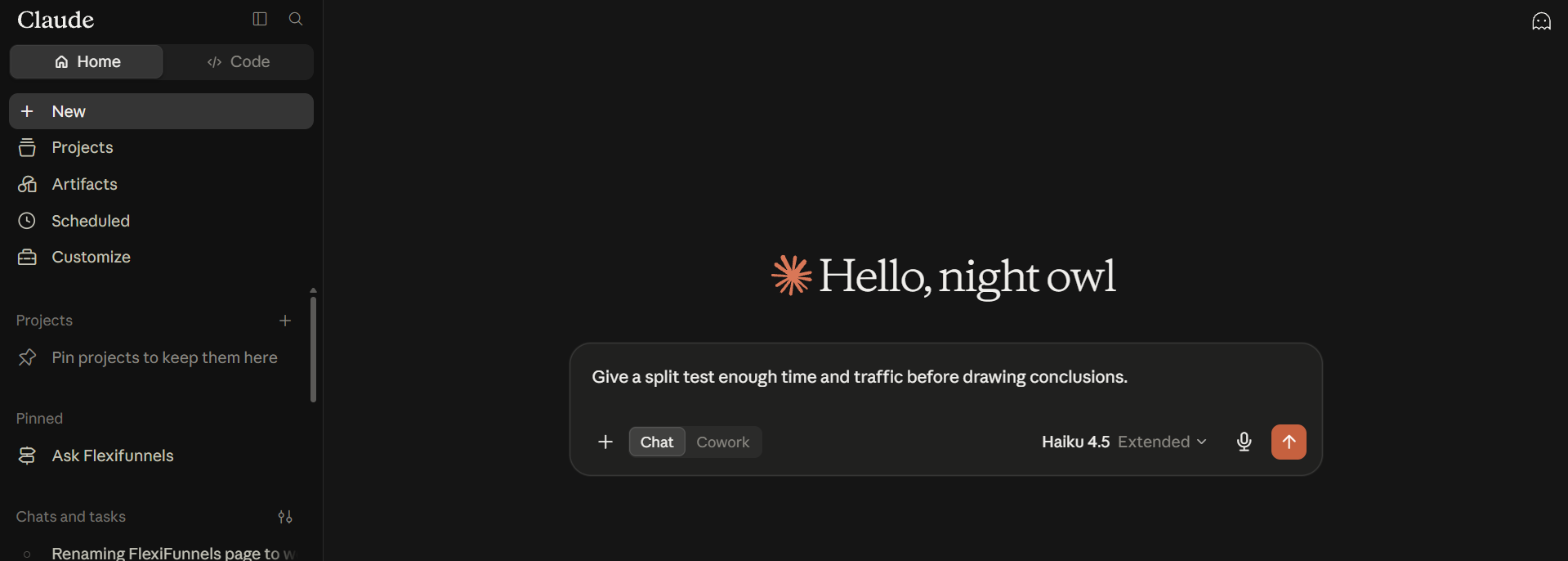
Tip: Give a split test enough time and traffic before drawing conclusions.
Step 5: Declare a Winner
- Once confident in the results, ask for the winning variation to be promoted, making it the live page going forward.
Example Prompt: "Declare Variation B the winner of my FlexiFunnels sales page split test."
Be Careful: Declaring a winner changes what all future visitors see. Make sure you're confident in the result before confirming this action.
Behind the Scenes — MCP Tools Involved
| Task | Related MCP Tool(s) |
|---|---|
| Create a split test campaign | create_split_test |
| Start a split test | start_split_test |
| Pause a split test | pause_split_test |
| Rename a split test | rename_split_test |
| View split test performance report | get_split_test_report |
| Declare a winning variation | set_split_test_winner |
Good to Know: These are the same MCP tools used by Flexi Genie — Claude and ChatGPT simply give you a different chat interface to access them from.
Ready-to-Use Prompts
"In FlexiFunnels, set up a split test between my two checkout page layouts."
"How is my FlexiFunnels checkout page split test performing so far?"
"Declare the winning variation for my FlexiFunnels checkout page split test."
Tips for Better Results
- Mention "FlexiFunnels" explicitly if you have other connectors/plugins active in the same chat.
- Only test one major difference at a time so you know what's driving the difference in results.
- Let a test run long enough to gather a meaningful amount of traffic before declaring a winner.
Common Issues / Troubleshooting
No Noticeable Difference Between Variations: This can mean the test needs more time/traffic, or that the tested change wasn't significant enough.
Split Test Not Splitting Traffic: Confirm the campaign has actually been started, not just created.
Limitations / Important Notes
- Creating a split test campaign does not automatically start it — these are separate steps.
- Declaring a winner changes the live page for all future visitors; this action should be treated as final for that test.
Curious what else Flexi Genie and AI assistants can do inside FlexiFunnels? See the full Possibilities with Flexi Genie & AI Assistance reference document.
Was this article helpful?
That’s Great!
Thank you for your feedback
Sorry! We couldn't be helpful
Thank you for your feedback
Feedback sent
We appreciate your effort and will try to fix the article