A group is like a clubhouse. ? Your members go inside, talk, and share pictures and videos.
You can make 3 kinds of clubhouse:
| Kind | What it means | Do you get a ticket (product)? |
|---|---|---|
| ? Free | Anyone can come in. No money. | ✅ Yes, made for you |
| ? Paid | People pay money to come in. | ✅ Yes, made for you |
| ⏳ Free Trial | Free for a little while. Then people pay. | ❌ No ticket |
The ticket is called a group product. When someone gets the ticket, they walk into the group. ?️
Step 1: Make a membership
A group lives inside a membership. So you need a membership first.
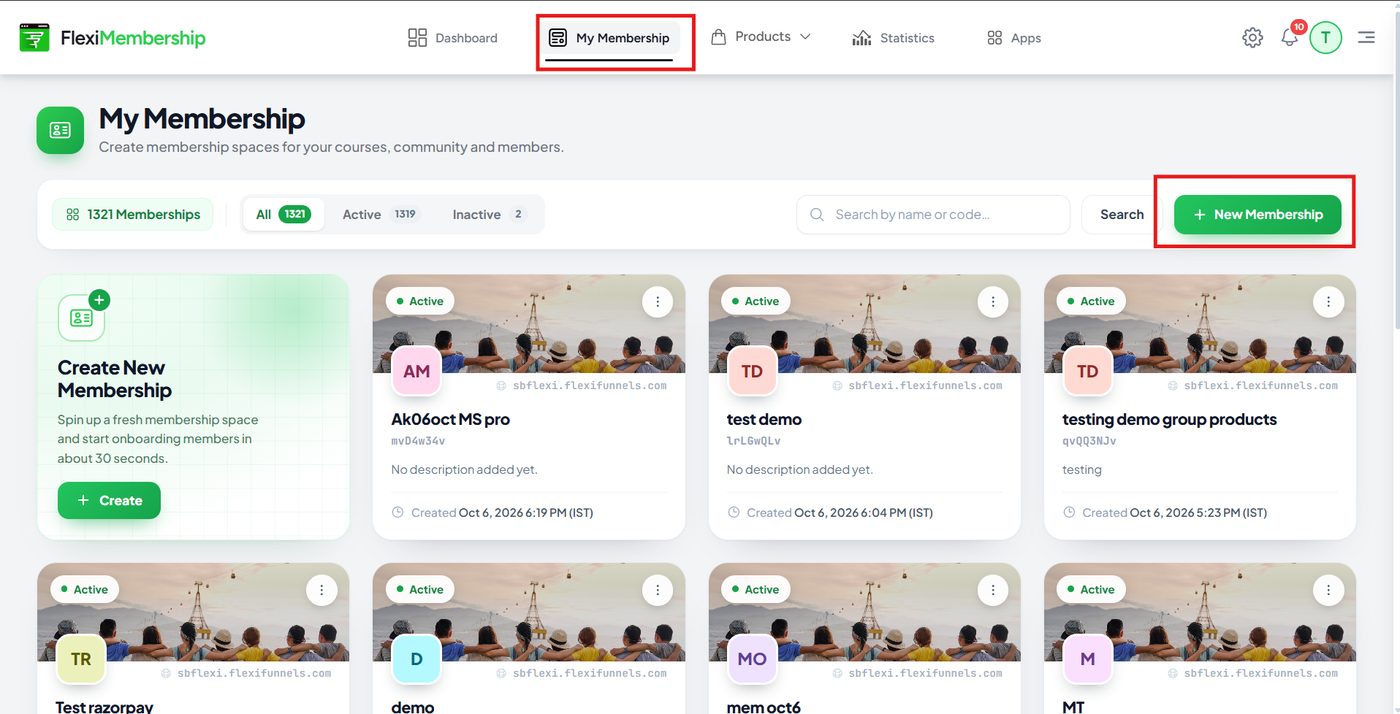
- Click My Membership at the top.
- Click the green New Membership button.
- Type a name and click Create.
Already have a membership? Just open it and go to Step 2.
Step 2: Click New Group
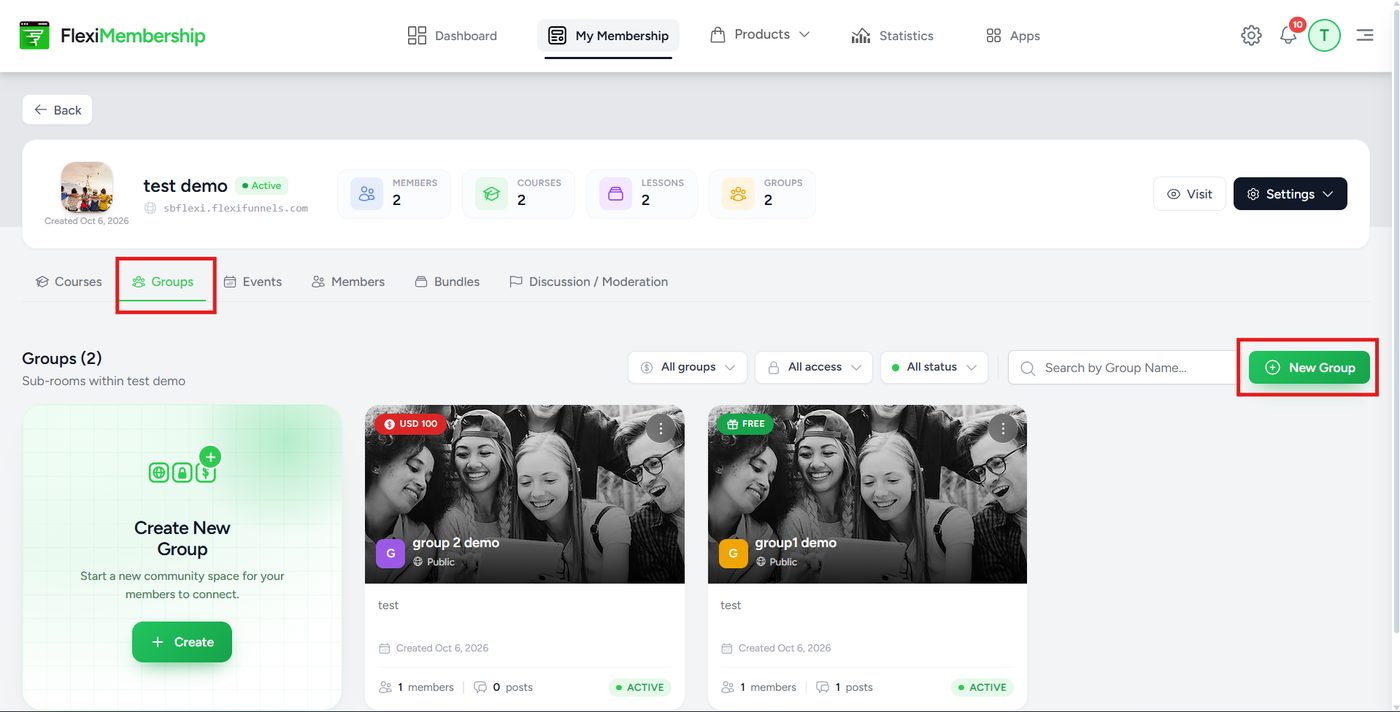
- Open your membership.
- Click the Groups tab.
- Click the green New Group button.
Step 3: Fill in the box
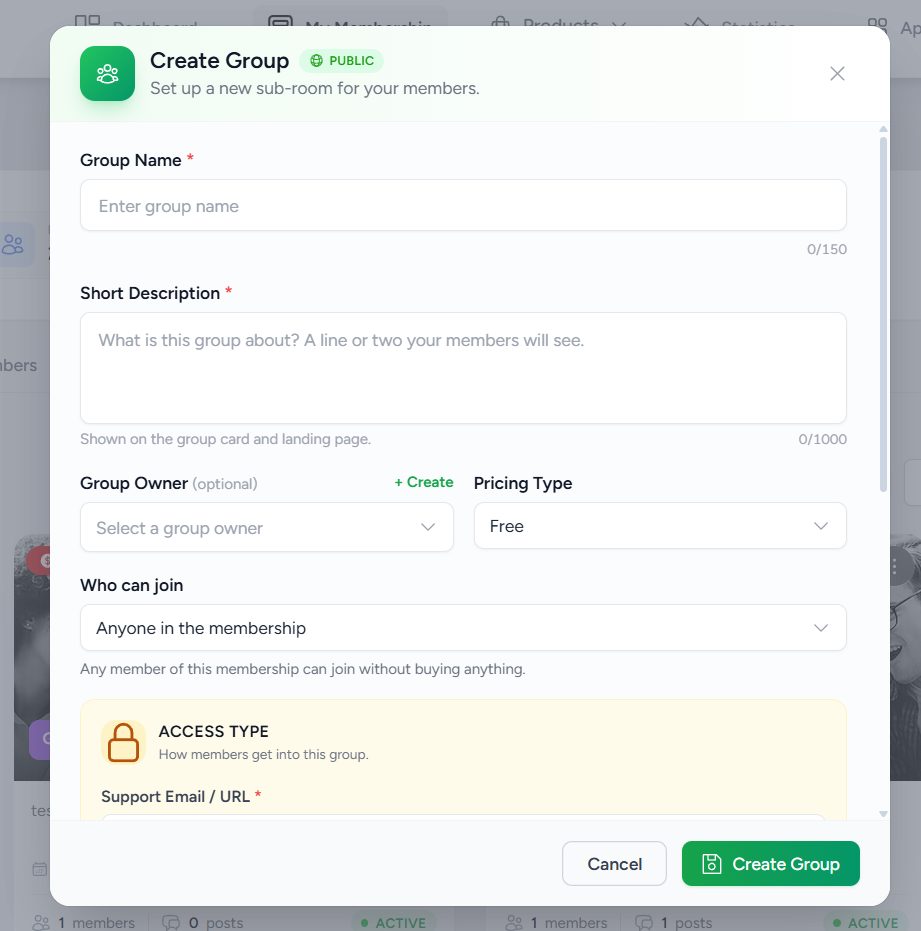
A box called Create Group opens. Fill in:
- Group Name – the name of your group.
- Short Description – one or two lines about the group.
- Group Owner – you can skip this.
- Support Email / URL – where people can ask for help.
Now pick the Pricing Type. This is where you choose Free, Paid or Free Trial. ?
If you want a Free group
- Set Pricing Type to Free.
- Click Create Group.
That's all!
If you want a Paid group
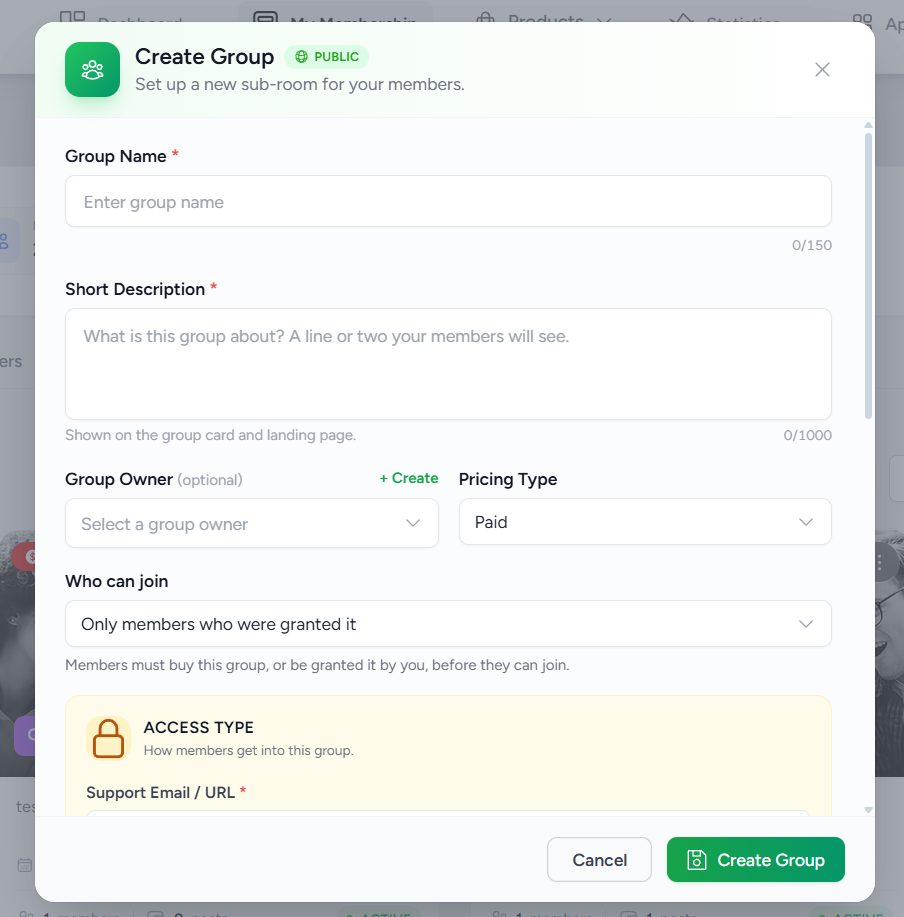
- Set Pricing Type to Paid.
- Fill in the money type (currency), the price, and the payment gateway (the tool that takes the money, like Stripe).
- Click Create Group.
Tip: For a paid group, Who can join shows Only members who were granted it. This means people must buy the group (or you let them in) before they can join.
If you want a Free Trial group
- Set Pricing Type to Free Trial.
- Pick the Trial Duration – how many days it stays free.
- Type the Subscription Price – what people pay after the free days end.
- Click Create Group.
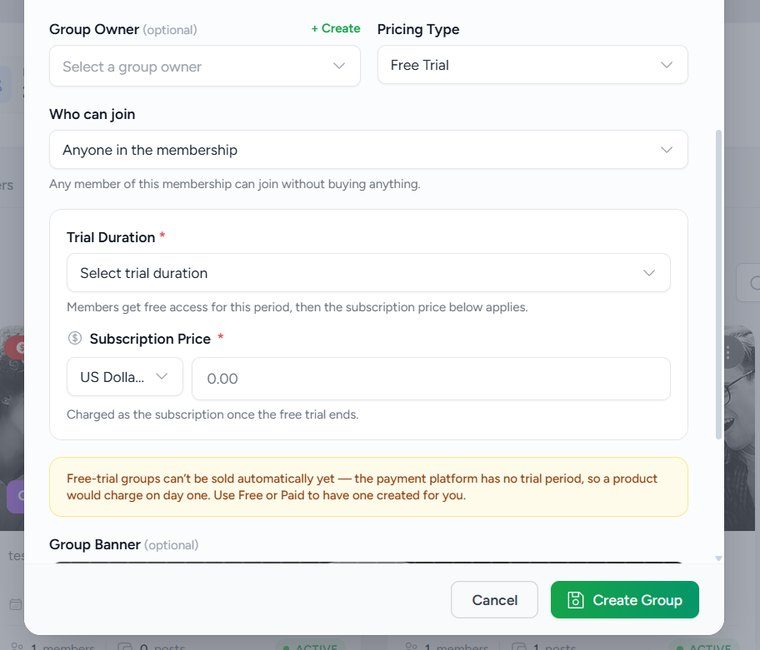
⚠️ Free Trial groups do not get a ticket (product). Why? The payment tool can't wait for the free days. It would take money on day one. So for Free Trial, you are done here! Skip to the end.
⏱️ Wait a few seconds after you click Create Group. For Free and Paid groups, your ticket (product) is being made in the background.
Step 4: Find your ticket (only for Free and Paid)
- Click Products at the top.
- Find your new product. It has a Group Product label on it.
- Click it to open it.
Can't see it? Refresh the page. It may need a moment.
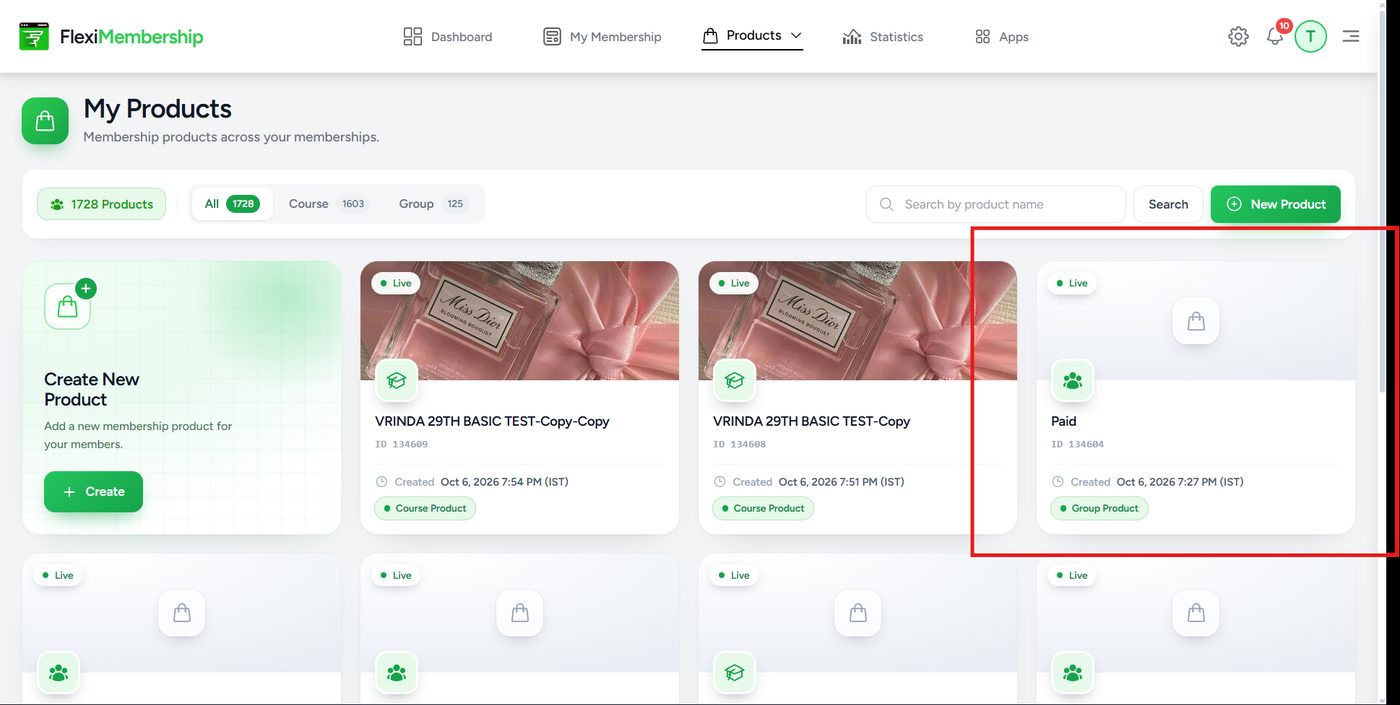
Step 5: Make your 3 pages live (only for Free and Paid)
Your ticket needs 3 pages:
- Sales Page – the shop window. People see it first.
- Checkout Page – where they pay (or pay ₹0).
- Thank-you Page – it says "Yay, you're in!"
The price and settings are already done for you. You only need to publish the pages.
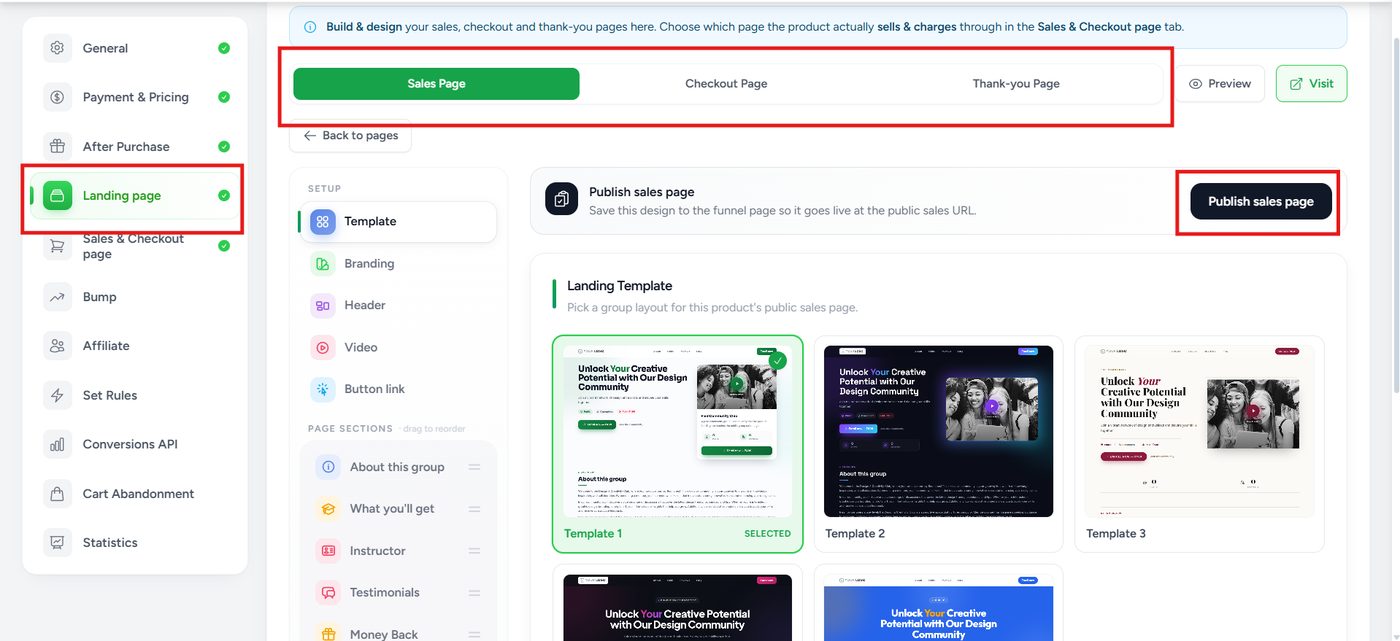
In the left menu, click Landing page. Then do this for each page:
Sales Page
- Click the Sales Page tab.
- Pick a template you like.
- Click Publish sales page.
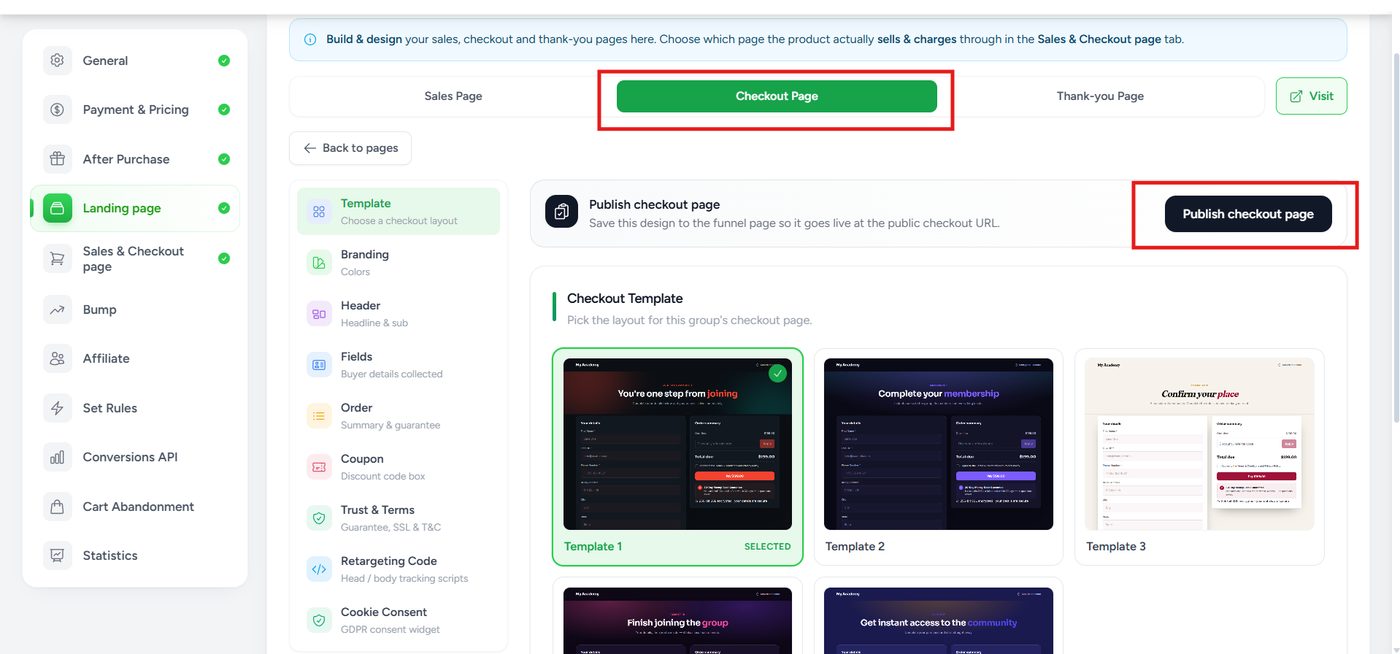
Checkout Page
- Click the Checkout Page tab.
- Pick a template you like.
- Click Publish checkout page.
Thank-you Page
- Click the Thank-you Page tab.
- Pick a template you like.
- Click Publish thank-you page.
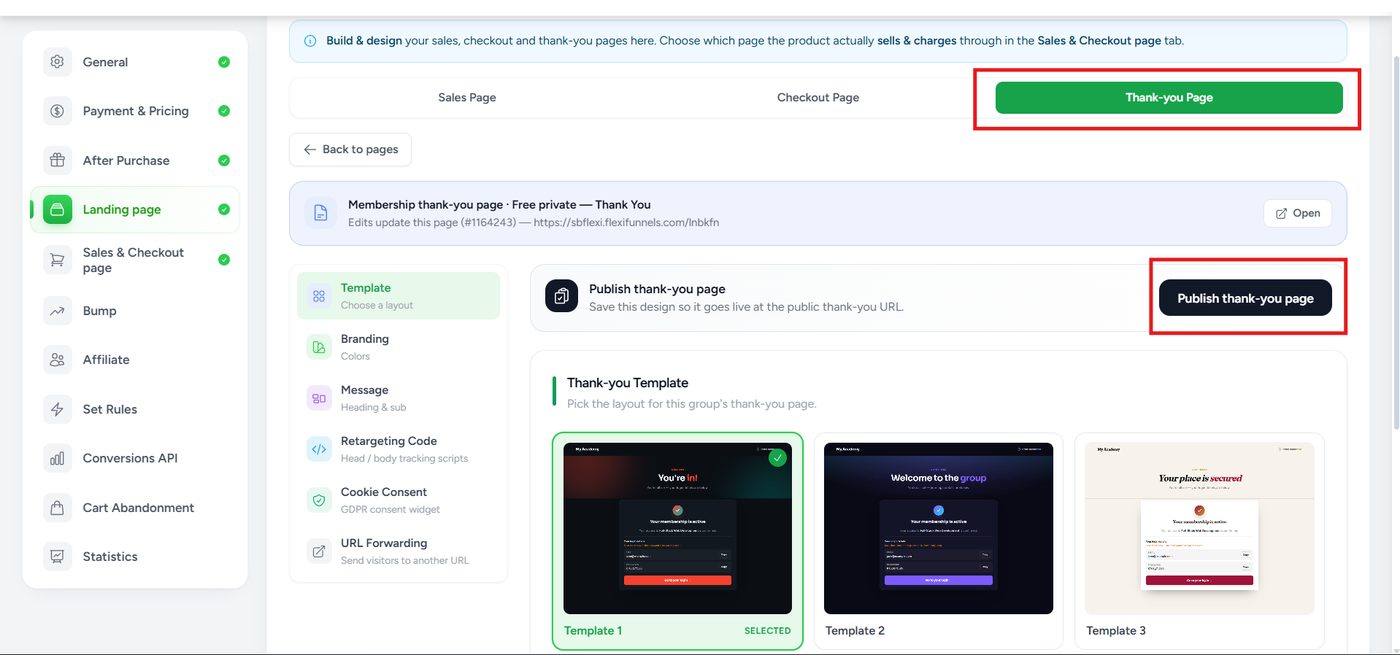
⚠️ Publish all 3 pages. If you skip one, your visitors can't use it.
Step 6: Try it yourself (only for Free and Paid)
Pretend you are a buyer. ?️
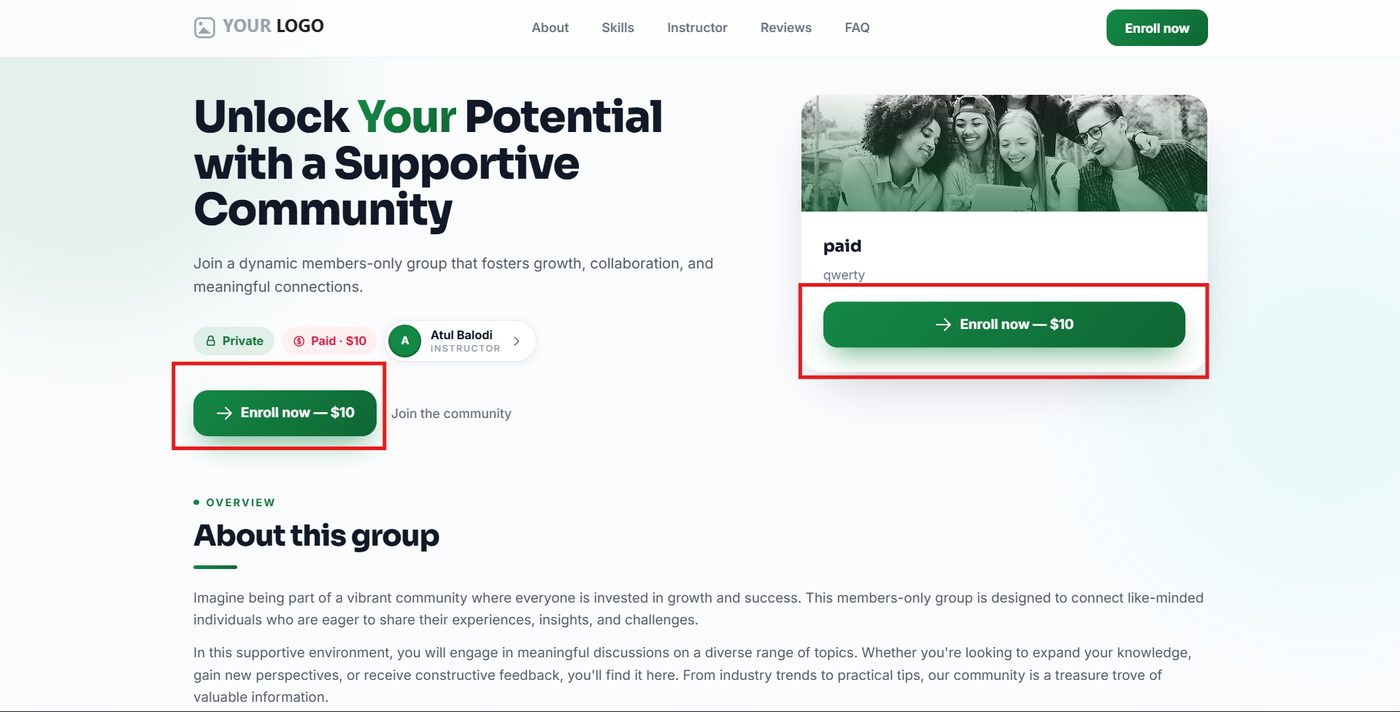
- Open your Sales Page (click Visit).
- Click the Enroll now button.
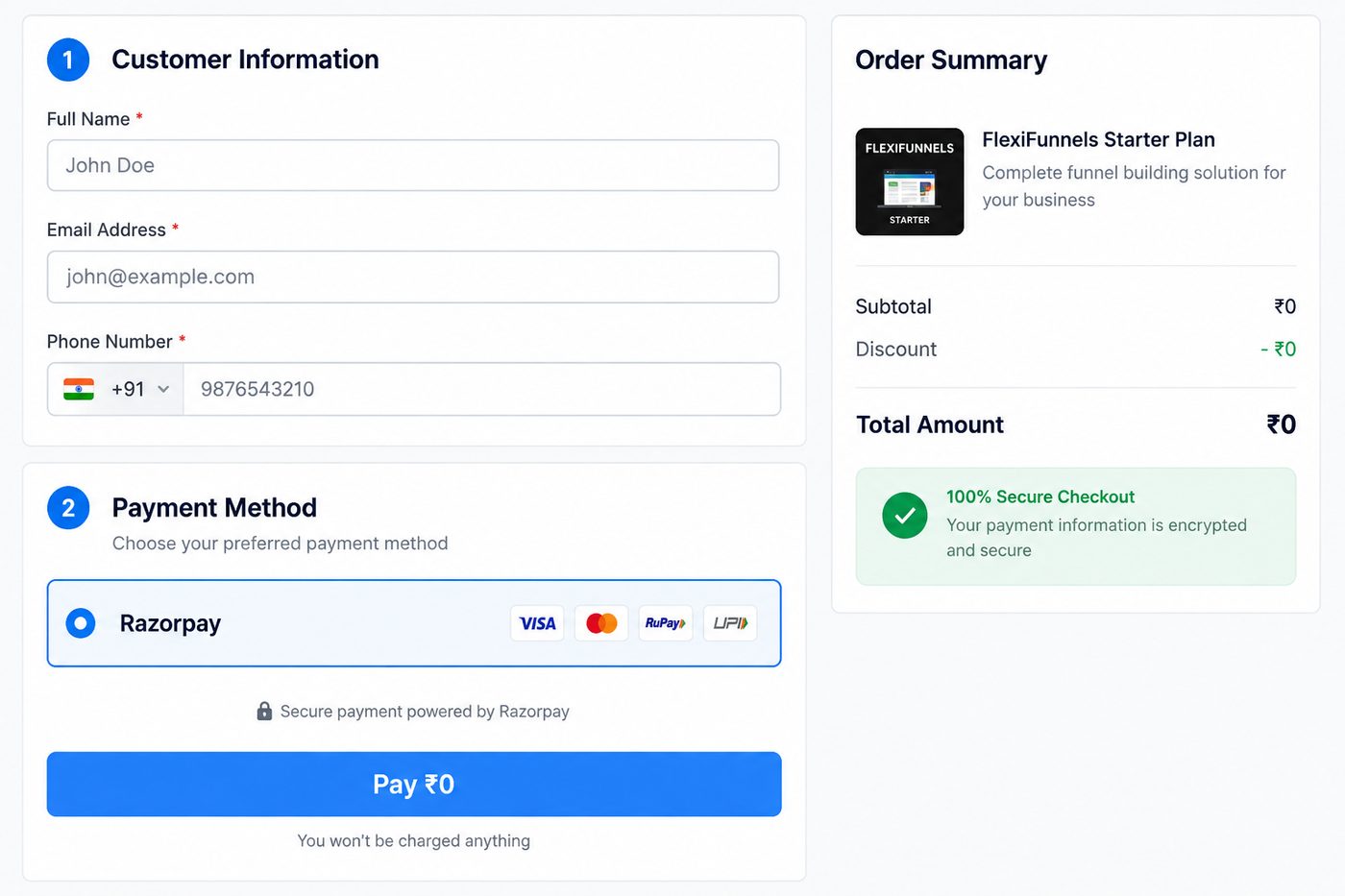
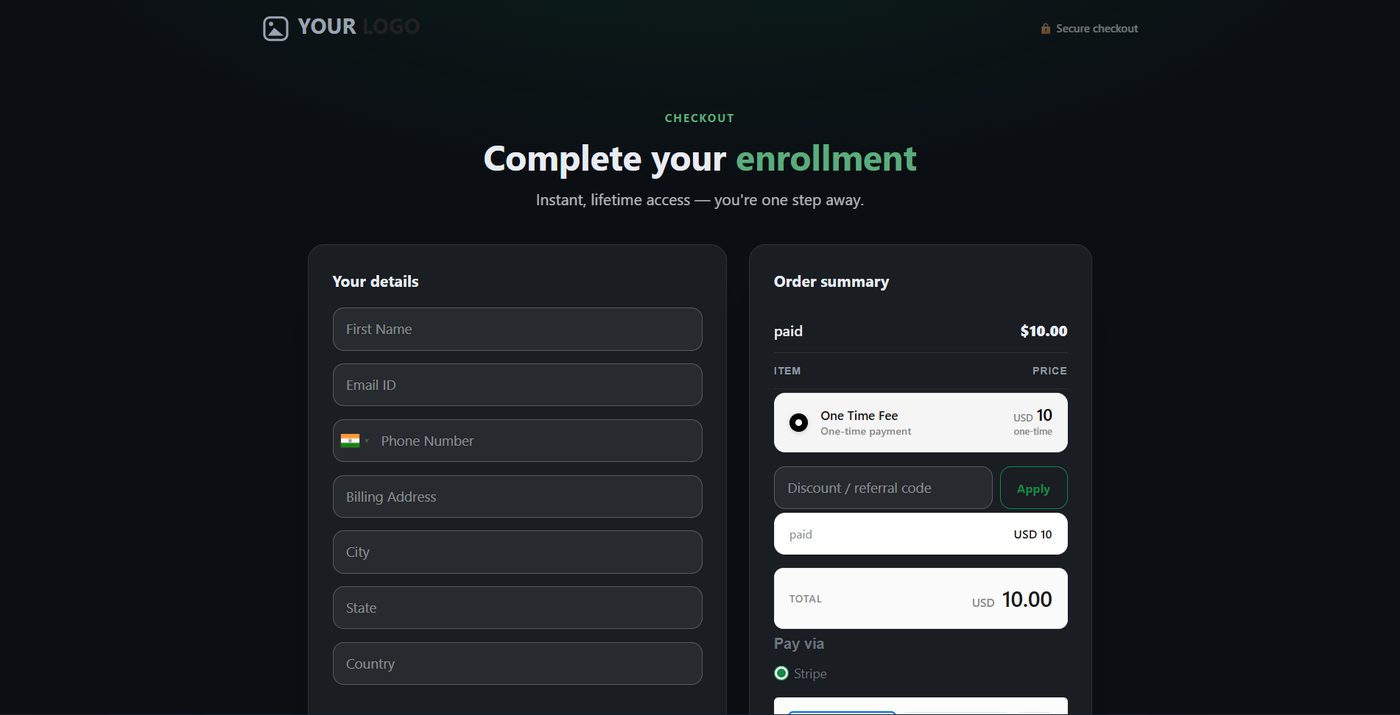
Now you are on the Checkout Page. Type your name, email and phone. Use an email you can log in with.
? Free group: The total is ₹0. Click Pay ₹0. You won't be charged anything.
Paid group: The total is the price you set. Pay with the payment tool you picked (like Stripe).
Now you see the Thank-you Page. ? You are in the group! Log in to the member dashboard and look in Community to find it.
What about Free Trial groups?
No ticket, no pages. Your group is ready as soon as you click Create Group. You can see it in the Groups tab.
Members get in based on Who can join. If it says Anyone in the membership, every member can log in and find the group in Community.
Uh-oh! Something's wrong ?
I can't find my product.
Go to Products and refresh the page. Wait a little and look again.
My Free Trial group has no product.
That's normal. Free Trial groups don't get one.
My page won't open.
Check that you clicked the Publish button. If you just did, wait a moment. Still not working? Publish it again.
I can't see my group on the dashboard.
Refresh. Make sure you bought it with the same email you logged in with.
It says "no course yet."
That's okay! Groups aren't courses. Look in Community.
Still stuck? Ask us for help here. We're happy to help!
Was this article helpful?
That’s Great!
Thank you for your feedback
Sorry! We couldn't be helpful
Thank you for your feedback
Feedback sent
We appreciate your effort and will try to fix the article