A course-linked community is like a study group for one course. Everyone who bought the course can chat with each other inside it.
Quick Video
Before You Start
- Create a membership project.
- Create a course inside that project.
- A course product is created for you automatically with the course.
Steps
1Open the Communities tab
- Go to My Membership and open your membership project.
- Click the Communities tab.
- Click New Community.
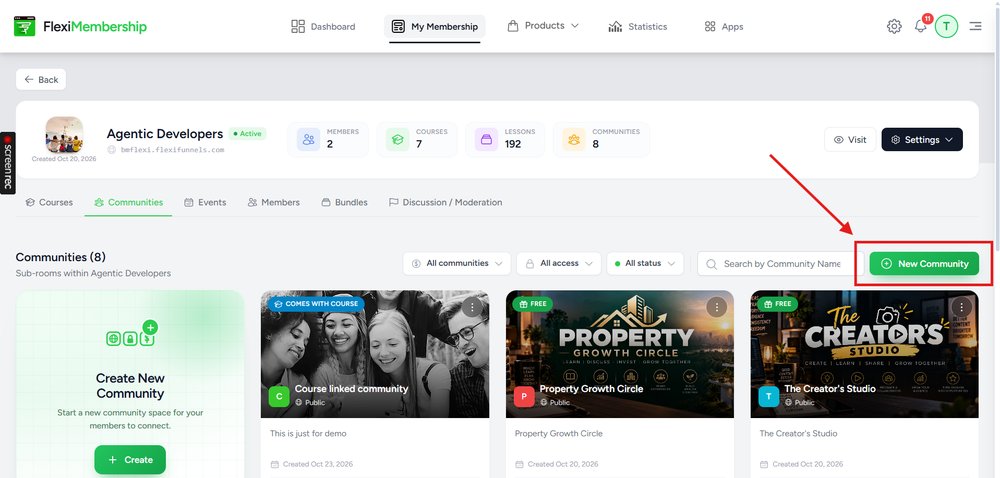
Click New Community in the Communities tab.
2Choose the access type
- Click Choose Public or Choose Private.
| Option | What it means |
|---|---|
| Public Community | Anyone in the membership can find it. Access depends on your access type. |
| Private Community | Only invited or approved members can join. |
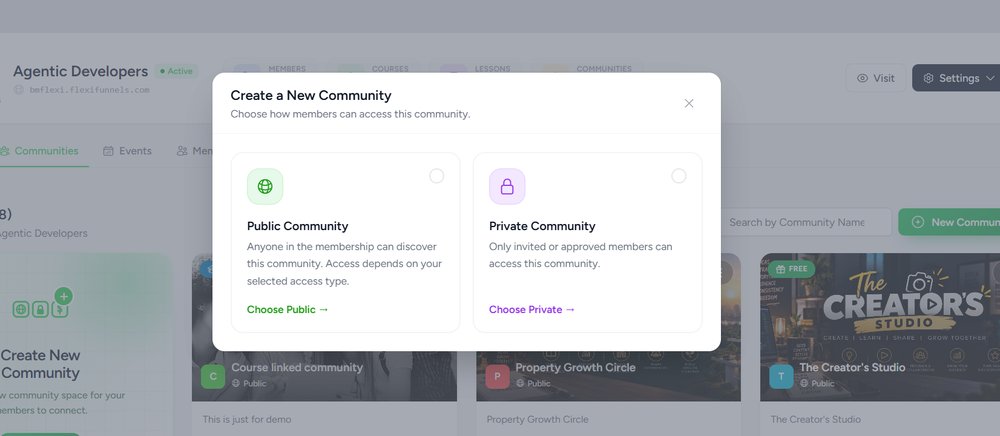
Public Community and Private Community options.
3Enter the name and description
- Type a Community Name.
- Type a Short Description. It shows on the community card.
4 Set the community type to Course-Linked
- Click the Community type dropdown.
- Select Course-Linked Community.
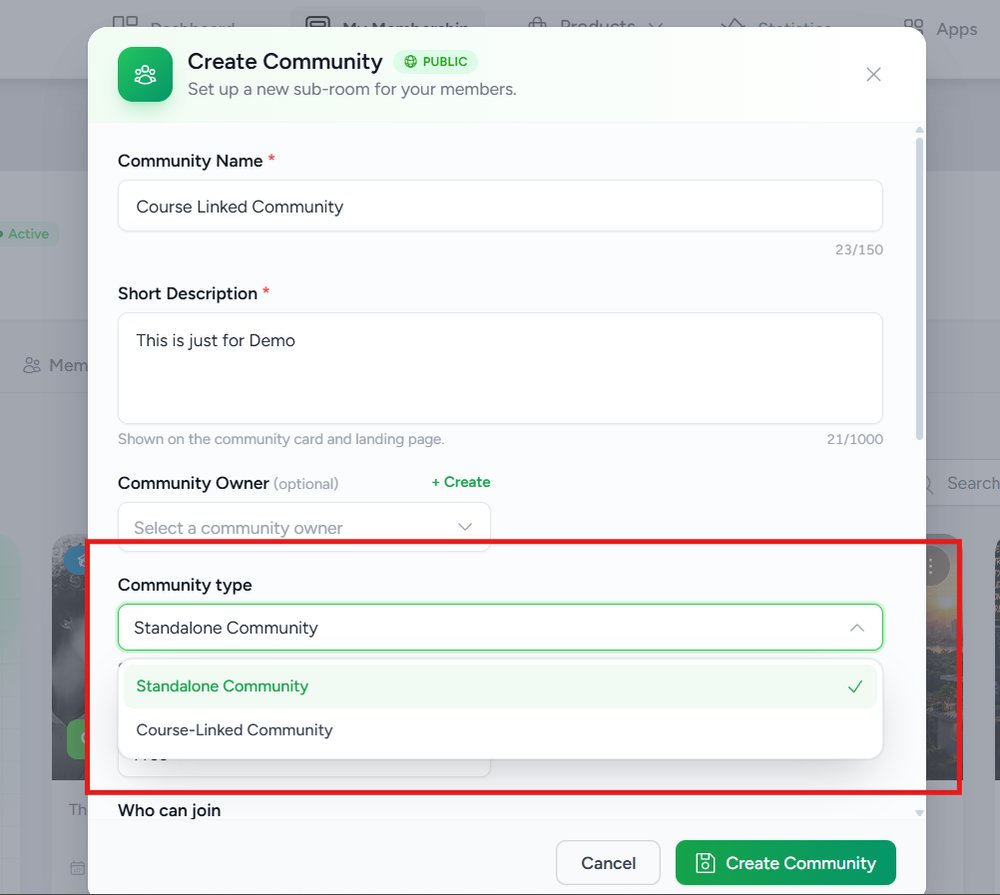
The name and description fields are at the top of this form.
Select the course product
- Click the Course product dropdown.
- Select the course you want to link.
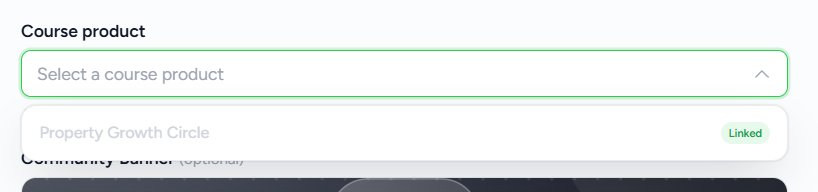
Choose the course product to link.
6Create the community
- Click Create Community.
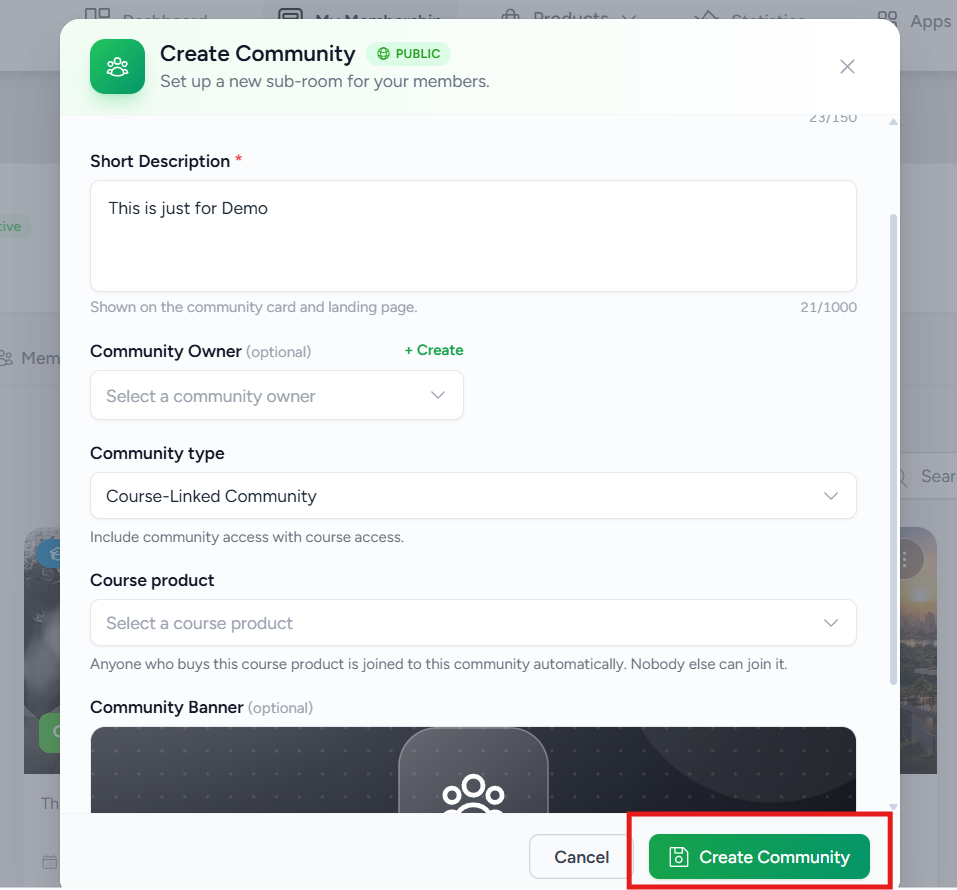
Expected outcome: your new community appears in the Communities list with a COMES WITH COURSE badge.
Standalone or Course-Linked?
| Community type | Use it when |
|---|---|
| Standalone Community | You only want a community, with no course. Or you sell a course and a community separately. |
| Course-Linked Community | You want the buyers of one course to interact with each other and with you. |
Little words, big meanings
| Word | What it means |
|---|---|
| Membership project | the site that holds your courses |
| Course product | the sellable version of your course |
| Standalone | a community that is not tied to a course |
| Course-linked | a community tied to one course |
Was this article helpful?
That’s Great!
Thank you for your feedback
Sorry! We couldn't be helpful
Thank you for your feedback
Feedback sent
We appreciate your effort and will try to fix the article