Feed Categories help organize discussions within a group by allowing members to classify their posts under specific topics. This makes it easier for members to browse relevant discussions, filter content, and keep conversations well-structured as your community grows.
This guide explains how to create and manage Feed Categories in Flexi Membership.
What are Feed Categories?
Feed Categories are labels that organize posts within a group.
When members create a new post, they can select the appropriate category before publishing. This helps group discussions by topic, making it easier for members to find relevant conversations.
For example, in a Digital Marketing community, you might create categories such as:
- Announcements
- Questions
- Facebook Ads
- Google Ads
- Success Stories
- Resources
Instead of browsing through every post, members can simply filter posts by category.
Why Use Feed Categories?
As your community grows, discussions can quickly become difficult to navigate.
Using Feed Categories helps you:
- Organize discussions into meaningful topics.
- Improve content discoverability.
- Help members quickly find relevant conversations.
- Separate announcements from general discussions.
- Keep your community clean and structured.
Accessing Feed Categories
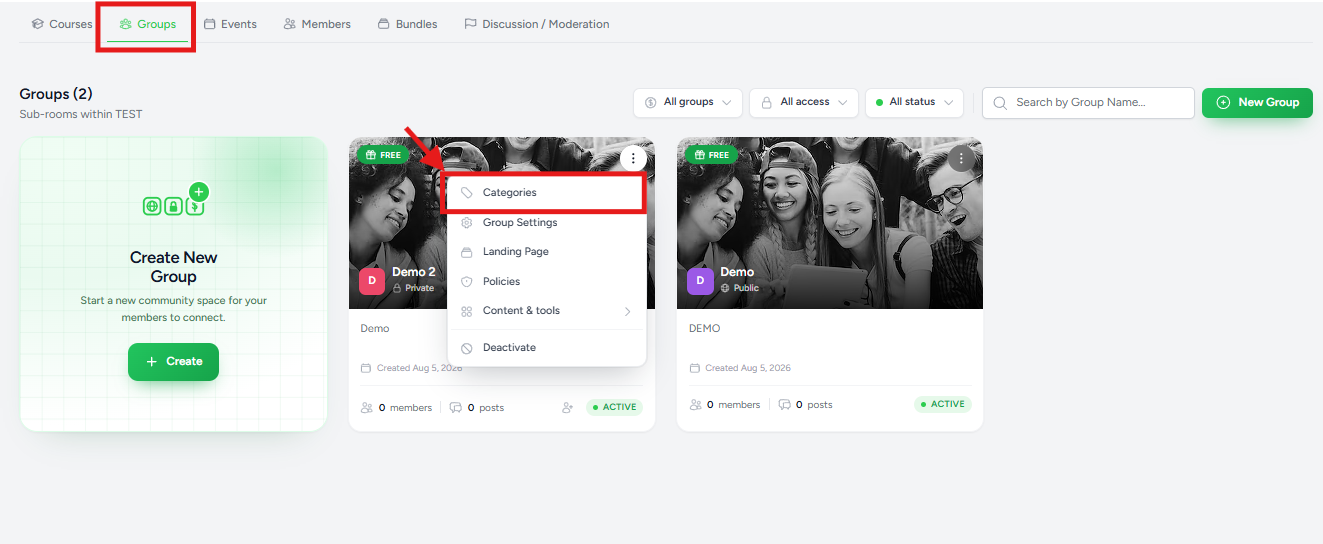
To manage categories:
- Open the Flexi Membership app.
- Navigate to your membership project.
- Open the desired Group.
- Click the ⋮ (More Actions) menu.
- Select Categories.
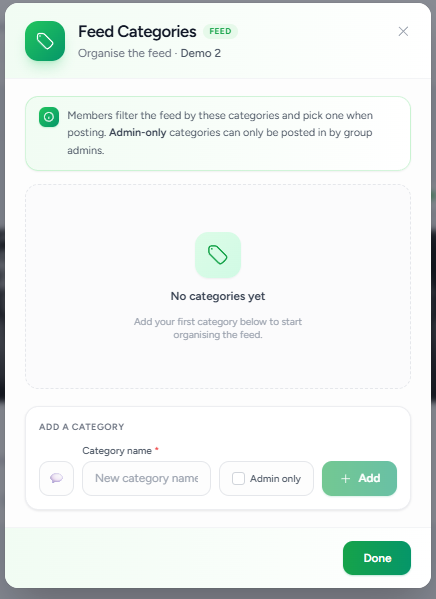
The Feed Categories window will open.
Creating a Feed Category
To create a category:
- Enter a Category Name.
- (Optional) Enable Admin Only.
- Click Add.
The new category is immediately added to the group's available categories.
Category Name
Enter a descriptive name that represents the type of discussion.
Examples include:
- Announcements
- General Discussion
- Questions
- Support
- Wins & Success Stories
- Resources
- Feedback
Choose names that are simple and easy for members to understand.
Admin Only Categories
The Admin Only option restricts who can publish posts under that category.
When enabled:
- Only Group Administrators can create posts using that category.
- Members can still view posts in the category (subject to group permissions), but they cannot publish new posts under it.
This feature is useful for categories such as:
- Announcements
- Updates
- Release Notes
- Community Rules
- Events
Using Admin Only categories ensures that important information remains organized and free from unrelated member posts.
Managing Feed Categories
Once categories have been created, they become available whenever members create a new post.
Members can select the appropriate category to help organize their content.
Administrators can continue adding categories as the community grows and discussion topics evolve.
Best Practices
To keep your community organized:
- Create categories before inviting members.
- Use short, descriptive category names.
- Avoid creating too many categories initially.
- Reserve Admin Only categories for official announcements and updates.
- Review categories periodically and remove or merge those that are no longer relevant.
- Keep category names consistent across different groups when possible.
Example Category Structure
For a coaching community:
| Category | Purpose |
|---|---|
| Announcements | Official updates from administrators |
| Questions | Members ask for help |
| Wins | Members share achievements |
| Resources | Useful documents and links |
| Feedback | Product or course feedback |
| Introductions | New member introductions |
Frequently Asked Questions
Can members create their own categories?
No. Feed Categories are managed by group administrators and moderators.
Can I create multiple categories?
Yes. You can create as many categories as needed to organize your group's discussions.
What happens if I enable Admin Only?
Only administrators can publish posts using that category. This is ideal for announcements, updates, and other official communications.
Do members have to choose a category when posting?
If categories are configured for the group, members can select the most appropriate category when creating a post, helping keep discussions organized.
Was this article helpful?
That’s Great!
Thank you for your feedback
Sorry! We couldn't be helpful
Thank you for your feedback
Feedback sent
We appreciate your effort and will try to fix the article