The Group Settings page allows you to customize how your community functions by controlling member permissions, content types, automation, moderation, and engagement settings. These settings help you create a community experience that aligns with your membership goals, whether you're running an open discussion forum, a private coaching group, or an exclusive mastermind.
This guide explains each setting available under Group Settings and how it affects your community.
Accessing Group Settings
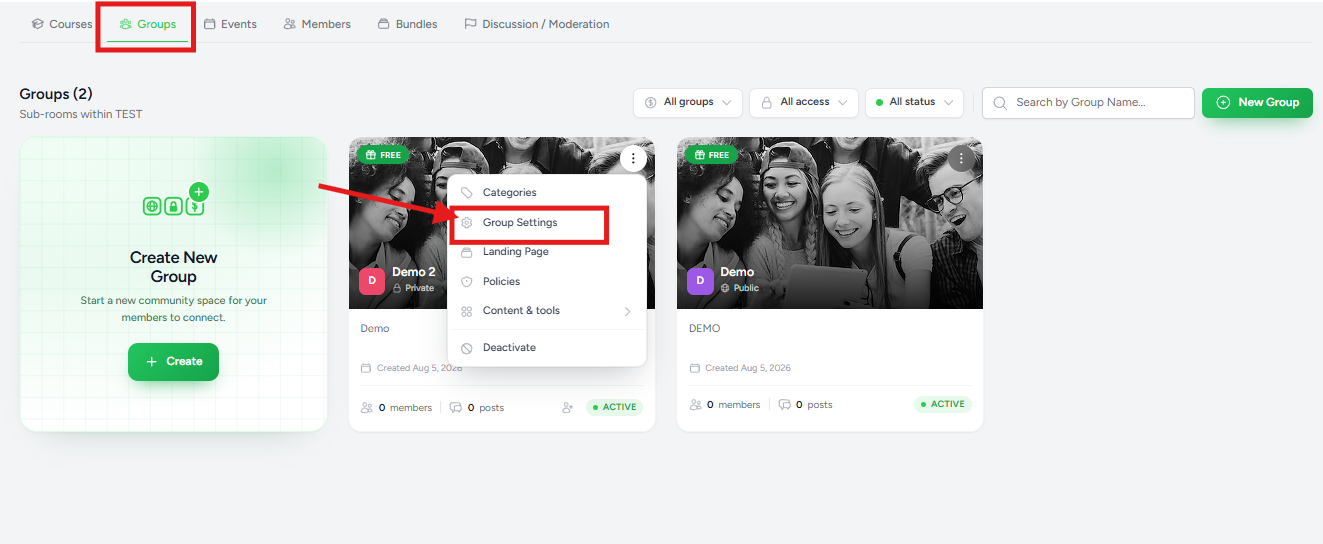
To access the Group Settings page:
- Open the Flexi Membership app.
- Navigate to your membership project.
- Click Groups.
- Locate the group you want to configure.
- Click the ⋮ (More Actions) menu.
- Select Group Settings.
Understanding Group Settings
The Group Settings page is divided into multiple sections that allow you to manage automation, content permissions,
moderation, member access, and engagement.
Configure each option based on how you want members to interact within your community.
AI Automation
Flexi Membership includes built-in AI features to help keep your community active and engaging.
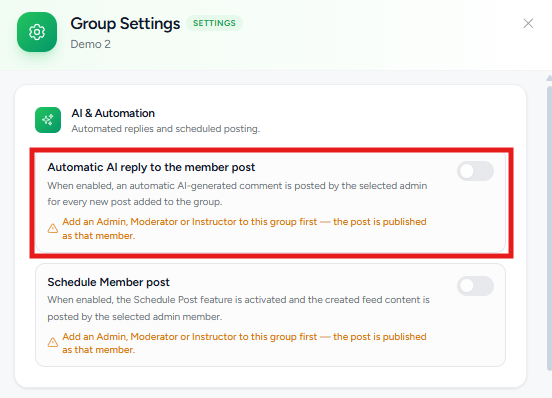
Auto Reply
Enable Auto Reply to allow AI to automatically respond to new posts within the group.
This feature helps:
- Respond to common questions.
- Keep conversations active.
- Provide faster engagement when administrators are unavailable.
You can enable or disable this option at any time.
Schedule Posts
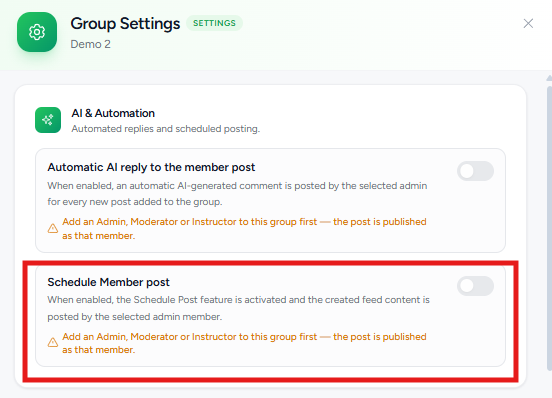
Enable Schedule Posts to automatically publish posts within your community.
Scheduled posts help maintain consistent engagement without requiring manual posting every day.
This feature is especially useful for:
- Daily tips
- Community challenges
- Educational content
- Announcements
Post & Display
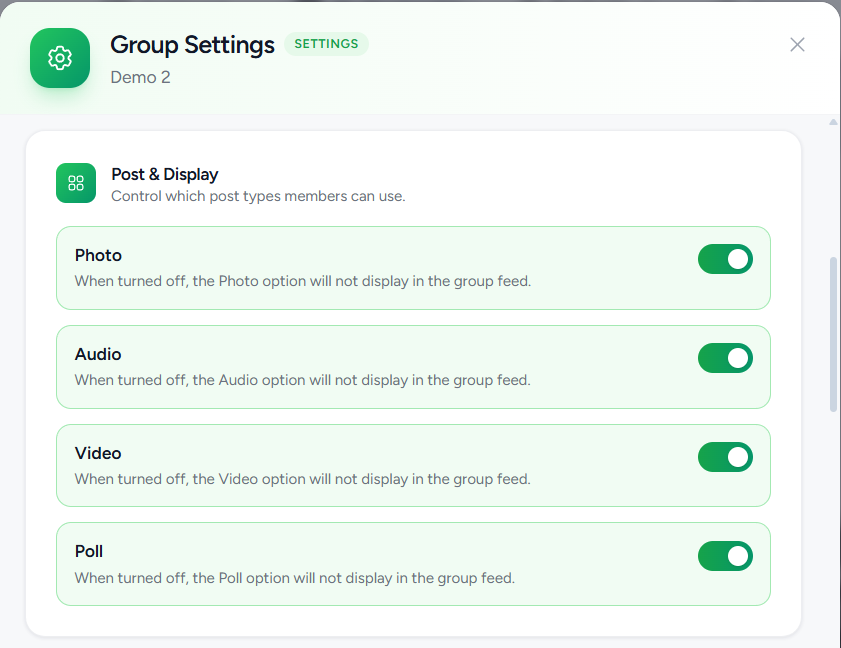
This section controls the types of content members are allowed to publish.
Available content types include:
- Photos
- Videos
- Audio
- Polls
Enable only the content types that suit your community.
For example:
- Enable Photos for creative communities.
- Enable Polls to encourage interaction.
- Disable Videos if you want discussions to remain text-focused.
Changes take effect immediately after saving.
Member Approval Settings
These settings control how members join and participate in the community.
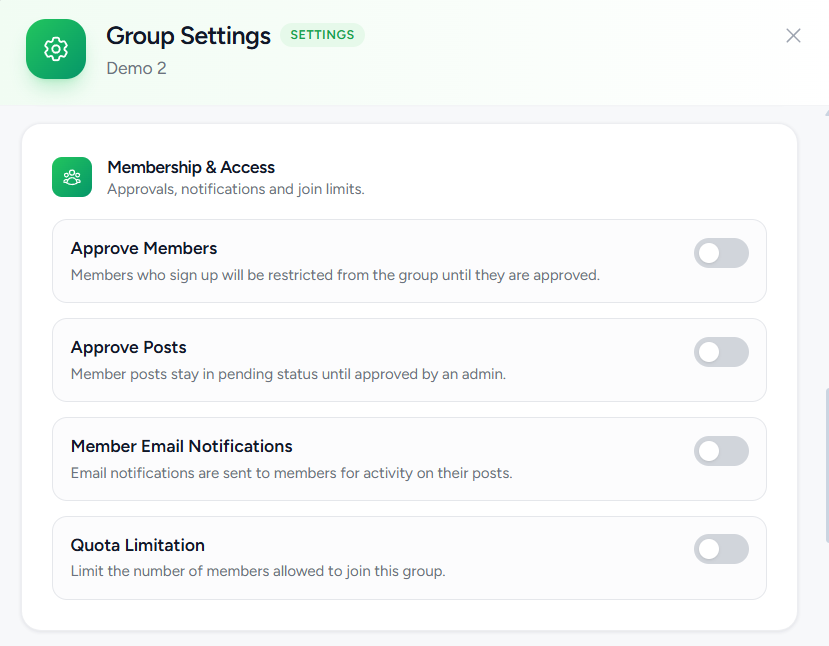
Approve Members
When enabled, every membership request must be approved by an administrator before the member can access the group.
This option is recommended for:
- Premium communities
- Coaching groups
- Private memberships
- Exclusive communities
If disabled, eligible members can join immediately without approval.
Approve Posts
Enable this setting if you want every member post to be reviewed before it becomes visible.
When enabled:
- Member posts remain pending.
- Administrators review each submission.
- Only approved posts appear in the community feed.
This helps maintain quality and prevent spam.
Email Notifications
Use the Email Notifications toggle to enable or disable emails related to community activity.
When enabled, members receive notifications based on the email templates configured for the group.
Notification templates are managed separately under the Email Notifications section.
Group Capacity
Quota Limitation
Use Quota Limitation to specify the maximum number of members allowed in the group.
For example, entering 100 limits the group to 100 members.
Once the limit is reached, additional members cannot join unless space becomes available.
This feature is useful for:
- Limited-seat coaching programs
- Cohort-based learning
- Premium communities
Member Access Restrictions
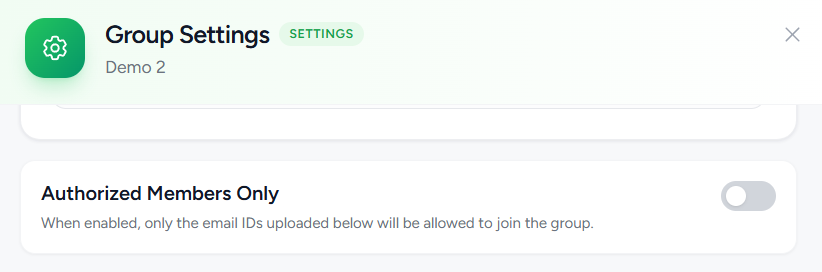
Authorized Members Only
Enable this option to restrict access to approved or authorized members only.
Members who are not authorized will not be able to join or access the group.
This setting is commonly used for invitation-only communities.
Level-Based Permissions
If Gamification is enabled, you can require members to reach specific levels before accessing certain community features.
This encourages engagement by rewarding active participation.
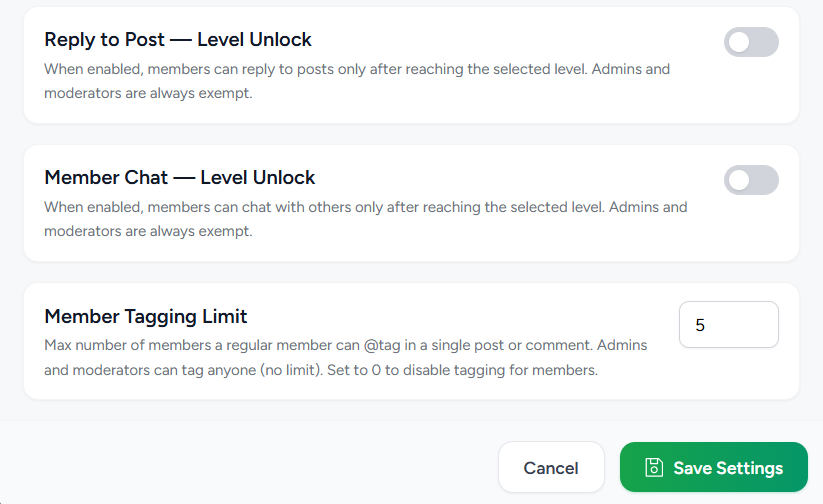
Reply Unlock
Specify the minimum member level required before members can reply to posts.
For example, you can require members to reach Level 2 before participating in discussions.
Chat Unlock
Specify the minimum member level required before members can use the built-in member chat.
This can help reduce spam and encourage meaningful participation before private messaging becomes available.
Member Tagging Limit
Use Member Tagging Limit to control how many members can be tagged in a single post or comment.
Setting a reasonable limit helps prevent excessive notifications and unwanted tagging.
Saving Your Changes
After configuring the desired settings:
- Review all options.
- Click Save.
Your changes are applied immediately to the selected group.
Best Practices
To create a well-managed community:
- Enable Approve Members for private or premium communities.
- Use Approve Posts to maintain high-quality discussions.
- Enable only the content types your community needs.
- Set a member limit for cohort-based programs.
- Use level-based permissions to encourage member engagement.
- Enable scheduled posts to keep your community active.
- Review Group Settings regularly as your community grows.
Frequently Asked Questions
Can I allow photos but disable videos?
Yes. Each content type can be enabled or disabled independently.
Do members need approval before joining?
Only if Approve Members is enabled. Otherwise, eligible members can join immediately.
Can I review posts before they're published?
Yes. Enable Approve Posts to require administrator approval before posts appear in the community.
What happens when the group reaches its member limit?
Once the configured quota is reached, additional members cannot join until space becomes available or the limit is increased.
Can I restrict community features based on member levels?
Yes. If Gamification is enabled, you can require members to reach a specific level before they can reply to posts or use member chat.
Was this article helpful?
That’s Great!
Thank you for your feedback
Sorry! We couldn't be helpful
Thank you for your feedback
Feedback sent
We appreciate your effort and will try to fix the article