Group Policies allow you to define the legal guidelines for your community by providing Terms & Conditions and a Privacy Policy. These policies help set clear expectations for members, explain how information is handled, and establish the rules that govern participation within your group.
This guide explains how to configure and manage Group Policies in Flexi Membership.
Accessing Group Policies
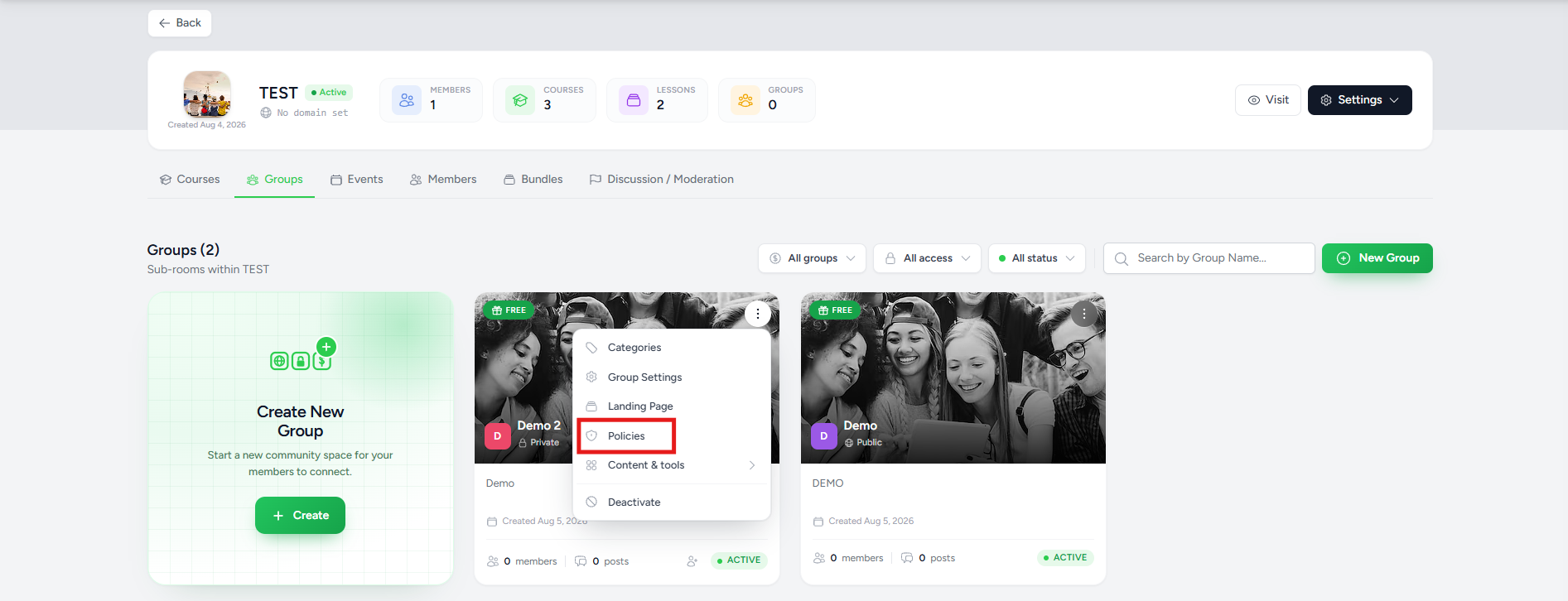
To access the Group Policies settings:
- Open the Flexi Membership app.
- Navigate to your membership project.
- Click Groups.
- Locate the desired group.
- Click the ⋮ (More Actions) menu.
- Select Policies.
The Privacy & Terms window opens, allowing you to configure your group's legal policies.
Understanding Group Policies
The Privacy & Terms section consists of two policy types:
- Terms & Conditions
- Privacy Policy
Each policy can be configured independently and enabled only when you're ready to publish it.
Configuring Terms & Conditions
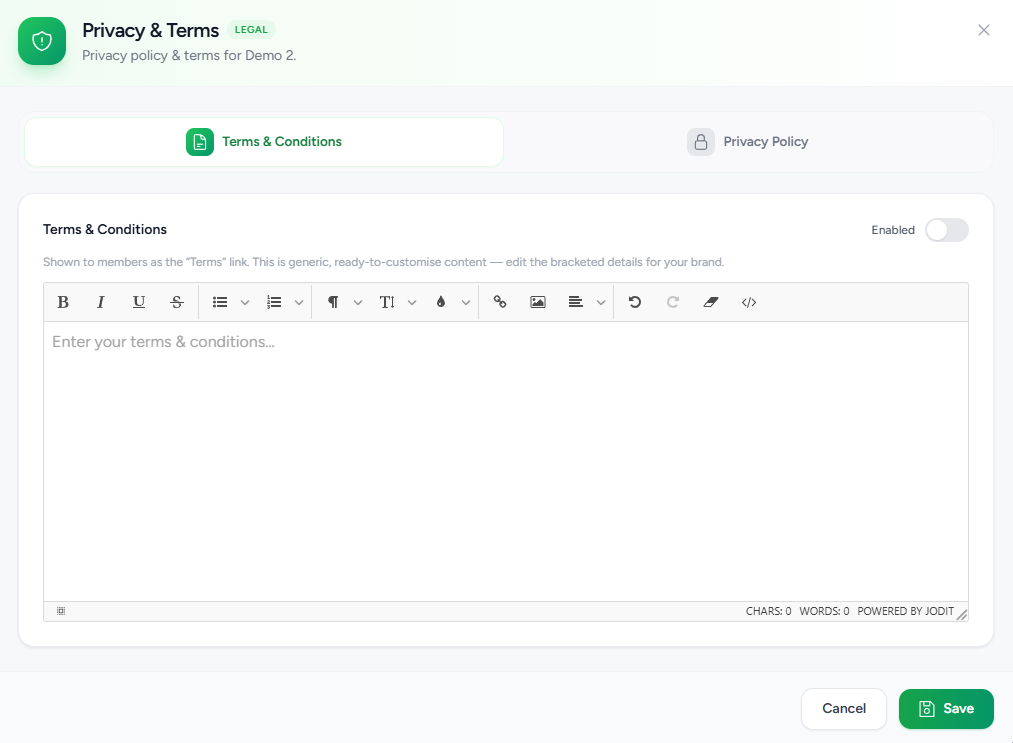
The Terms & Conditions section allows you to define the rules and conditions members agree to when participating in your community.
To configure the Terms & Conditions:
- Open the Terms & Conditions tab.
- Enter or edit your policy using the rich text editor.
- Enable the policy if you want it to be visible to members.
- Click Save.
Enable or Disable Terms & Conditions
Use the Enabled toggle to control whether the Terms & Conditions are available to members.
- Enabled – Members can access the Terms & Conditions from the group.
- Disabled – The Terms & Conditions remain hidden until they are enabled.
This allows you to prepare or update your policy before making it available.
Configuring the Privacy Policy
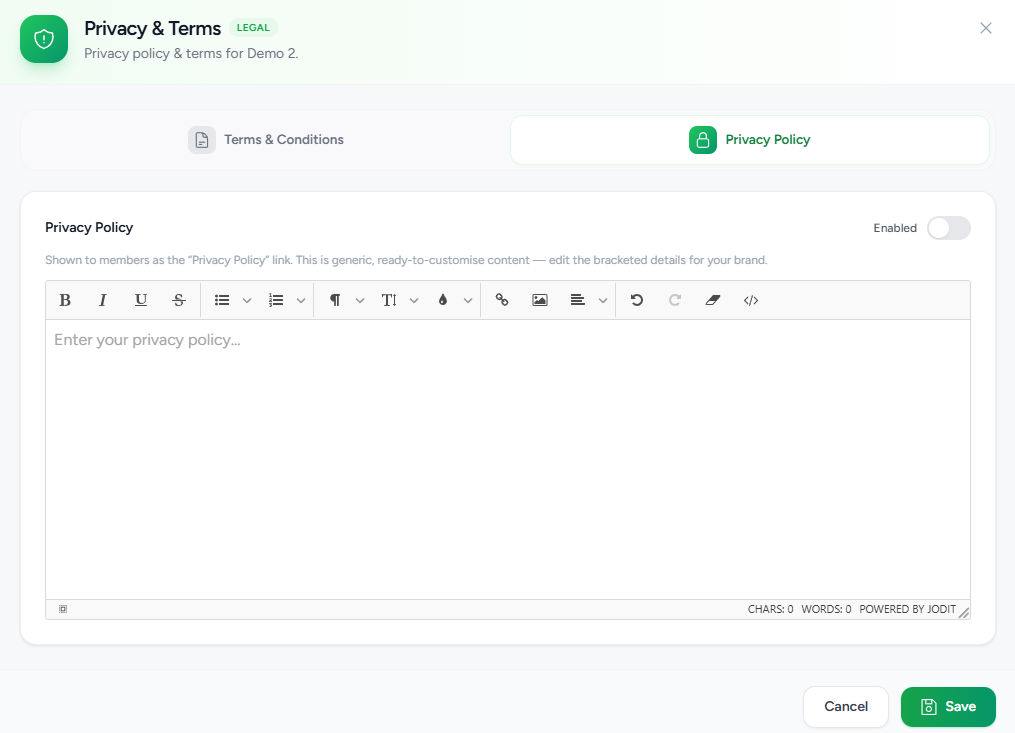
The Privacy Policy explains how member information is collected, stored, used, and protected within your community.
To configure the Privacy Policy:
- Open the Privacy Policy tab.
- Enter or update your privacy policy using the editor.
- Enable the policy when it is ready.
- Click Save.
The same rich text editor and formatting options are available for the Privacy Policy.
Enable or Disable the Privacy Policy
Like the Terms & Conditions, the Privacy Policy includes an Enabled toggle.
- Enabled – The Privacy Policy is accessible to members.
- Disabled – The Privacy Policy remains hidden until it is published.
Saving Your Changes
After updating either policy:
- Review the content for accuracy.
- Verify that the appropriate policy is enabled.
- Click Save.
Your changes are applied immediately.
Best Practices
To maintain clear and transparent community guidelines:
- Write policies using clear and easy-to-understand language.
- Review legal content regularly to ensure it remains up to date.
- Enable policies only after verifying their accuracy.
- Explain expected member behavior in the Terms & Conditions.
- Clearly describe how member information is handled in the Privacy Policy.
- Proofread your policies before publishing them.
Was this article helpful?
That’s Great!
Thank you for your feedback
Sorry! We couldn't be helpful
Thank you for your feedback
Feedback sent
We appreciate your effort and will try to fix the article