As your business evolves, you may need to update your Product Knowledge Base with new products, pricing, FAQs, or other business information. To ensure your AI agent always provides accurate responses, you'll need to replace the existing knowledge base file with an updated version.
Think of it like swapping an old training manual for the new edition. You can't scribble corrections onto the laminated pages of the old manual — instead, you take the old one off the employee's desk (delete) and put the new edition in its place (upload). The agent then studies the new edition and starts answering from it.
When Should You Update Your Knowledge Base?
You should replace your Product Knowledge Base file if:
- New products or services have been added
- Pricing has changed
- Business information has been updated
- New FAQs need to be included
- You notice the AI agent cannot answer certain customer questions because the information is missing
Follow These Steps
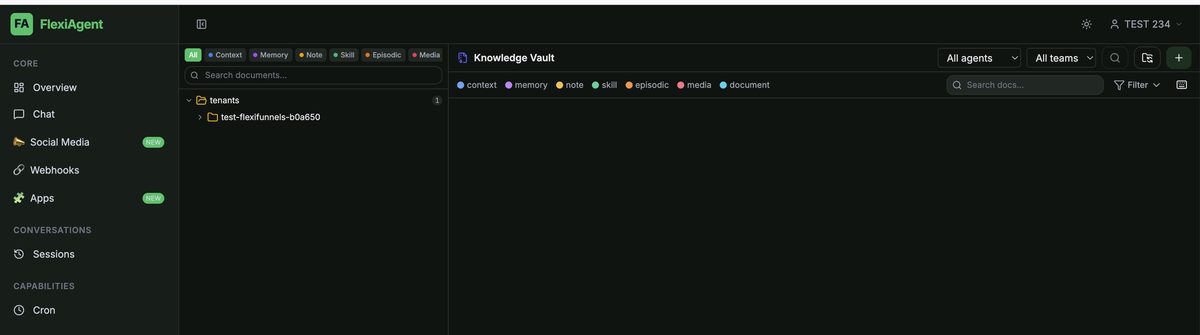
Step 1: Open the Vault
Log in to your FlexiAgent account and navigate to the Vault from the left sidebar (under Data). Locate the Product Knowledge Base file you want to replace.
Step 2: Delete the Existing Knowledge Base File
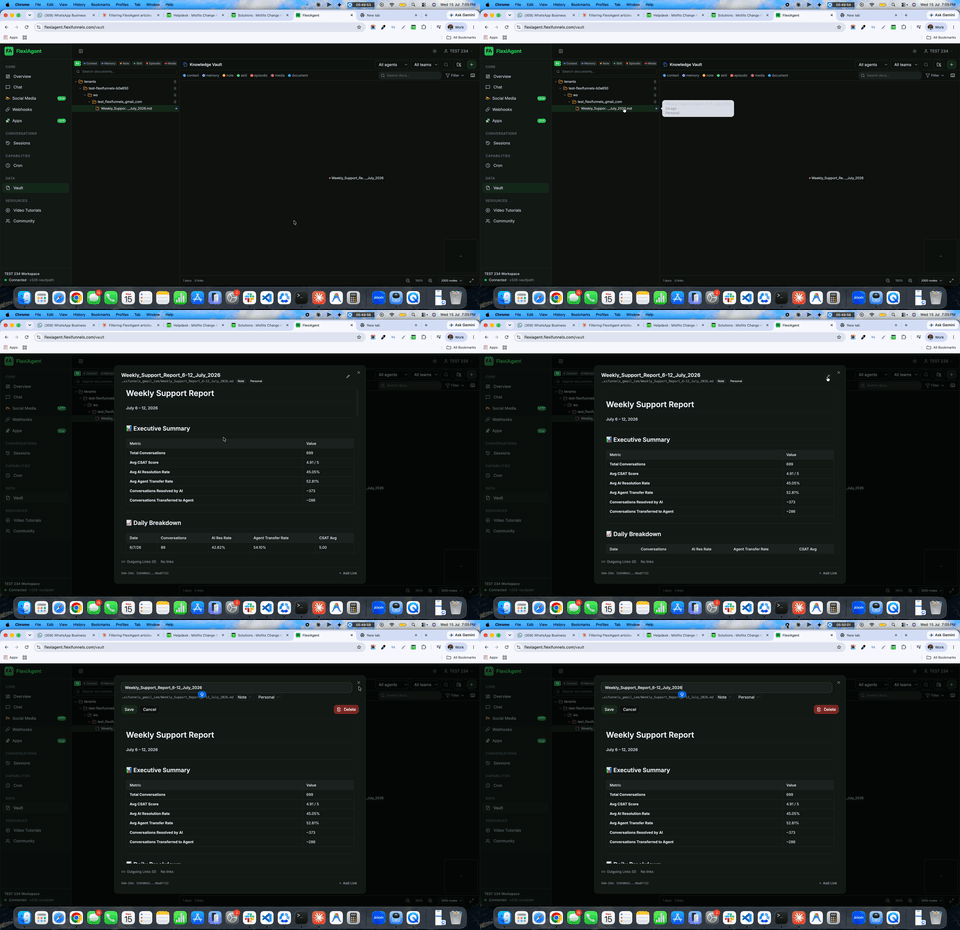
- Open the existing knowledge base file.
- Click the Edit (pencil) icon located at the top of the page.
- Click Delete to remove the current knowledge base file.
- Confirm the deletion when prompted.
Step 3: Refresh the Vault
Refresh the page after deleting the file.
Step 4: Upload the Updated Knowledge Base File
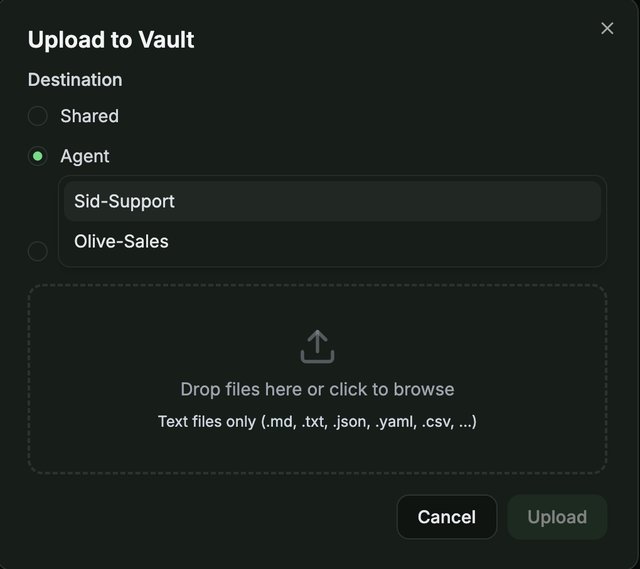
- Click the + (Add) button in the top-right corner.
- Select the AI agent that should use the updated knowledge base.
- Choose your latest Markdown (
.md) Product Knowledge Base file. - Click Upload.

Step 5: Wait for the Enrichment Process
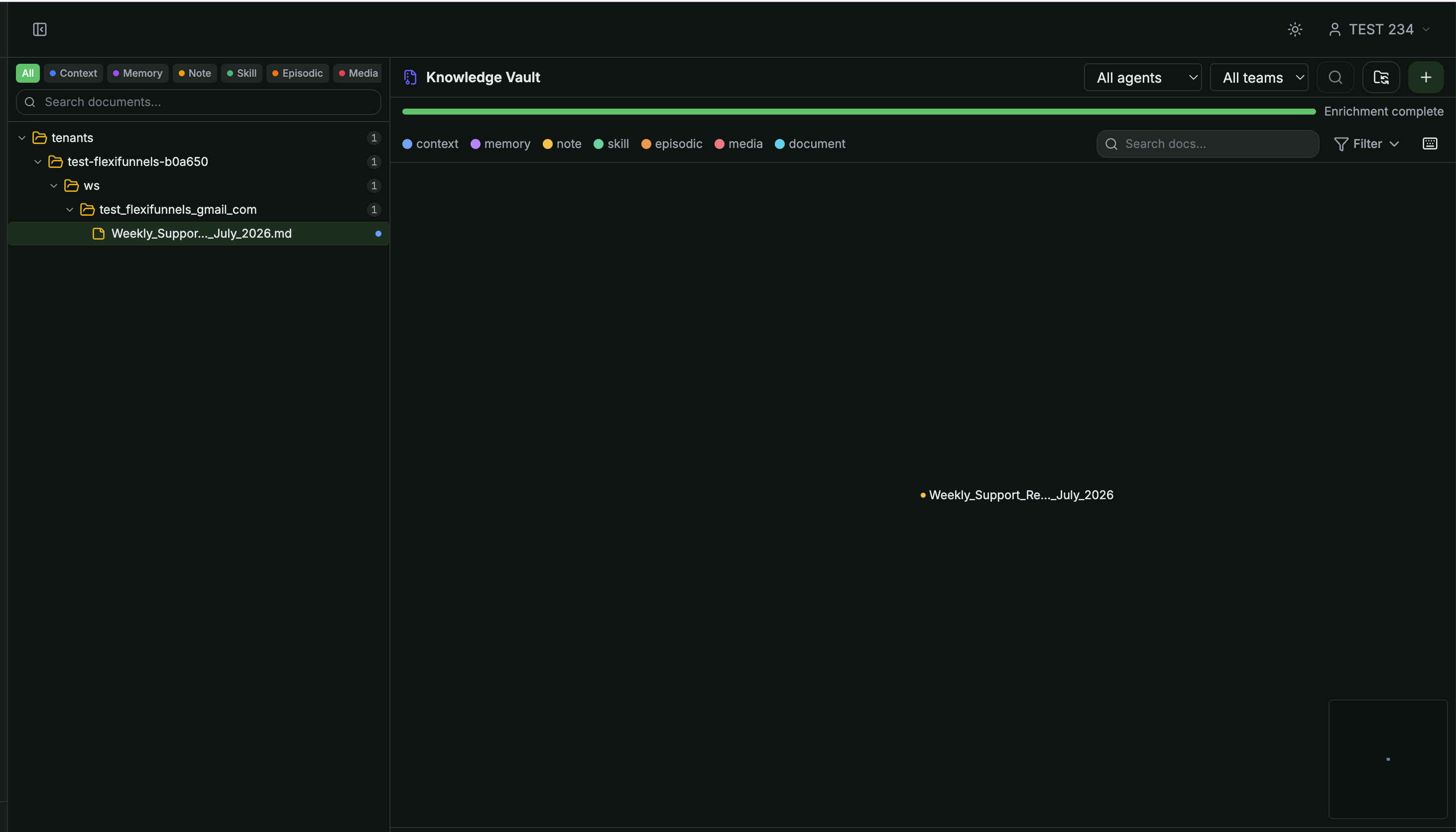
After the upload completes, FlexiAgent automatically starts the enrichment process. During this process, your knowledge base is prepared so the AI agent can search and retrieve information efficiently. Wait until the enrichment status indicates completion
Step 6: Verify the Updated File
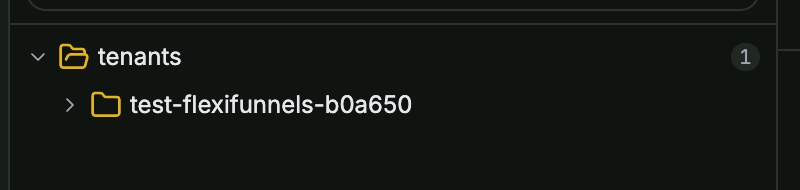
Refresh the page once again, then navigate to:
Tenant → Agents → Your AI Agent
You should now see the newly uploaded Product Knowledge Base file. Open the file if you'd like to verify that the latest version has been uploaded successfully.
What Happens After Replacing the File?
Once the new Product Knowledge Base is uploaded:
- The new file is automatically connected to the selected AI agent.
- The old knowledge base is completely replaced.
- Future conversations will use the updated business information.
- No additional configuration or setup is required.
The AI agent will immediately begin referencing the newly uploaded knowledge base during customer interactions.
Important Notes
- Always upload the updated file in Markdown (.md) format.
- Delete the old knowledge base before uploading the new version.
- Allow the enrichment process to complete before testing your AI agent.
- Refresh the Vault after uploading to confirm the new file is available.
- No manual reconnection is required — the uploaded file is automatically linked to the selected AI agent.
Common Situations & Quick Fixes
.md file on your computer, delete the old file from the Vault, then upload the new version..md file ready before you delete the old one so the gap lasts only seconds.Was this article helpful?
That’s Great!
Thank you for your feedback
Sorry! We couldn't be helpful
Thank you for your feedback
Feedback sent
We appreciate your effort and will try to fix the article