The Schedule Post tool helps you maintain an active community by generating, scheduling, and managing posts.
You can publish posts manually or use AI to generate content automatically.
Accessing Schedule Posts
From the Content & Tools menu, select Schedule Post.
The Schedule Post window contains multiple tabs:
- Generate Post
- Schedule Post
- Scheduled Posts
- Posted Content
Note: It is mandatory to Set an Admin member in Group Settings to enable scheduling.
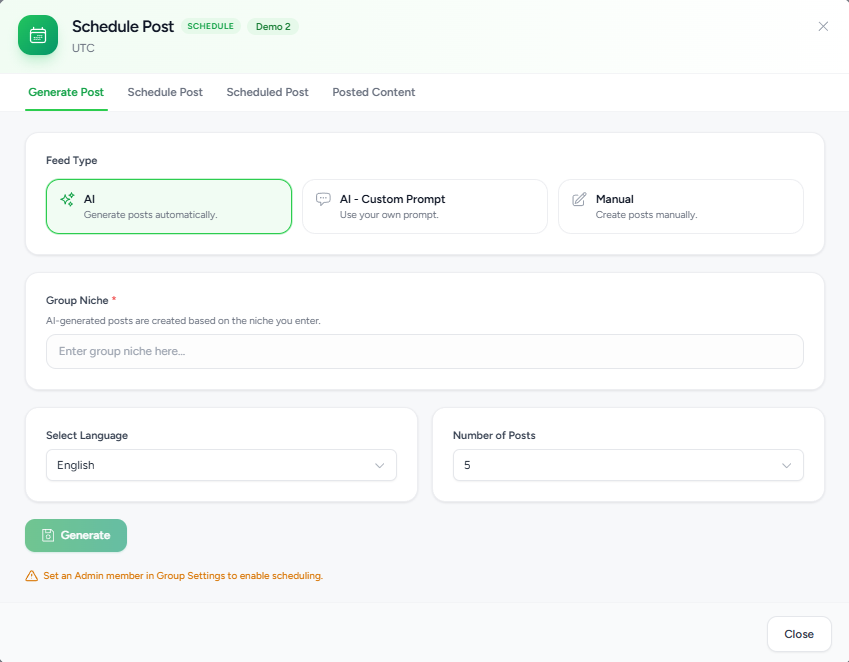
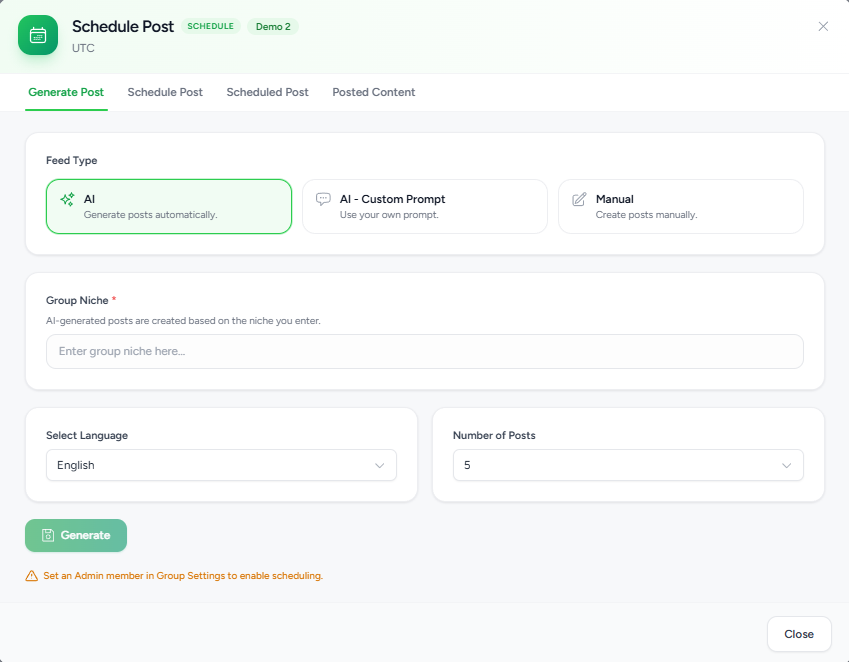
Generate Post
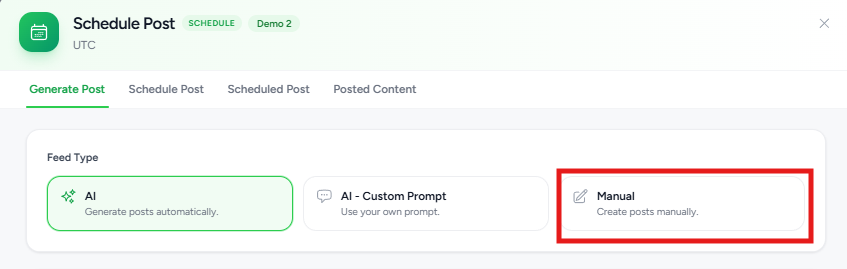
The Generate Post tab allows you to create content using one of three methods.
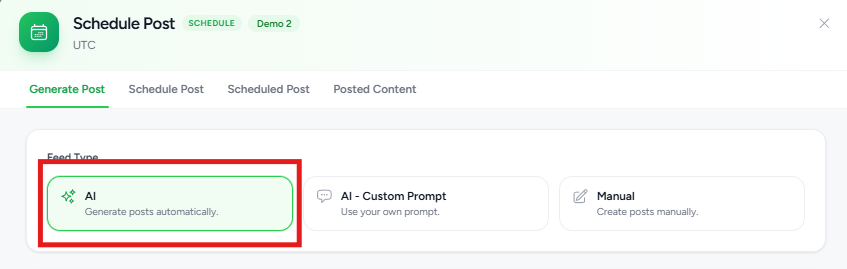
AI
Automatically generates posts based on your selected niche.
Choose this option when you want Flexi Membership to generate community content for you.
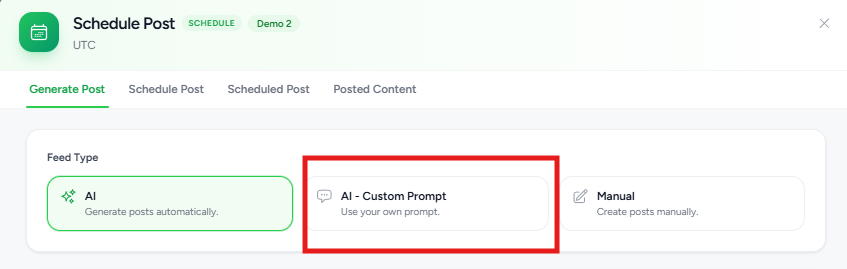
AI – Custom Prompt
Allows you to provide your own prompt while AI generates content based on your instructions.
Use this option when you want more control over the generated posts.
Manual
Create posts manually without AI assistance.
This option is useful for announcements, event reminders, or custom community updates.
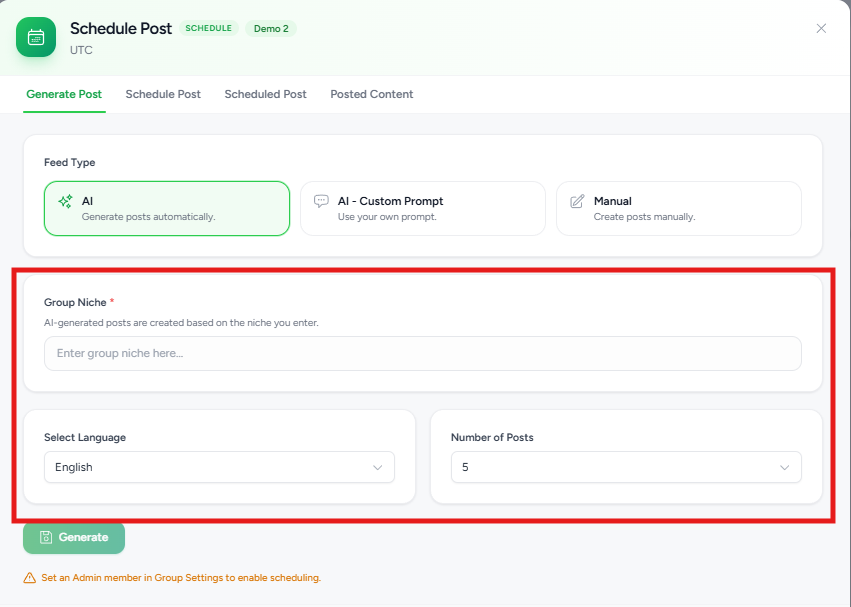
Group Niche
Enter the primary niche or topic for your community.
The AI uses this information to generate relevant posts.
Example:
Digital Marketing
Language
Select the language used for generated posts.
Choose the language most appropriate for your community members.
Number of Posts
Specify how many AI-generated posts you want to create in a single generation.
For example:
- 5 Posts
- 10 Posts
- 20 Posts
Generate Content
After configuring the required information, click Generate.
Flexi Membership generates posts based on your selected niche and preferences.
Schedule Posts
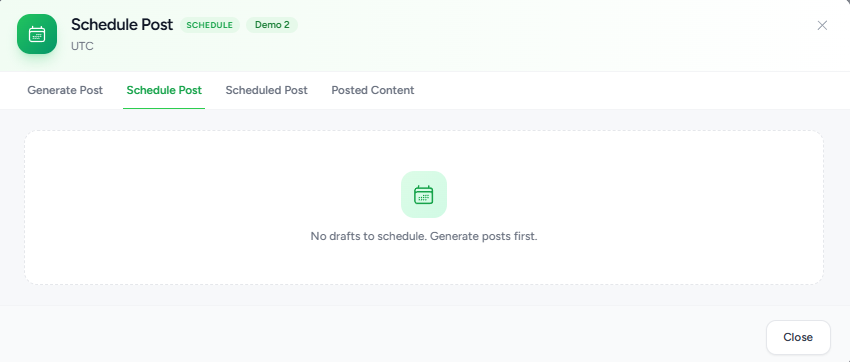
Use the Schedule Post tab to define when generated or manually created posts should be published.
Scheduling posts helps maintain consistent community engagement without requiring daily manual publishing.
Scheduled Posts
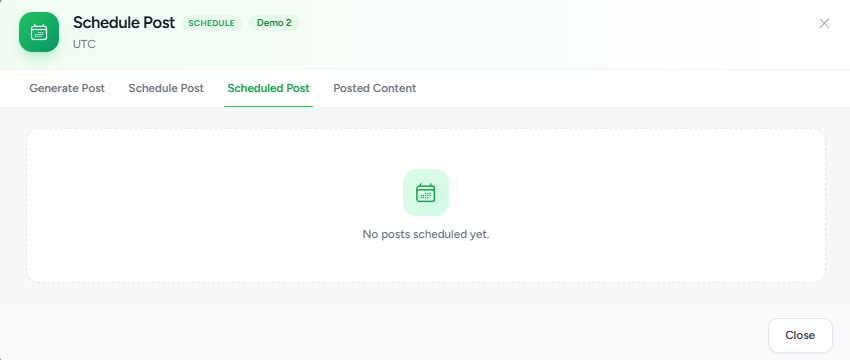
The Scheduled Posts tab displays all posts that are waiting to be published.
From here, you can review and manage upcoming content.
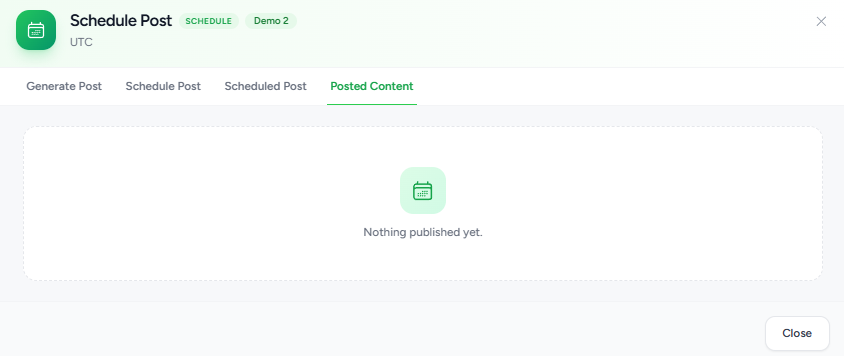
Posted Content
The Posted Content tab provides a history of posts that have already been published within the community.
This allows administrators to review previously published content and maintain a consistent posting strategy.
Best Practices
To get the most out of Group Content & Tools:
- Enable only the email notifications that are useful for your members.
- Use a verified custom domain for sending emails.
- Personalize email templates with appropriate branding.
- Test custom scripts before deploying them to your live community.
- Use AI-generated posts as a starting point and review them before publishing.
- Maintain a consistent posting schedule to keep members engaged.
- Periodically review your notification settings and scheduled content.
Was this article helpful?
That’s Great!
Thank you for your feedback
Sorry! We couldn't be helpful
Thank you for your feedback
Feedback sent
We appreciate your effort and will try to fix the article