FlexiMembership lets you create posts for a group and schedule them for publishing. You can create a post manually, generate posts using AI, or use an AI custom prompt. Drafts can then be given a publish time and moved into the scheduled queue. Once a post is scheduled, you can also edit it, reschedule it, or turn it into a lesson in one of your courses.
What You Can Do with Schedule Post
- Create a post manually using text, an image, or a video.
- Generate posts with AI based on your group niche.
- Generate posts using your own custom AI prompt.
- Save generated content as drafts.
- Assign a publish date and time to drafts.
- View posts that are queued for publishing.
- Edit, reschedule, or delete a scheduled post.
- Add a scheduled post to a course as a lesson.
- View posts after they have been published.
Before You Begin
- Log in to FlexiMembership.
- Open My Membership.
- Open the membership that contains the group you want to use.
- Make sure the group has an Instructor assigned before scheduling posts (see Make Sure an Instructor Is Assigned below).
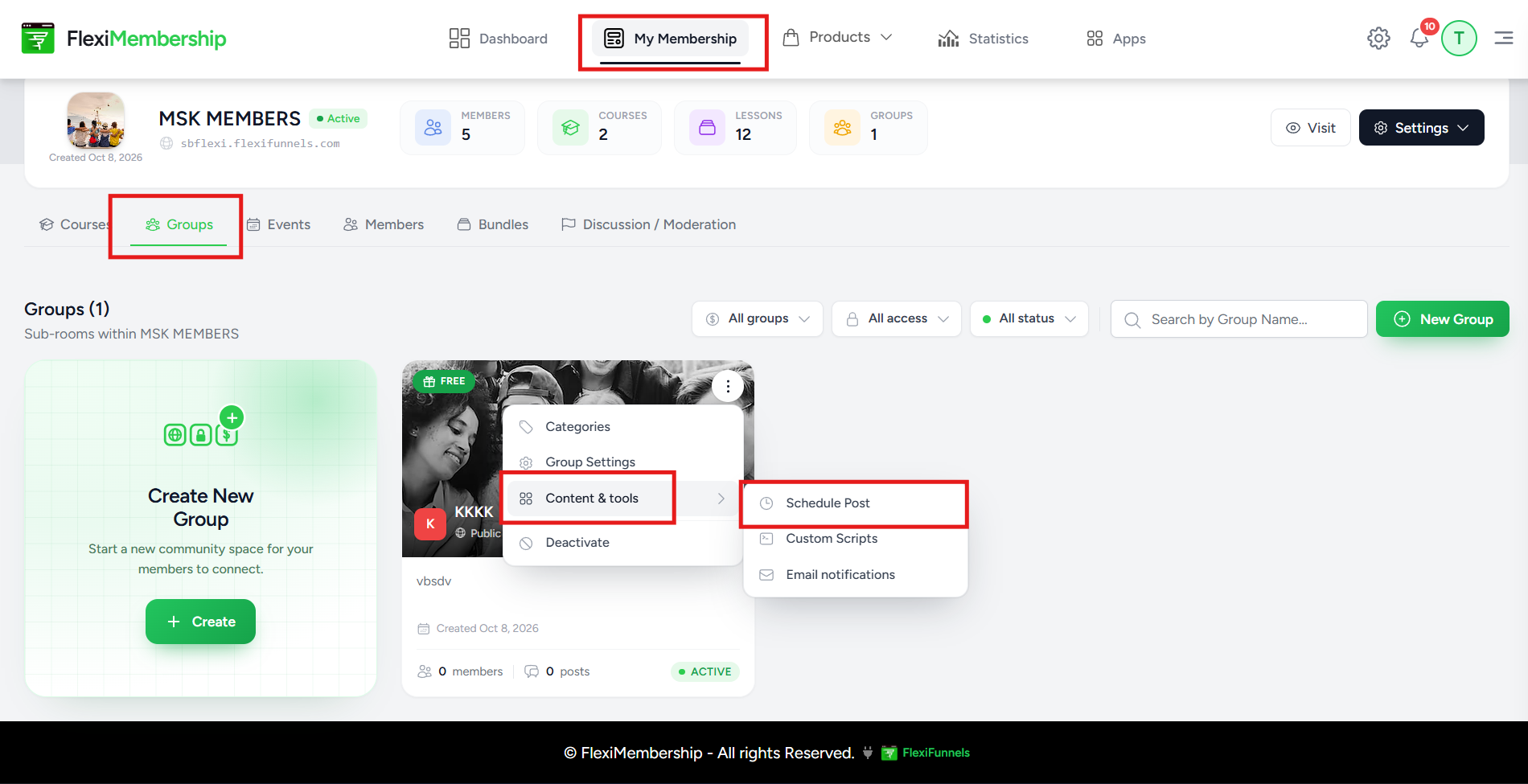
Step 1: Open the Group's Schedule Post Feature
- Open My Membership.
- Open the Groups section.
- Find the group where you want to schedule a post.
- Click the group's three-dot menu.
- Select Content & tools.
- Select Schedule Post.
Step 2: Choose How You Want to Create the Post
Open the Generate Post section. It provides three post-creation options:
| Option | What it does |
|---|---|
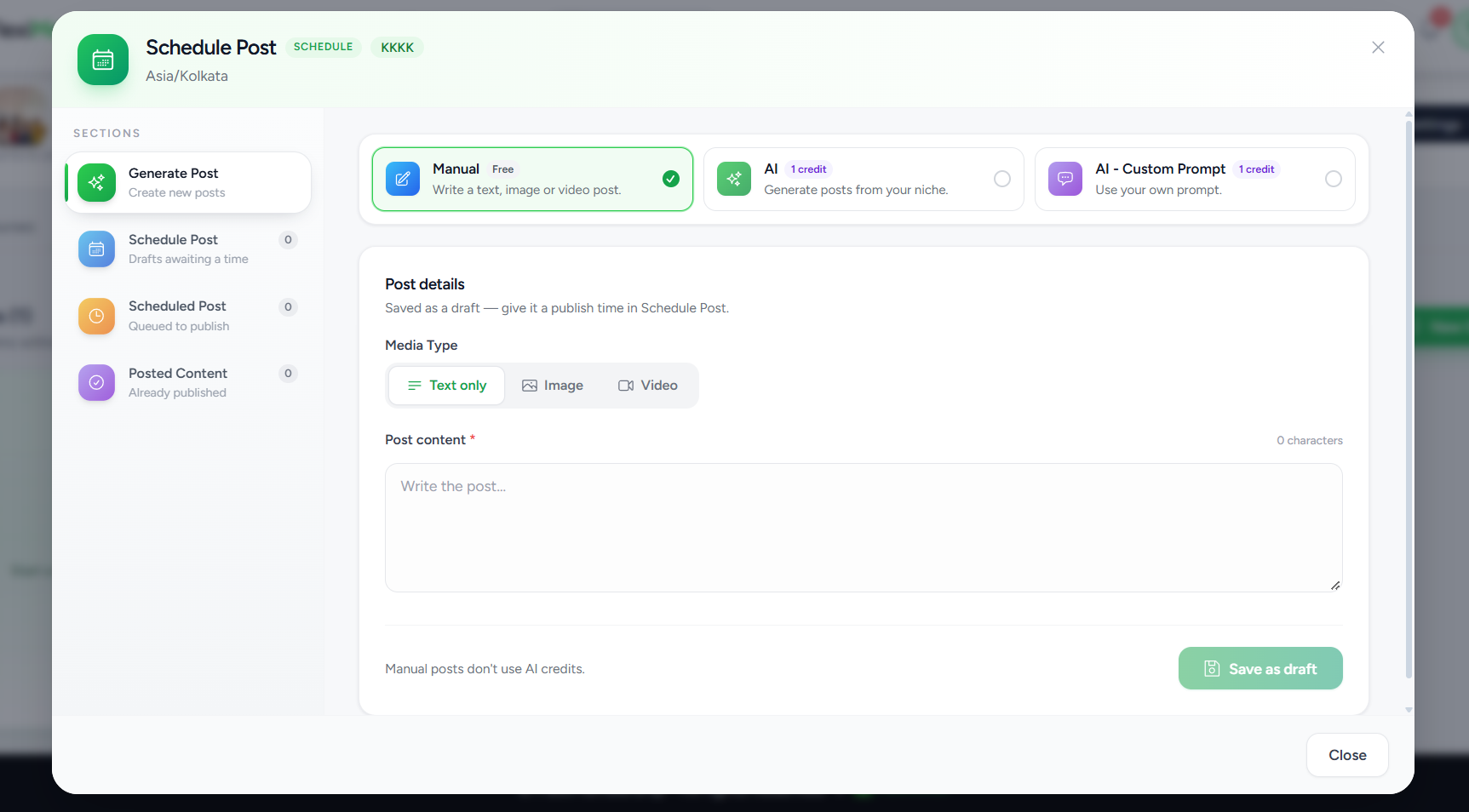
| Manual | Lets you write a text, image, or video post yourself. Manual posts are free. |
| AI | Generates posts based on the group's niche. Each generated post uses 1 Community AI credit. |
| AI - Custom Prompt | Lets you provide your own prompt for generating posts. Each generated post also uses 1 Community AI credit. |
Option A: Create a Manual Post
Select Manual. You can choose the media type and enter your post content. The available media types are Text only, Image, and Video.
Option B: Generate Posts with AI
Select AI. Enter the Group Niche that you want the generated posts to be based on. Then select the desired Language and Number of Posts.
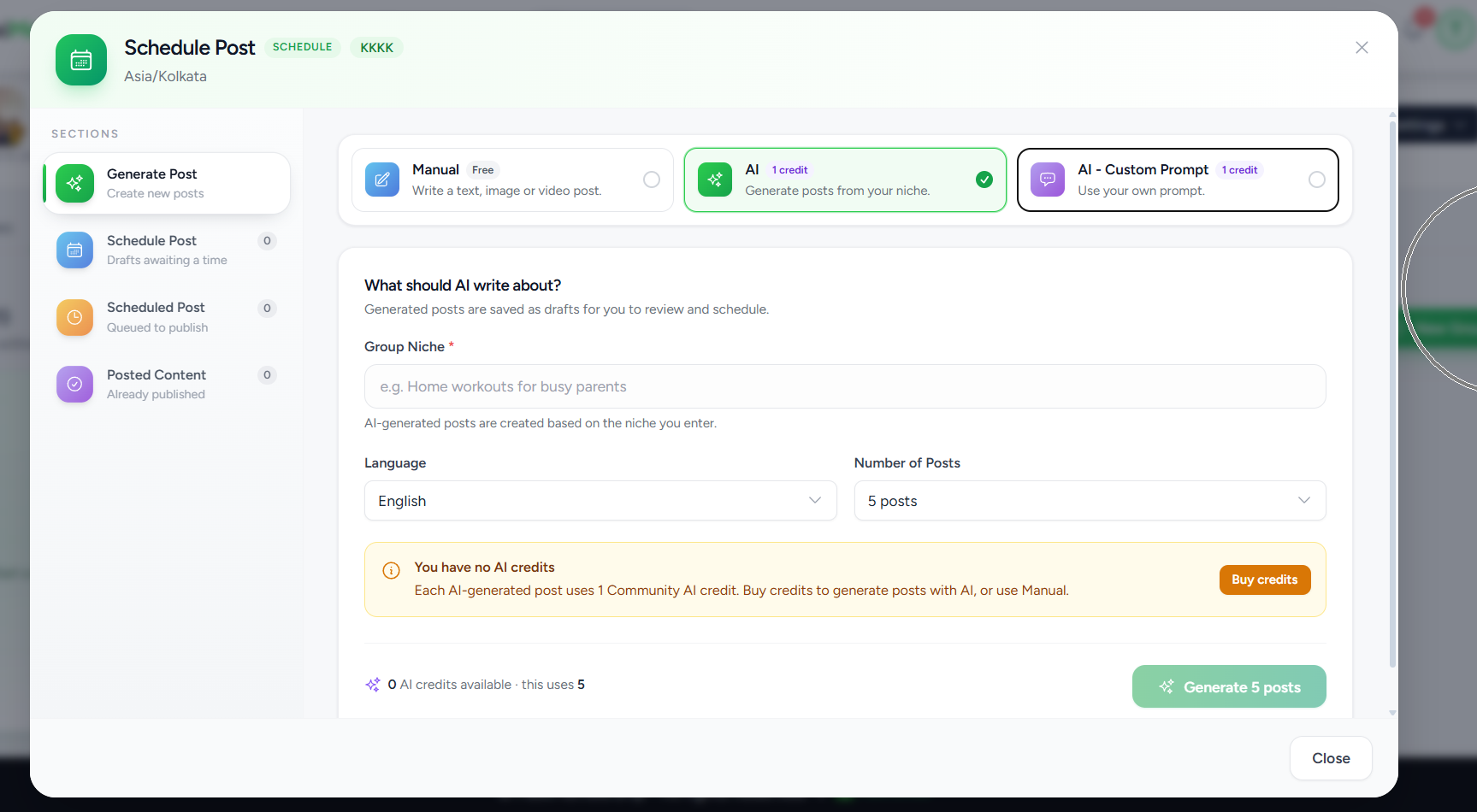
Click Generate to create the selected number of posts. Generated posts are saved as drafts for you to review and schedule.
Option C: Use an AI Custom Prompt
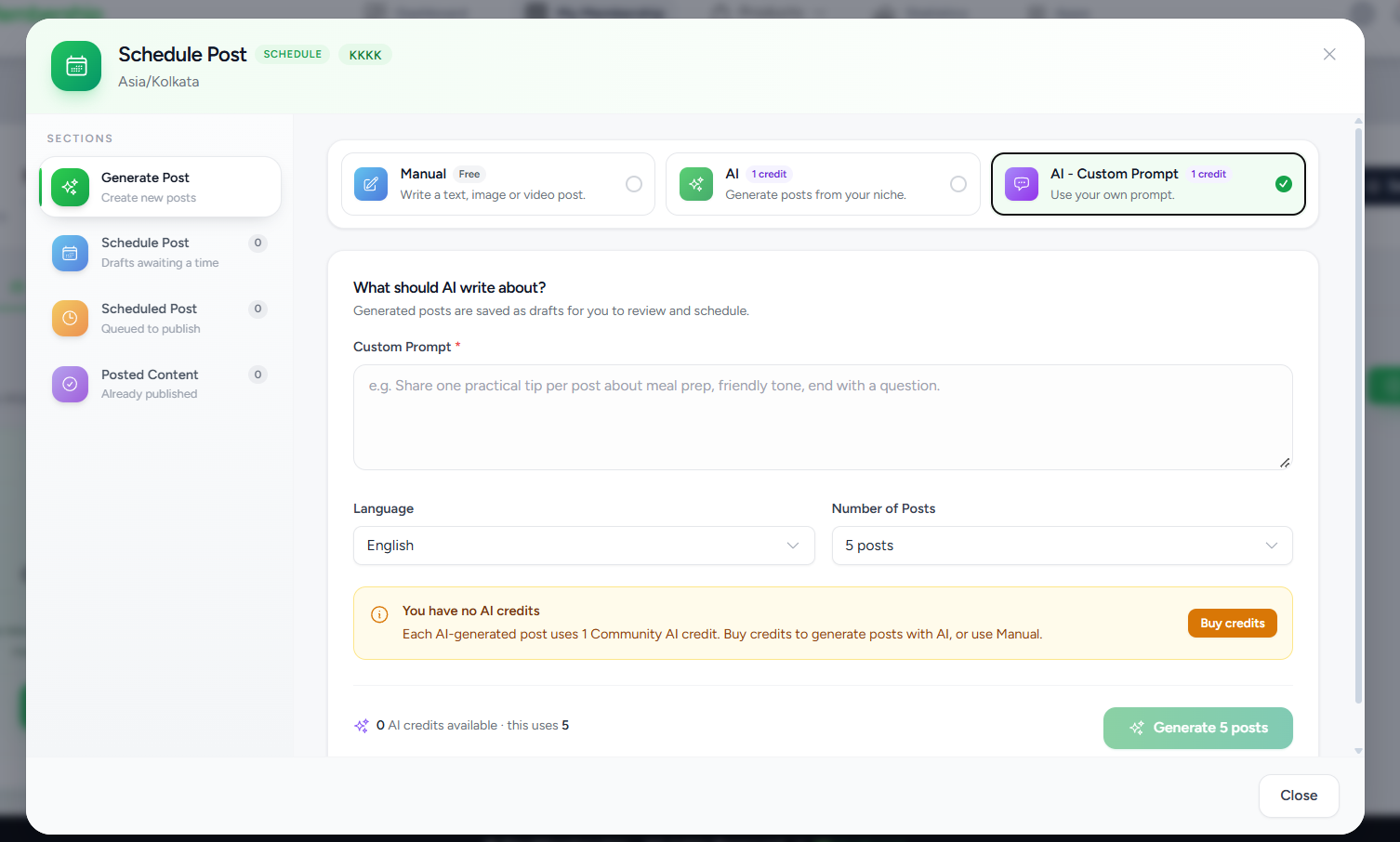
Select AI - Custom Prompt when you want to control the instructions used to generate the posts. Enter your instructions in the Custom Prompt field, then select the language and number of posts.
Step 3: Schedule a Draft for Publishing
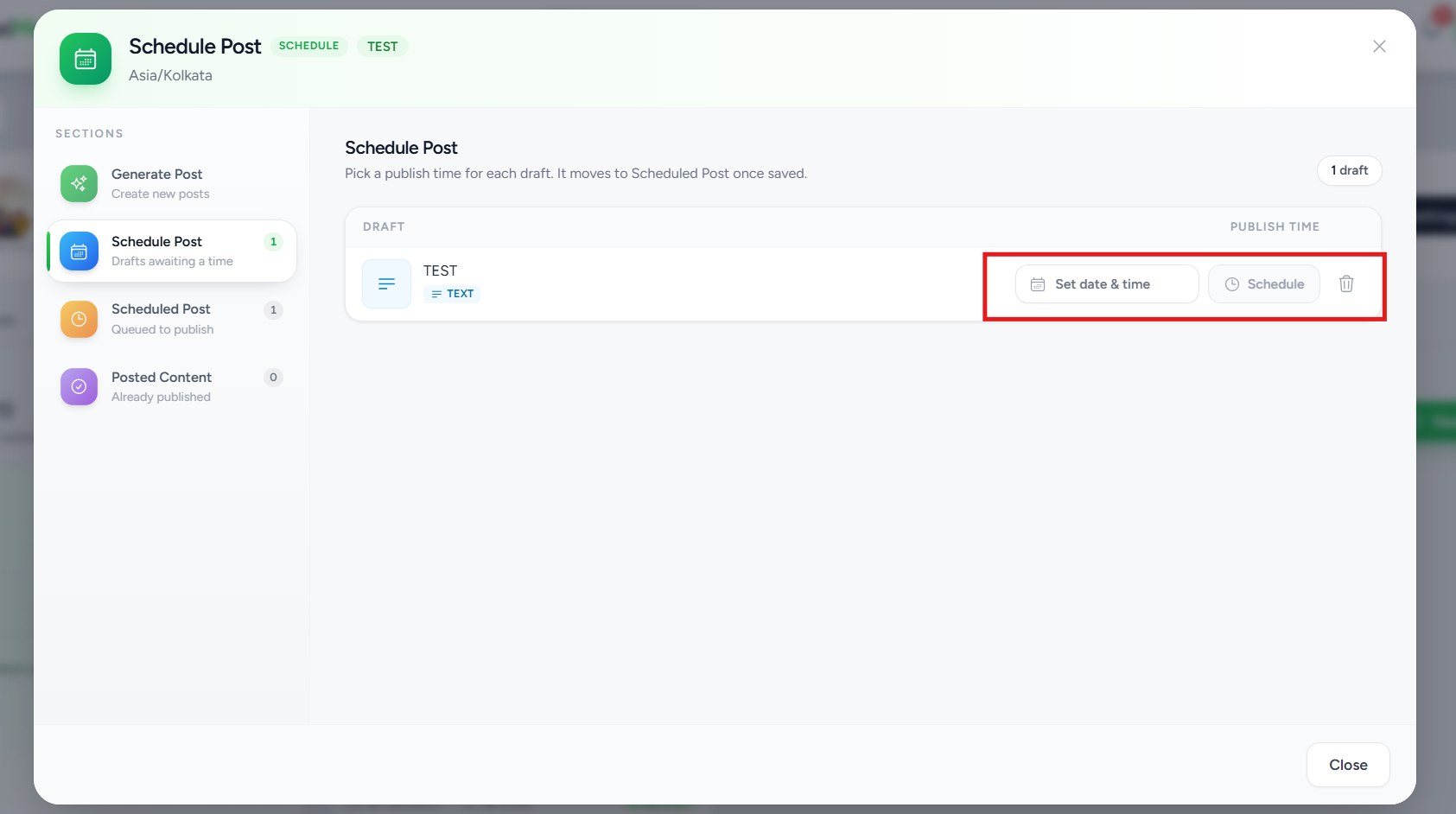
Posts that you create or generate are saved as drafts. Open the Schedule Post section (it shows a count of drafts awaiting a time) to assign a publish date and time to each draft.
- Open Schedule Post from the left-side menu.
- Review the available drafts. Each draft shows its title and post type (for example, Text).
- On the draft you want to schedule, click Set date & time.
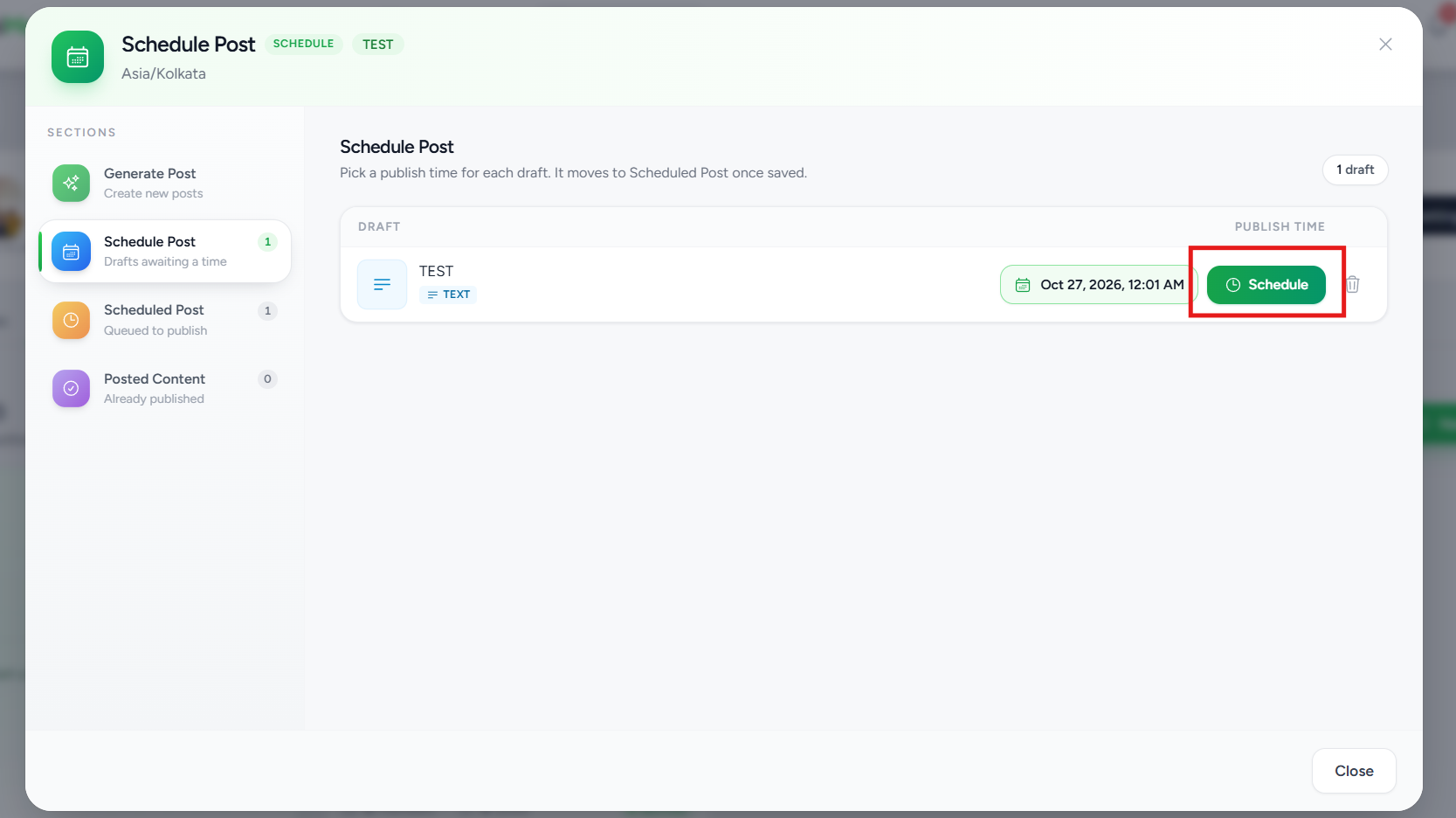
- Pick the date and time when the post should be published.
- Click Schedule to save.
Step 4: Manage Scheduled Posts
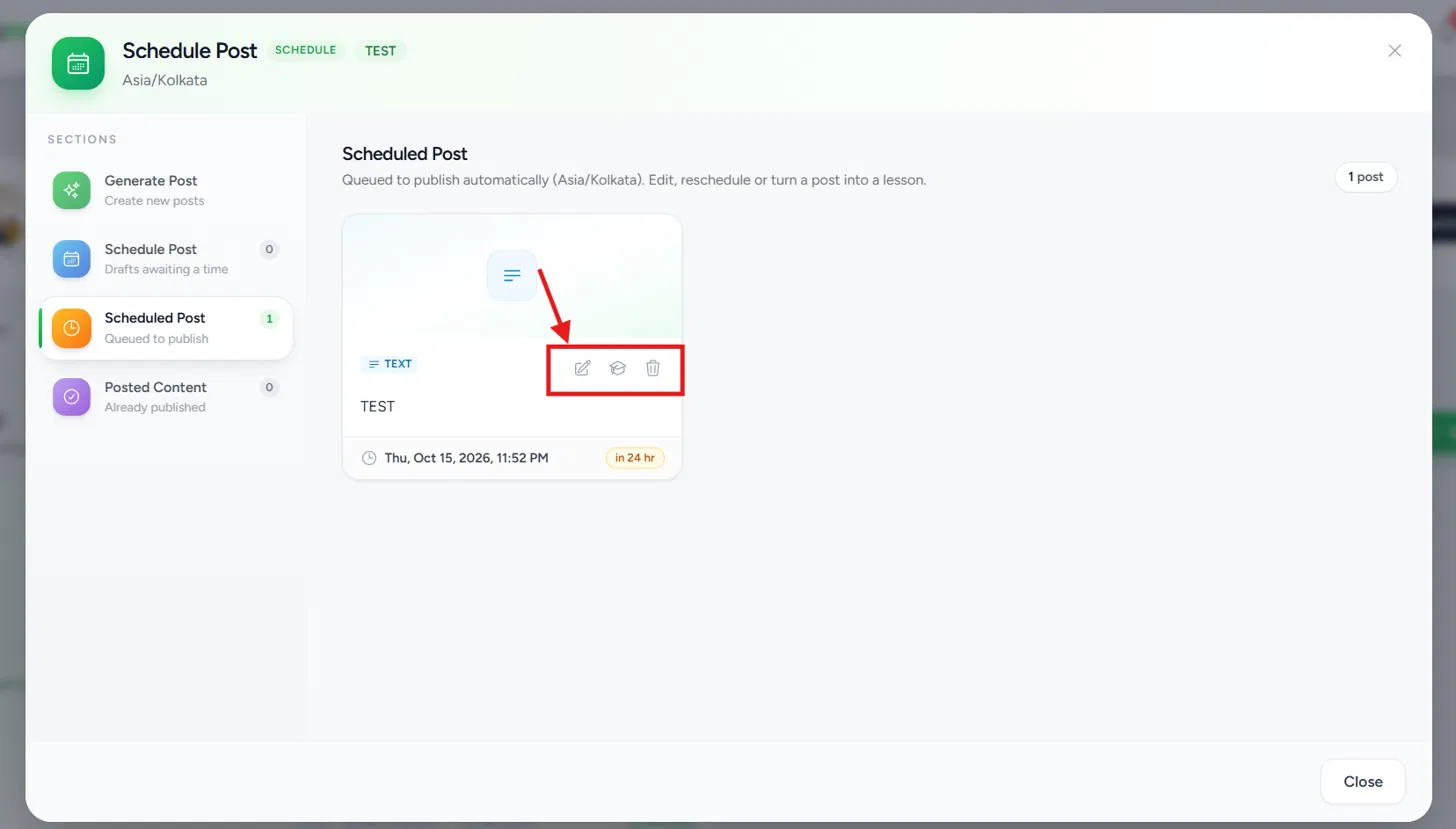
Open Scheduled Post to view posts that are queued to be published automatically. Each post card shows the post type, a preview of the content, the scheduled date and time, and how long is left until it publishes (for example, in 24 hr).
Each card has three icons you can use to manage the post:
| Icon | What it does |
|---|---|
| Edit (pencil) | Edit the post or reschedule it. |
| Add to a course (graduation cap) | Turn the post into a lesson in one of your courses. See Step 5. |
| Delete (trash) | Remove the scheduled post. |
Step 5: Add a Scheduled Post to a Course (Optional)
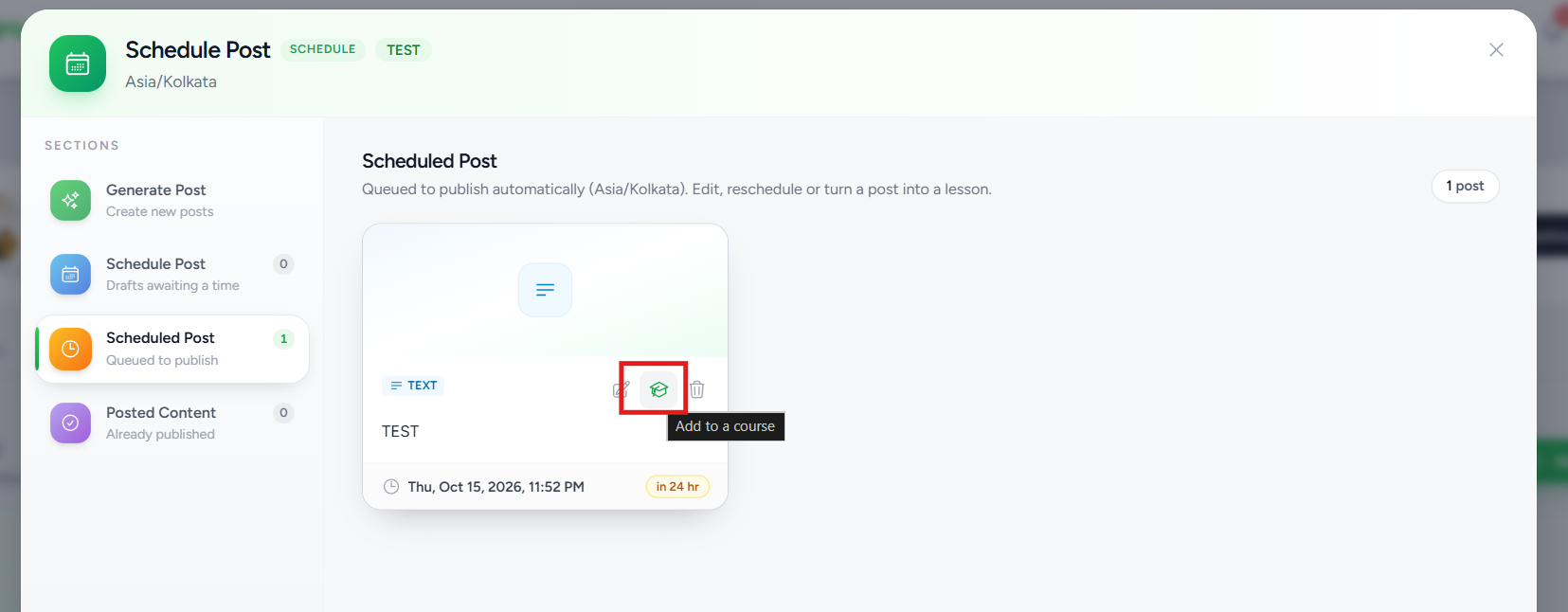
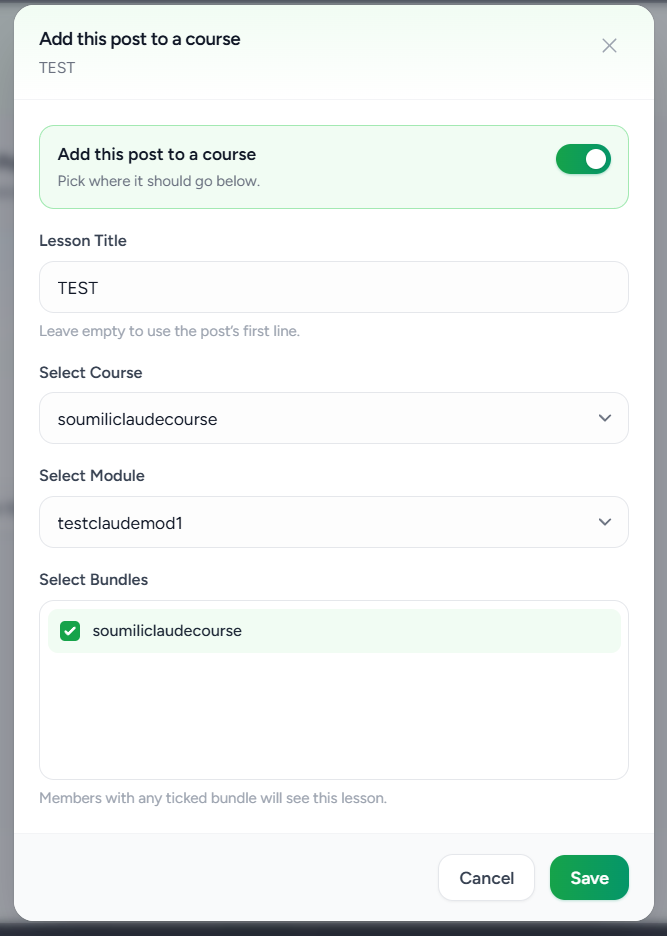
You can turn a scheduled post into a lesson. Hover over the graduation-cap icon on the post card; the tooltip reads Add to a course.
The Add this post to a course window opens. Turn on the Add this post to a course toggle, then fill in the details:
- Turn on the Add this post to a course toggle.
- Enter a Lesson Title. If you leave it empty, the first line of the post is used as the title.
- Select the Course.
- Select the Module.
- Under Select Bundles, tick the bundle or bundles that should see this lesson. Members with any ticked bundle will see the lesson.
- Click Save. To close the window without changes, click Cancel.
Scheduled Post
Use Scheduled Post to view posts that are queued to be published.
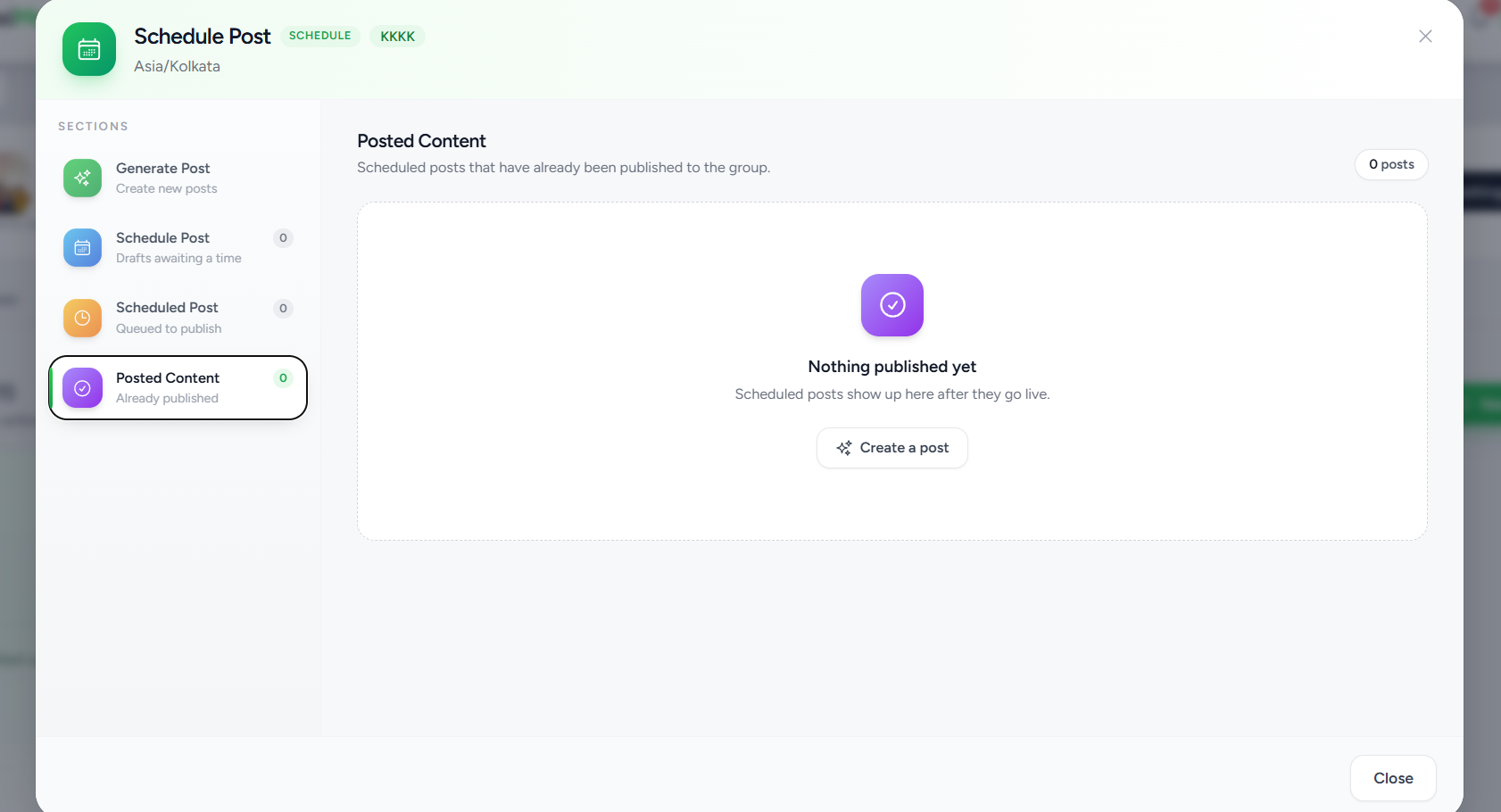
Posted Content
Use Posted Content to view scheduled posts that have already been published to the group.
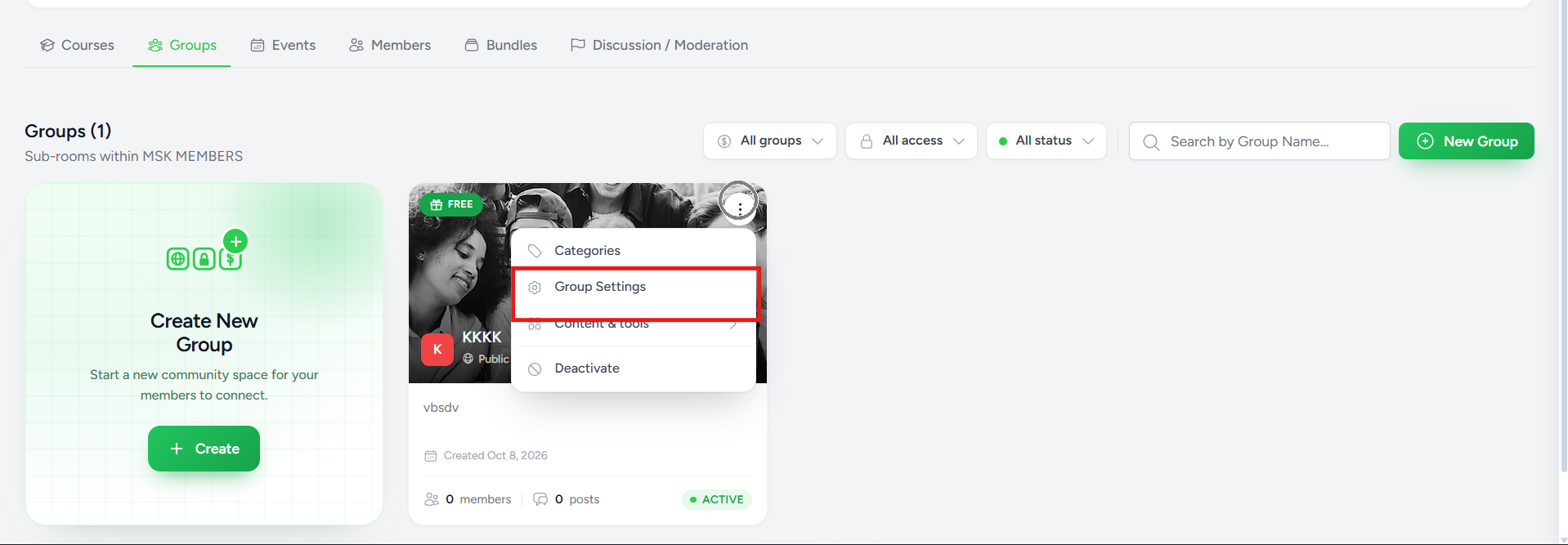
Step 7: Open Group Settings
- Go to My Membership → Groups.
- Find the group you want to configure.
- Click the group's three-dot menu.
- Select Group Settings.
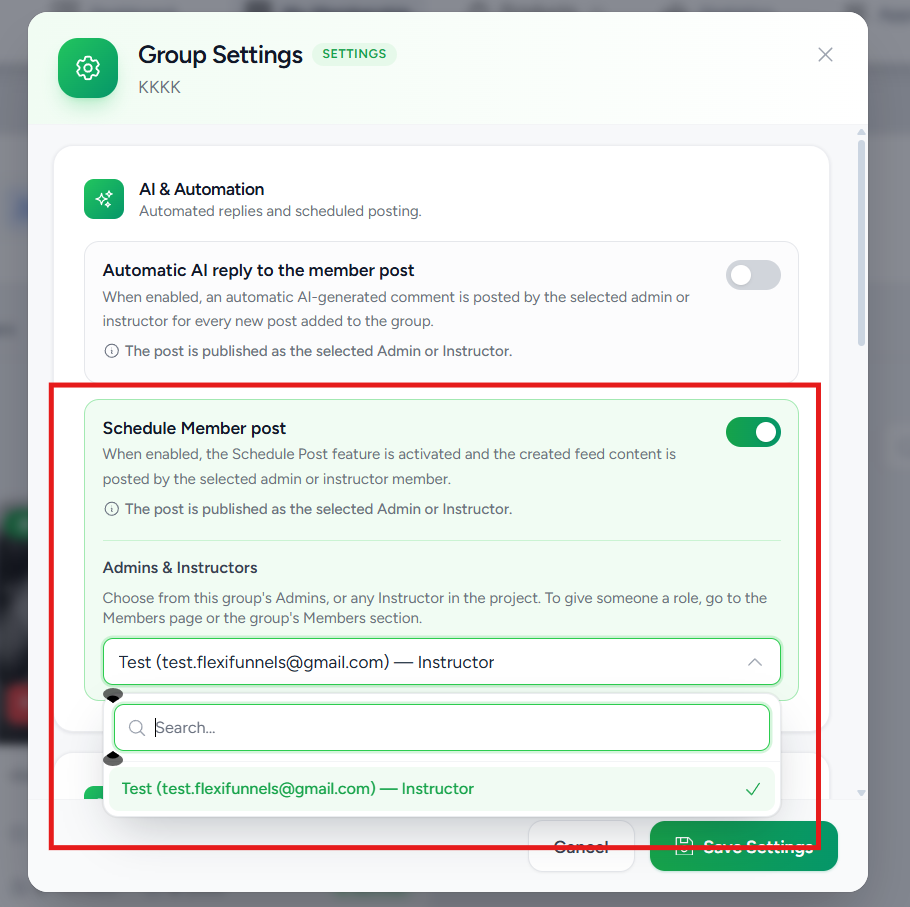
Inside Group Settings, open AI & Automation. You will see a Schedule Member post setting with a toggle and an Admins & Instructors selector.
- Open AI & Automation.
- Enable Schedule Member post.
- Under Admins & Instructors, select the instructor who should publish the scheduled content.
- Use the search field if necessary to find the instructor.
- Save the group settings.
Common Scenarios
You want to write the post yourself
Choose Manual, select the required media type, enter your content, and save it as a draft.
You want FlexiMembership to generate posts for your group
Choose AI, enter the group niche, select the language and number of posts, and generate the content.
You need more control over AI-generated content
Choose AI - Custom Prompt and describe exactly what you want the generated posts to contain.
You created a post but it has not been published yet
Check Schedule Post. Drafts need a publish date and time, and you must click Schedule, before they move into the scheduled queue.
You want to change the time of a scheduled post
Open Scheduled Post and use the Edit icon on the post to edit or reschedule it.
You want to use a post as a course lesson
Open Scheduled Post, click the Add to a course icon, and choose the lesson title, course, module, and bundles.
You want to confirm that a post has gone live
Open Posted Content. Published scheduled posts appear there after they go live.
Troubleshooting
- Schedule Post is not available: Confirm that you opened the correct group and are using the group's Content & tools → Schedule Post option.
- The post is only saved as a draft: Open Schedule Post, click Set date & time, choose a time, and click Schedule.
- The Schedule button is not active: Set a date and time on the draft first.
- AI generation is unavailable: Check your available Community AI credits. Each AI-generated post uses 1 credit.
- You cannot find the instructor: Open the group's Settings → AI & Automation and check the Admins & Instructors selector.
- The scheduled content is not appearing as expected: Confirm that an instructor is assigned and that the schedule was saved. Also check the publish time against the group's time zone shown at the top of the Schedule Post window.
Before Contacting Support
- Confirm that you opened the correct membership and group.
- Confirm that an instructor has been assigned to the group.
- Confirm that Schedule Member post is enabled under the group's AI & Automation settings.
- Check whether your post is still under Schedule Post as a draft.
- Confirm that a publish date and time has been set and that you clicked Schedule.
- If using AI, check your available AI credits.
- Check Scheduled Post and Posted Content for the current status.
Frequently Asked Questions
Can I create a post without using AI?
Yes. Select Manual. Manual is a free option and does not use AI credits.
Do AI-generated posts publish immediately?
No. AI-generated posts are saved as drafts for review and scheduling. You must set a publish date and time in the Schedule Post section and click Schedule.
Does AI generation use credits?
Yes. Each AI-generated post uses 1 Community AI credit.
What is the difference between AI and AI - Custom Prompt?
AI generates posts based on the group niche you provide. AI - Custom Prompt lets you provide your own instructions for the generated content.
Can I change a post after it is scheduled?
Yes. Open Scheduled Post and use the Edit icon to edit or reschedule it, or the Delete icon to remove it.
Can I turn a scheduled post into a course lesson?
Yes. In Scheduled Post, click the Add to a course icon, then choose the lesson title, course, module, and bundles and click Save.
Where can I see posts that have already been published?
Open Posted Content. It shows scheduled posts that have already been published to the group.
Do I need to assign an instructor?
Yes. Before performing the scheduling action, make sure an instructor is assigned to the group under Group Settings → AI & Automation → Schedule Member post → Admins & Instructors.
Summary
- Open My Membership → Groups.
- Open the group's three-dot menu.
- Select Content & tools → Schedule Post.
- Create a post manually, with AI, or with an AI custom prompt.
- Review the post saved as a draft.
- Open Schedule Post, click Set date & time, choose a time, and click Schedule.
- Check Scheduled Post for queued posts. Edit, reschedule, add to a course, or delete from there.
- Check Posted Content after the post goes live.
Was this article helpful?
That’s Great!
Thank you for your feedback
Sorry! We couldn't be helpful
Thank you for your feedback
Feedback sent
We appreciate your effort and will try to fix the article