The map displays member locations using profile markers.
Each marker represents a member within the membership.
Clicking a marker opens the member's profile.
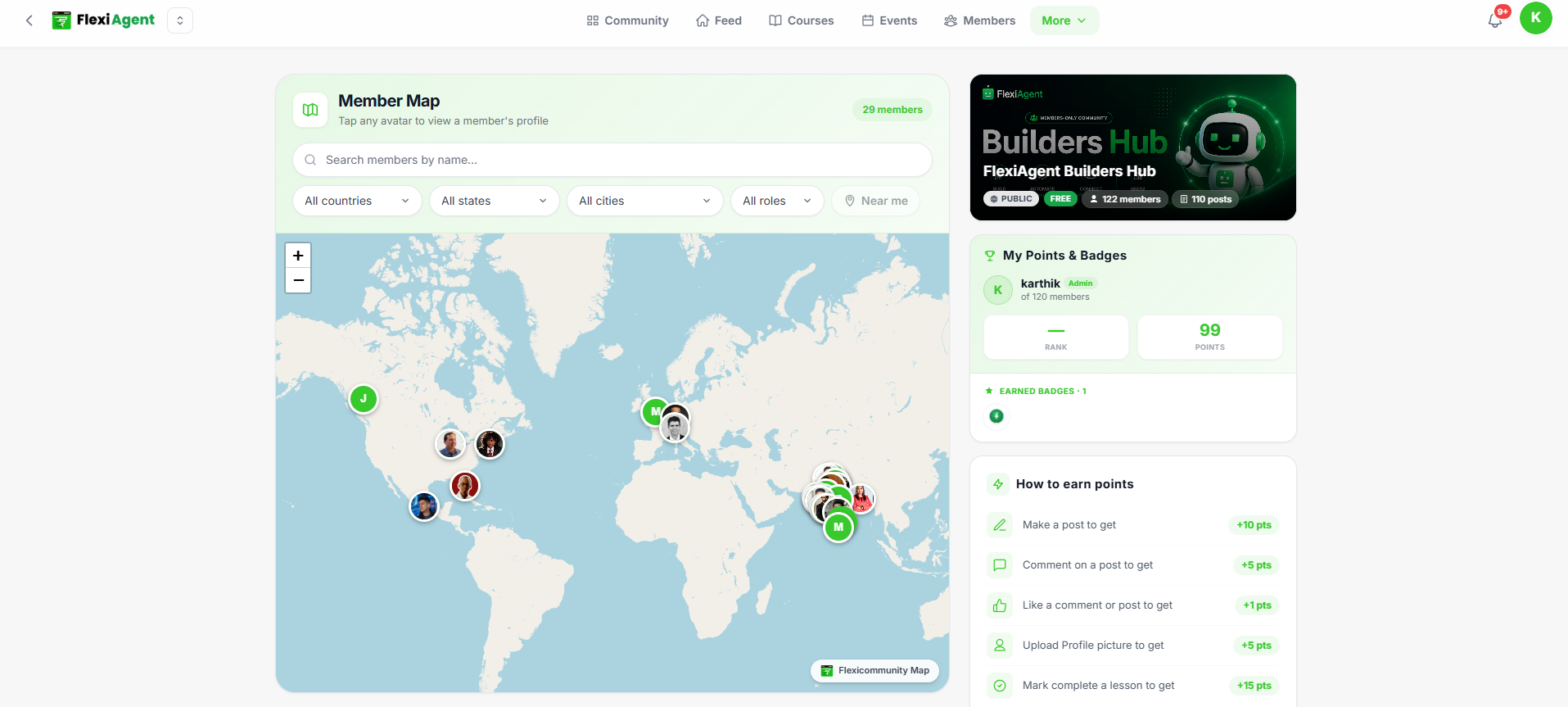
Search Members
Use the Search Members by Name field to quickly locate a specific member.
Matching members appear as you type.
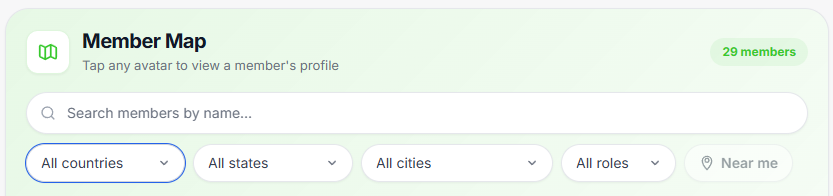
Filter Members
The Member Map supports several filters.
Country
Filter members by country.
State
Narrow results by state or province.
City
View members from a specific city.
Role
Display members based on their membership role.
Examples include:
- Admin
- Instructor
- Member
Near Me
Click Near Me to locate members closest to your current location.
Depending on your browser settings, you may be asked to allow location access.
Zoom Controls
Use the + and − buttons to:
- Zoom in
- Zoom out
- Explore different regions
Member Count
The page displays the total number of mapped members.
Tips
- Use filters to narrow large communities.
- Click profile markers to learn more about members.
- Enable location access for accurate "Near Me" results.
Note: Only members who have location information available will appear on the map.
Was this article helpful?
That’s Great!
Thank you for your feedback
Sorry! We couldn't be helpful
Thank you for your feedback
Feedback sent
We appreciate your effort and will try to fix the article